
In my article on how to increase our privacy online I explained that one good practice is to compartmentalize our browsing and internet use across different devices (PCs and also mobiles, if possible).
In this article I go deeper into the subject and explain exactly how I have my system set up and the real cost of doing it this way.
When you read it, I think you may be surprised and see more benefits than you expected in having more than one PC. And with the costs I show you, even more so.
Reasons to compartmentalize your internet use across several devices
There are several.
Greater security
The first, perhaps, is that greater security and privacy I was talking about in the article linked above.
With the rise in malware, phishing and spam, keeping the most important devices -the ones where your money is on the line- less exposed to these threats is a very good reason. But not the only one.
More speed
On those same important devices, you do not install anything you do not really need.
The applications or programs you want to try, anything that is not strictly necessary for their job, gets tested or installed on cheap test machines. Less risk, less bloat, more free resources for what matters.
When you are working, the device's response matters. And the less “junk” you have installed, the more disk space, free RAM and fewer background processes you will have.
The result is more speed. And the faster your computer is, the less you will feel like checking your phone and getting distracted while the corporate application opens.
As you can see, speed affects performance on different levels.
Also, if it crosses your mind that you will have to rely on memory and know which computer has a certain file, nothing could be further from the truth. The criterion is very clear: if it is a work file it is on one device and if it is for leisure it is on another. Nothing more.
Fewer resource requirements
Following on from the previous point: less installed software means more freed-up disk space and RAM. And less CPU usage.
When you distil what you need for each usage context on your computer, you will be surprised by how well old computers, or new but relatively modest ones, work (i3, Ryzen 3 or even N150 type).
Much better backups
I do not know whether you back up your work. I assume you do, either on physical drives or at least with clouds like OneDrive, Drive, Box…
The thing is that, unless you work in editing (video, image, music, CAD), in general, the files we store rarely exceed 15 MB.
Yes, of course there are 80 MB presentations. And 400 MB Excel files. I work with them every day. But if you take a quick look, you will see that the bulk of your work files rarely go over those 15 MB.
By avoiding downloading crap onto your work computer -you will do that on another device- you will achieve a huge saving in the amount of data you need to back up. And you may even have enough with the free version of some cloud service like Box (I have 50 GB), without needing to pay for plans.
Emergency device
We talked about file-level backups in the previous point. But we can also talk about redundancy at device level.
If you are working and, for whatever reason, your PC suddenly breaks down (the power supply or motherboard fails, because you do not maintain it), if you have another device at hand, you just take it and carry on where you were, especially if your files are backed up in the cloud.
Even if it is temporary and you need to spend a little time installing software you do not have on your test machine, you can finish what you need on another computer with a 30-minute delay instead of leaving it pending until you repair your main and only machine.
In other words, if one device breaks, you have others for emergencies. And that gives peace of mind.
You do not have to move equipment around
This one is also good if you work “officially” in several places at once. That is, if you work, for example, in an office and at home. Or in a coworking space. Or you visit several clients.
You do not need powerful laptops, whose price is considerably higher than that of a desktop PC with comparable power, but rather a desktop and a light laptop. Or two desktops.
In my case, when I worked at Yo pongo el hielo, I had two pretty beefy desktops: one at the office and another in my home office. Both quite powerful, but their combined cost was lower than that of any MacBook Air.
Lower costs than they seem
And that is how it is: when you know a minimum about computing and hardware, you see that there are many more options than looking on Amazon or, worse still, at the computers displayed in any MediaMarkt or El Corte Inglés.
The average power of computers has risen in recent years much more than users' need for that power. Especially because a huge number of services are now SaaS and run in the cloud.
This means that, computers with a few years behind them, or new but lower-end ones, will be more than enough for most office jobs. Of course, leaving aside, as I mentioned before, serious image, video and music editing, or running AI models locally.
What does all this translate into?
Well, into the fact that you can build more private and secure systems for less money. Like, for example, mine.
My system of use and devices
In my case, I have been compartmentalizing the use of my PCs for years. Not so much on mobile and, except when I have had a mandatory company phone, I have preferred to have a single device.
That said, my mobile use is simple: emails, calls, WhatsApp, browser, Feedly and financial management apps. I do not use social networks (barely LinkedIn), or games, and since my first Androids I have tinkered little with these devices, so it is far from overloaded.
But on a computer I do have several different uses and, taking advantage of the fact that because of changes in the type of work I have just recently rethought my work system, I will show it to you.
Device 1: for work and paperwork › A small desktop with Linux
The device I turn on when I sit at my desk every morning and the one I spend the most hours on during the year, without a doubt.
It is where I do the “official” things, so it has to:
- Be secure.
- Run relatively fast.
- Have some capacity for simultaneous load at specific times, such as when I am rendering training videos while I keep working with several browser tabs open.
I use Linux Mint for privacy, security and performance and it has nothing installed that is not strictly necessary, except some software Mint includes by default, which I leave because it does not bother me too much.
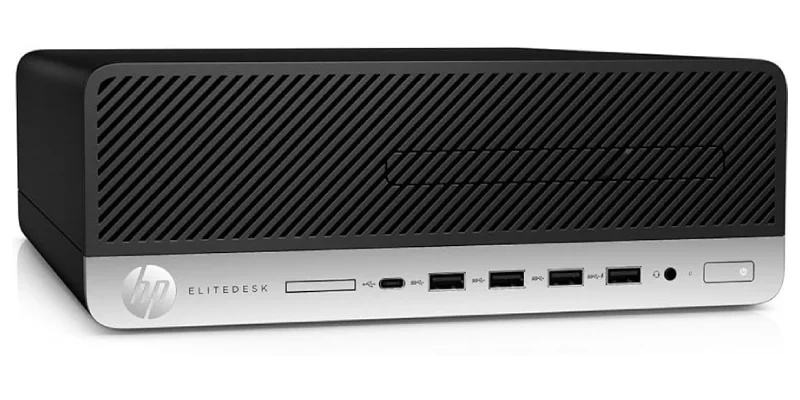
Device specifications
- Brand: HP SFF (Small Form Factor).
- CPU: Ryzen 7 Pro 2700.
- GPU: NVIDIA GT-730 with dual 4K@60Hz output.
- RAM: 16 GB.
- Hard drive: 512 GB NVMe.
- Monitor: external 28-inch 4K monitor. Occasionally I add another portable external one, also 4K.
Use and software
#1. Browsing
I mostly use Chrome for device synchronization and the optimization of official websites for this browser, although I also use Brave at certain times.
When I can, I use webapps (the website itself) instead of native apps, for security and RAM consumption. Examples:
- Gmail
- Notion
- Slack
- Asana
- Google Docs
- Telegram
- ChatGPT
Whenever I can, I use a VPN, although I have to disable it sometimes (services that do not work well) and it is the only one on which I have the digital certificate, needed for certain processes.
#2. Office work
Here I almost always use Google Docs in the browser. When I absolutely need an application, I use OnlyOffice because of its very high format compatibility with Microsoft Office.
For CSV it is not unusual for me to use LibreOffice, and as a text editor, for quick things I use Xed (the program that comes by default), although I have Sublime Text installed for occasional more advanced cases.
#3. Mind maps
This one annoys me quite a bit to have to install, but there is no comparison between the installable free version and the cloud version of X-Mind, which is the program I use.
And I have not found any reasonable free online alternative, so I keep the program installed, since I use it daily.
#4. Editing
For my fourth use case, which is editing images or video, I have to say that I have to use a Windows virtual machine for the Adobe suite (basically, Photoshop, Illustrator and Premiere).
Although with Photopea I manage well enough to replace the first one, my partner only uses Illustrator and I need to have the program installed, because with Inkscape and similar tools, files do not open 1:1.
And for video, although I would like to get into DaVinci Resolve (I will), for now CapCut does not fit me and I keep using Premiere, which is the one I know well after many years working with it.
I also use a screen recorder (SimpleScreenRecorder) and HandBrake to convert video formats and codecs.
#5. SEO
Yes, I still do SEO for some client. So I have a couple of programs installed: Screaming Frog and Rank Tracker. They will stay on the device as long as my SEO services last, whose final horizon I can already glimpse.
#6. Video game programming
A few months ago, riding the wave of AI advances, I encouraged myself to learn how to program a video game I had in mind. Something 2D and not too complex (in theory). For this I installed the software recommended by my developer assistant -who also generates the code- ChatGPT:
- Git.
- GitHub Desktop.
- Visual Studio.
- Unity.
#7. Cloud storage
I have several clouds, where I compartmentalize my different uses:
- Drive: clients, my own website and Pincelada de Historia (my partner's project).
- Box: my teaching material.
- OneDrive: material for the video game.
- Dropbox: paperwork.
- Mega: the training courses I buy.
The only cloud I open every day is Google Drive. The rest, only when I need them (between zero and several times a month). This way, they are not constantly syncing and consuming resources.
This would be the use I give my main device.
Although it may seem like many applications, the truth is that there are not that many, and the device I have had for a couple of years -which replaced my ancient and beloved i7-4770, which stayed with me for eight- runs everything quite well.
Even transforming videos with HandBrake while I write in a Google Doc with twenty tabs open, with the CPU and RAM at 100%.
A device chosen to suit me: powerful, but very small (it fits in my laptop backpack) with replaceable components (which is why I rule out miniPCs) and 4 RAM slots. In fact, this point, the RAM, is the only thing I will probably expand to 24 GB or 32 GB when prices drop to something like normal.
Device 2: for leisure › An old laptop with Windows
This second device is relatively new to me (I have had it for a few months), since previously I used a miniPC connected to the living-room TV.
When I rethought my whole system, I saw that it was better to change it, so I got myself a very cheap old Windows laptop, but enough for what I need. And with welcome extras, such as lots of ports, a removable bay where I can swap an SSD or DVD reader.
This device is idle 95% of the time, except when I want to tinker with something, when I take it out and start messing around, freeing the main one from programs I do not need in my day to day.
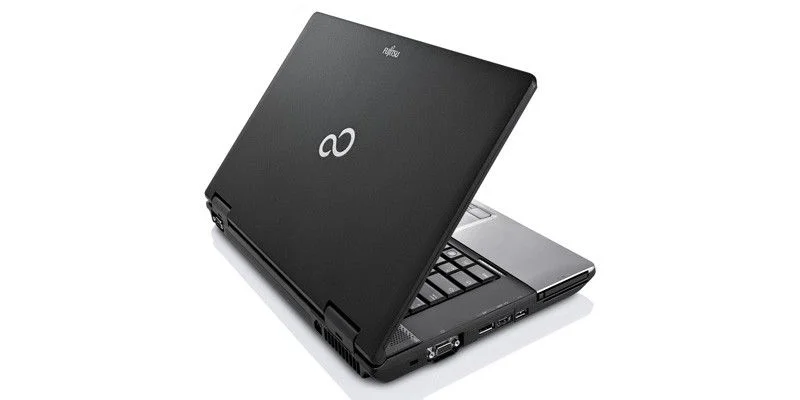
Device specifications
- Brand: Fujitsu Lifebook E752.
- CPU: i5-3210M.
- GPU: Integrated Intel HD.
- RAM: 8 GB.
- Hard drive: 128 GB Samsung EVO SSD.
- Monitor: 15-inch matte 1600x900px screen.
Use and software
Browser: : Chrome temporarily, while I move to Brave for good.
Tinkering with software: here I try all kinds of software, for whatever. I install it here, after running it through the antivirus in case it brings malware, and use it for whatever is needed. Usually they are very specific programs that I use once or twice at most.
Other programs: to remove the DRM from the books I buy on Amazon and be able to read them on my Kobo, I have used Calibre for years. And well, I bought this PC precisely to tinker in an (almost) risk-free environment with the biggest software revolution of this year: OpenClaw. Since it is a closed environment with no access to sensitive material, I can tinker without risk.
Downloading things: always with VPN enabled, I use this system to download music or qBitTorrent for films or series.
Video: : VLC to watch films while they are downloading or already downloaded. Stremio to stream them.
Games: it is not that I play on this PC -for that I have the Steam Deck– but I have used it to try emulators –like this true marvel, here in the format in which I got it-, or to tinker with USBs and microSDs for the R36S or for the Steam Deck, where I use Rufus to mount the image and SD Formatter for that: formatting the SD beforehand.
Cloud storage: I also have them installed here, as a backup:
- OneDrive
- Drive
- Box
- pDrive
- Dropbox
- Mega
With these two devices I would have more than enough to get by, but I have recently added a third one, which gives me much more play than I expected.
Device 3 (optional): for living-room use and travel › A lightweight Chromebook
My latest purchase is a very light 12-inch convertible laptop that came with ChromeOS as its operating system.
I bought it precisely for this, to check how this web-based OS works and whether it could serve me for work when I go to events or on holiday, since the previous laptop weighs more than 2KG.
It has served for that and for much more, such as working comfortably on the living-room sofa, or even reading library comics using its tablet format.
In my series of articles dedicated to Chromebooks I tell you much more about their use, but, as a conclusion, keep in mind that for what it cost me, it has been a complete success.
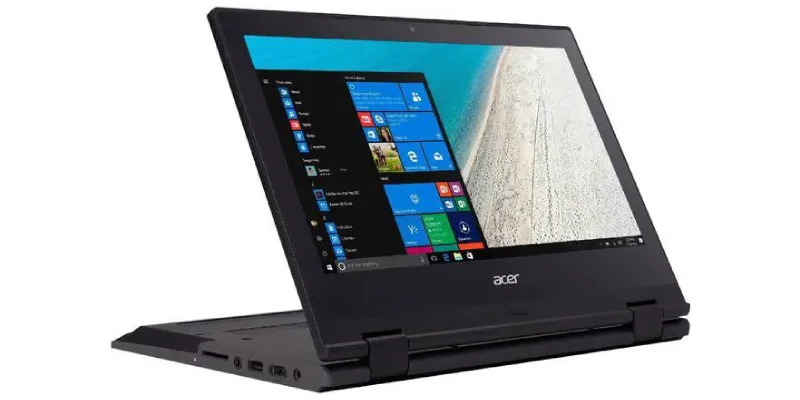
Device specifications
- Brand: Acer Spin 11.6.
- CPU: Intel N3450.
- GPU: Integrated Intel HD.
- RAM: 4 GB.
- Hard drive: 64 GB eMMC.
- Monitor: 11.6-inch matte 1366x768px screen.
Use and software
Browser: : Chrome, super optimized for this OS.
Work: it is the device I take when travelling, although I only run what the browser allows me to (no Android apps, to optimise Chromebook performance). For example:
- Gmail
- Google Docs
- Notion
- Slack
- Asana
- Telegram
- ChatGPT
- X-Mind (no choice but to use the web)
Downloading things: always with VPN enabled, here I explain the download system I use on the Chromebook.
Video: again, I leave you an article with the best way to watch video on a Chromebook.
Games: I have not used it even once for this, although I am tinkering to use this, which is a retro delight.
Cloud storage: only Google Drive, with different user profiles.
Pseudo-device 4: for DeFi › An external SSD and a USB drive with Linux
Until recently I had an old laptop dedicated to this. But when I bought the Chromebook and carried out the aforementioned device restructuring, I removed it from the list, replacing it with an external SSD, with the backup of a USB 3.2 flash drive.
In both cases, what I do (generally with the Chromebook, although I can do it with any of the three devices) is boot from the external drive. On the SSD I have Linux Mint installed, while on the USB I have a Live version with persistence for certain files.
My use here barely consumes resources, since it is just checking my crypto investments. The point was that:
- For security, it is better to isolate this use completely, with a dedicated device / hard drive.
- When I travelled, I had to carry two devices, this one and the work one.
With this change I now travel only with the Chromebook, plus the SSD and the USB. Everything is much simpler.
Pseudo-device specifications
SSD: NVMe with USB 3.0 enclosure.
USB: SanDisk USB 3.2.
Use and software
Browser: : Brave.
VPN: double, in case one fails.
Crypto software: one program for the hardware wallet and several hot wallets.
Extra hardware
As a file backup, in addition to the cloud, I have two 2 TB external hard drives, where I store work files, image and video RAWs, as well as all my music, which has taken me years to collect and I would be very annoyed to lose.
One of them is always connected to the main PC and I connect the other when I want to back up the new stuff.
The cost of a compartmentalized system
Putting this together has had a simply laughable cost, as you will see:
- Main device: €70 for the device with 8 GB of RAM + €15 for an extra 8 GB of RAM, all bought on Wallapop.
- Secondary device: €25 for the device with 4 GB of RAM + €5 for an extra 4 GB of RAM, again all bought on Wallapop.
- Travel device: €25, bought on Wallapop too, of course.
- External SSD: at the time €30 + €10 for the USB enclosure, both new.
- USB 3.2: €12, new.
- External backup HDDs: €60 each, new.
Total: 70+15+25+5+25+30+10+12+60+60 = €312
That, barely €300. Less than any acceptable new laptop, is what I spent on my whole assembled system. A very tested, fairly secure system, with backups and redundancies, which lets me feel extremely comfortable in front of any of my devices.
Obviously I know about the subject -I have been building computers since I was 20 and I handled all the hardware at Yo pongo el hielo, which was more than 30 computers-, which has allowed me to buy good second-hand deals and design the whole use.
But, even buying everything new, spending a little time choosing each element, the total investment would be around €1000. For an ecosystem that will last you, at minimum, 5 years in good condition, treating it normally (without drops or spilling coffee or Coca-Cola on it).
€200 a year -aiming VERY high- to live much more calmly, with more security and less risk, work better and faster. And, on top of that, everything more private.
Again I insist, if you use local AI, you are an architect, designer, video editor or in other artistic professions where you need high graphics power, the cost of the necessary GPUs is not considered here.
But these cases do not even reach 5% of all jobs that use a PC for daily work. And the remaining 95% of people have more than enough with a system like the one I propose here. It is only a matter of:
- Thinking about each use case.
- Designing the system that makes sense.
- Looking for and buying the devices.
That is it. In a week, at most, you can have everything operational.
Conclusions
Separating PC use by context is not geekery or a whim; it is a very practical way to work better.
You gain security because you reduce exposure to risks on important devices, but you also gain speed and focus: fewer programs, less noise and fewer distractions. Each device has a clear purpose and that simplifies decisions and removes friction from day to day.
Also, the real cost of setting up such a system is much lower than it seems. Whether with second-hand devices or new ones, but of a lower range than you probably think you need (the advantage of installing only what is necessary), you can perfectly cover most uses. Also getting greater comfort, redundancy, privacy, real backups and an immediate “plan B” if something fails..
As I say, it is not just a technical matter; it is a way to buy peace of mind, performance and comfort for much less than you imagine.
It is up to you now whether to keep accumulating rubbish like a digital Diogenes in your work tool, or whether you prefer to put the winter clothes you no longer need in the storage room that is your secondary device.
Frequently asked questions
What does compartmentalizing PC use mean?
It means separating your activities across different devices depending on the context (work, leisure, testing, finance…). This reduces risk and optimises each environment for its function.
Does it really improve security?
Yes. By not mixing uses, critical devices are less exposed to malware, suspicious downloads or errors caused by software testing.
Does it also affect performance?
Directly. Fewer installed programs and fewer background processes mean more free RAM, less CPU usage and a faster, more stable system.
Isn't it more inconvenient to use several devices?
Quite the opposite. It simplifies decisions: you know where everything is and avoid mixing files or settings. Less chaos, more clarity.
Do you need to spend a lot of money?
No. With second-hand devices or more basic ranges than you think, you can cover most uses. The total cost can even be lower than a single powerful laptop.
What happens if a device breaks?
You have redundancy. You can keep working on another device without stopping your activity, especially if you use cloud copies.
How does it affect backups?
It reduces volume and complexity. By separating uses, you make cleaner and more efficient backups focused on what really matters.
Does it make sense for every type of user?
For most, yes. Only in very specific cases (heavy editing, local AI, etc.) will you need more powerful devices, but even then the logic of separating uses remains valid.
Can it also be applied on mobile?
Yes, although it is less common. It depends on the level of risk and the type of use, but the principle is the same: separate contexts to reduce exposure.

Leave a Reply