
In the end, there won’t be three but four initial articles I’m going to dedicate to the Chromebook.
The reason is that watching videos on the device has a bit more to it, so instead of adding a section inside this same article, I preferred to write a separate tutorial where I explain exactly how to watch movies on a Chromebook in the best possible way.
That post, together with this one you’re reading and the previous ones about how to optimize a Chromebook and how to set up a VPN on it, make up this initial burst of articles covering the main aspects of these wonderful and surprising devices.
Well then, after this brief introduction, let’s get to what matters: how to download torrents here.
To do that, my recommendation is that you follow these steps.
#1. Have Linux enabled on your Chromebook
You enable it from Settings > About Chromebook > Developers and select "Turn on" next to "Linux development environment".
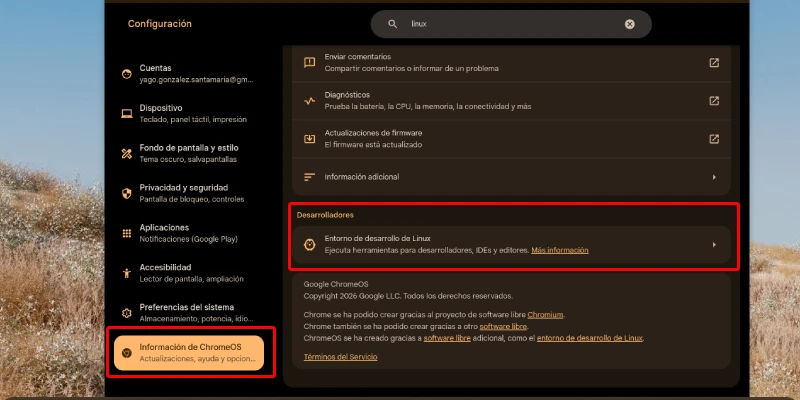
In the setup window, assign a username and define the disk size.
If you are mainly going to use the device to download torrents or magnets and you do not have Android enabled, I recommend giving it 80% or 90% of the total capacity.
Once everything is installed, you’ll see that you have a Linux terminal as an app, ready to do quite a few things.
#2. Install the download app
The next step is to use the terminal to install the Linux app.
Here are two options:
- Transmission: very light and with fewer options.
- qBittorrent: less light, but with many more options.
I prefer the second one, and that’s the one I’m going to explain here.
To install it, all you have to do is type these commands into your shiny new terminal:
sudo apt update && sudo apt upgrade -yAnd press Enter.
Then type:
sudo apt install qbittorrent -yAnd Enter again.
Press Y if it asks you to.
When the installation finishes you’ll see the application in your Chromebook app drawer alongside the others, but inside the “Linux apps” group.
Just click it and it will open.
#3. Start downloading
With this you could already start downloading from your preferred torrent / magnet source, but you’d better read what comes next first, because it matters.
Important considerations
Install a VPN
Depending on what you are going to download and the country you are in, it will be advisable to use a VPN before starting your downloads.
I say this because, for example, downloading copyrighted movies via torrent (or magnet) in Spain is a crime (you share the material with others while downloading it) and you really should not even think of doing it without a VPN.
Lucky for you, here again is the link to the tutorial where I explain how to install a VPN on a Chromebook without reducing your device’s performance.
File access
Since we are talking about one operating system (Linux) running inside another (ChromeOS), directories and permissions matter.
Fortunately, it is quite easy to understand and use.
Share folder
By default, Linux does not have access to ChromeOS folders.
So qBittorrent will initially download inside a folder in the Linux container.
If you want the ChromeOS video app to access them, the usual approach will be:
- Right-click the "Downloads" folder in the "Files" app and select "Share with Linux".
- Move the downloaded files to the shared folder so you can access them from ChromeOS.
Since that will take a while (several minutes if the movies weigh several gigabytes), there is a better option.
Set the path in qBittorrent
If you have shared the “Downloads” folder with Linux, you can tell qBittorrent to use that specific location. To do that:
- Open qBittorrent from your app drawer.
- In the top menu, go to Tools > Options.
- In the Downloads tab, look for the "Default save path" section.
- Click the folder icon to browse and manually select this path: /mnt/chromeos/MyFiles/Downloads (the language-related part may vary).
- Click OK or Save.
From now on, downloads will be saved inside a ChromeOS folder, which will avoid having to move them manually.
Finally, I want you to know that there is one case where it may not be worth changing the path and you may want to let qBittorrent download in Linux:
When you are going to watch the movie from the Linux VLC player.
The reasons why you might want to do this were explained in this article.
Conclusions
As you can see, it helps to know a few little tricks when you try to go beyond the use Chromebooks are designed for, so you can get as much as possible out of them.
Fortunately, allowing Linux apps is a huge advantage, because it enables things that were not possible on the first devices with this OS.
They thus become much more complete machines, making for terribly good secondary or rough-and-ready computers.
That’s why I invite you to read more articles with little tricks about these devices in the section of this website dedicated to Chromebooks.
Enjoy it.
Frequently asked questions
Can you download torrents on a Chromebook?
Yes, but not directly as on a Windows PC. The usual approach is to enable the Chromebook’s Linux environment and install a compatible application such as qBittorrent or Transmission.
Do you need to enable Linux to download torrents on ChromeOS?
Yes, this method requires it. Linux lets you install desktop programs that are not available by default in ChromeOS and opens the door to using full torrent clients.
Which program is best for downloading torrents on a Chromebook?
It depends on what you want. Transmission uses fewer resources and is simpler. qBittorrent offers more configuration options, more control over downloads and is usually better if you want to adjust paths, permissions or behavior.
Where are downloaded torrents saved on a Chromebook?
By default, they are usually saved inside the Linux container. That means they will not always appear directly in the ChromeOS Downloads folder unless you share that folder with Linux and configure the path properly.
How do you make qBittorrent save files in Downloads?
First you have to share the Downloads folder with Linux from the Files app. Then, inside qBittorrent, you can choose that location as the default save folder so files are stored directly there.
Is it advisable to use a VPN to download torrents on a Chromebook?
Yes, it is usually advisable. A VPN adds privacy and can be especially important depending on the type of content you download and the laws of the country you are doing it from.
Are all Chromebooks compatible with this system?
Not all of them. This method depends on the Chromebook allowing the Linux environment to be enabled. On old or very basic models it may be unavailable or work with limitations.
Do you need to use terminal commands?
Yes, but very few. Usually it is enough to run the update and installation commands once. After that, the application can be opened and used from the Chromebook menu like any other app.
What happens if I do not configure permissions or the destination folder properly?
The most normal thing is that the files download inside Linux and then you have to move them manually to watch them from ChromeOS. It is not serious, but it is quite a bit less convenient.
Is it better to save files in Linux or ChromeOS?
It depends on what you are going to use them for. If you only want quick access from the system, it is better to save them in a shared ChromeOS folder. If you are going to work with them or play them with Linux apps, it may make sense to leave them inside the container.

Hi Yago,
Thank’s for the guide it’s very thorough. I’m having a problem opening qbittorrent though – when I click it it opens a box saying:
‘qBittorent is a file sharing program. When you run a torrent, its data will be made available to others by means of upload. Any content you share is your sole responsibility. No further notices will be issued.’
When I press ‘okay’ the box closes and the program doesn’t run. Do you have any suggestions for this? I couldn’t find anything online. Thanks in advance!
Sorry, I’ve never had this happen before, so I’m not sure if I’ll be able to help, but I’ll give it a try. The first thing I would do is run qBittorrent from the Linux terminal, because that way we should be able to see the actual error. Close everything and run this in the terminal:
qbittorrent
If the warning appears again, accept it. Then check whether any error message appears in the terminal. Depending on what it says, search for a solution to that specific error.
If no error appears, uninstall qBittorrent and reinstall it, because it’s possible that something went wrong during the installation and the application became corrupted.
Give that a try and see if it helps.
this happened to me too
Have you try the solution above?