
In recent months I’ve bought two computers.
Both laptops.
And very cheap. Cheap as in €25 each.
Both through Wallapop, of course.
What kind of rubbish could I have bought for that price, you might think.
Well, two computers that fit what I need like a glove.
The latest was a Fujitsu with an i5-3210M, 4 GB of RAM (to which I added another 4), and an SSD, and it flies with ShowOS, a lightweight version of Windows 10.
What do I want that PC for?
Mainly to install OpenClaw (the most famous AI agent around here) and mess around with it. In fact, I’ve already installed it and tried sending it some basic stuff.
But the real test will come later, when I ask it to program the game I’m building for me.
I’ll tell you all about that, because today’s article is not about that.
It’s about the second PC I bought.
A Chromebook from Acer, 12 inches, convertible, with an Intel N3450, 4 GB of soldered RAM and 64 GB of eMMC storage.
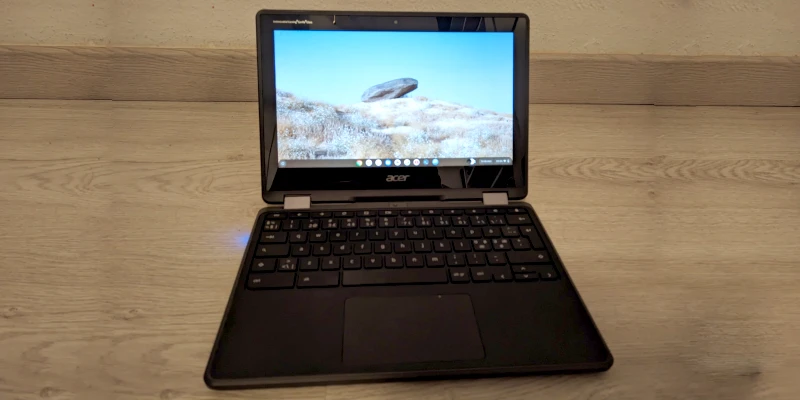
And I can already tell you that, for that price, it has been a great buy.
Now I’m going to explain why, but first I want you to know that this will be the first in a series of three articles in which I’ll explain how I’m using it and how to replicate it.
The first thing will be to explain how to optimize the thing so it becomes something genuinely useful and not a brick you want to throw at the floor every other minute.
In the second piece I show you how to configure a VPN , specifically, NordVPN. There are several ways to do it and I’ve chosen the hardest one, but the best for my use case.
Finally, to close the trilogy, I’ll explain how to download torrents or magnets and watch movies on the device itself or output the image to a TV or projector, which is how I use it.
Right, let’s start optimizing the device.
The Operating System
In case you don’t know, Chromebooks don’t use Windows or iOS. Not even Android or Linux by default.
No. They use ChromeOS an OS designed for students and focused on the browser and the cloud, with a few Google web apps installed by default (Gmail, Google Docs, Calendar, Hangouts…). If you use Google’s suite every day, the selection is ideal. If you use others like Microsoft’s, maybe not so much.
I mention this because, in principle, you won’t have to install anything as you would on your PC or mobile with your usual programs; instead, if you need some extra feature not covered by the built-in apps, you’ll have to go to the websites of the services that provide it and use their web versions.
Example: you don’t install Word; you use Google Drive documents (already installed by default). And if you want to edit photos, you don’t have Photoshop or any Google app, so you go to the website photopea.com to edit the image from there.
This makes the operating system more limited than any of those mentioned above.
And it also makes low-resource computers feel useful again.
Because yes, the computer will definitely serve you for leisure (browsing, watching movies or checking your social profiles), but with the right settings, also for study or more than decent office work. Without tearing your hair out over slowness every few minutes.
And what are those settings?
Well look, the first one is disabling the option to use Android applications.
Most modern Chromebooks let you install and use apps downloaded from Google Play and, if you want to install other APKs, you’ll only need to enable developer mode (after formatting the device, mind you).
Pretty cool, being able to install that million apps Android has, right?
Not so fast.
Because if you have a powerful machine, having this option is great.
But if your Chromebook is limited like mine, you’ll need to disable this option from the settings menu.
The reason is simply the background processes run by this Android virtual machine and the RAM it consumes, which can easily be 2GB.
So, on modest machines with 4 GB of RAM, I don’t recommend keeping this option enabled, because you can tell the computer runs out of memory as soon as you open 3 or 4 browser tabs.
For this reason, the first step to optimizing your PC is, as I say, disabling the possibility of installing Android apps, which is done from settings:
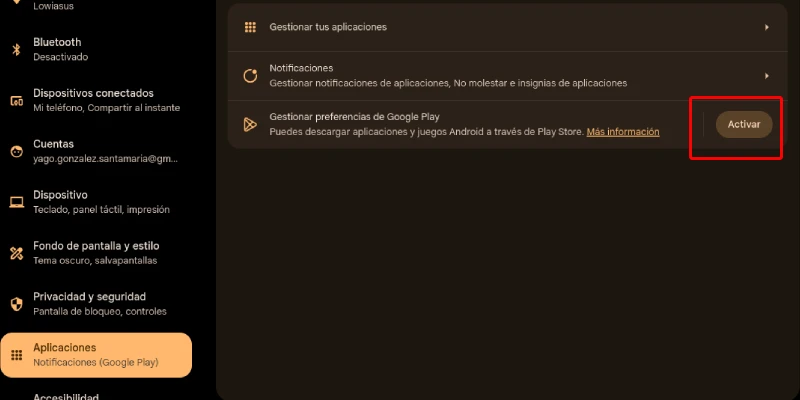
Once you’ve done it, three things happen:
- That you won’t be able to install Android apps (obvious).
- That the computer itself, and especially the browser, run considerably faster and let you work with more tabs open.
- That the battery lasts almost twice as long.
I’m telling you, in my situation, it was hard for me to give up two Android apps I had been using since I bought it: NordVPN’s VPN and the VLC video player.
But, after several hours, I found a workaround that lets me use both on the device.
Without needing to have permission to download apps from Google Play enabled.
And I’ll tell you about them in the next two articles in the series.
Seeing the result, I’m clear that the research work was worth it.
The browser
Although I prefer Brave for loads of reasons, such as privacy (or how to watch YouTube without ads), the truth is that, on Chromebooks, Google Chrome is very well optimized and has built-in systems to help save RAM and battery, so I’ve chosen to stick with it here.
And I recommend you do the same (if you have a Chromebook, you won’t hate Google so much that you refuse to use it).
However, you have to keep one very important detail in mind, which is the following.
Browser extensions
Right, here you may have chosen to link your Google account, so all your extensions —and bookmarks too— that you were using on other PCs with the same Google account will sync here.
If you only have a few, it’s not a problem.
If you have lots of them, it’s hell: they eat up RAM and slow down both the browser and the laptop in general.
So the first thing to do is analyze which ones you’re actually going to use on this device and remove the rest.
In my case, there are only two essentials:
- NordVPN: the VPN I’ve been using for years and that, for now, works very well for me (affiliate link here in case you want to subscribe and we both get a little gift). In fact, I even think I’ll remove this one, since in the end I’ve implemented the VPN system-wide, but well, I’ve left it for now.
- uBlock Origin: the best ad blocker. Careful, don’t confuse it with uBlock Origin Lite, which is the new, less powerful version that appeared when Google decided that blocking ads wasn’t nice and that I use when the original option isn’t available.
I use NordVPN for privacy, so my traffic goes as unnoticed as possible, while with the second extension I get a triple combo:
- Less tracking.
- Lighter browsing, by blocking scripts, ads and heavy data.
- By combining both points, I also extend the device’s battery life.
Not a bad combo.
Optional: enable Linux
Unlike Android, enabling Linux does not reduce the device’s base performance.
To activate it, go to Settings > Advanced > Developers and select Turn on under “Linux development environment”.
Done. From now on you’ll be able to use full Linux applications for things ChromeOS doesn’t let you do, or only half lets you do. In my case, I’ve installed two: qBittorrent and VLC.
The result
Right, so, once all this is done, what has changed compared with my previous use of the Chromebook?
Basically three little things, two positive and one not so much:
The positives are that, once the changes are made, I can use the machine for leisure and even for professional work, despite the laptop’s technical specs, which are very limited by today’s standards.
In fact, I’m writing this article in Google Docs while taking screenshots that I edit in Photopea. And given the nature of the task, I’m doing it at practically the same pace as I would on my desktop.
No, it’s no good for gaming. Or for rendering video unless it’s in the cloud. But for everything else (office work, browsing, downloading torrents, reading comics and watching movies), it more than delivers.
On the other hand, the 3–4 hours of battery life it used to have were more than acceptable for a computer that, remember, cost €25.
But now, with these settings, it comfortably exceeds 6 hours. And, on top of that, it charges with the same charger as my phone (so you don’t need 2 when you leave home).
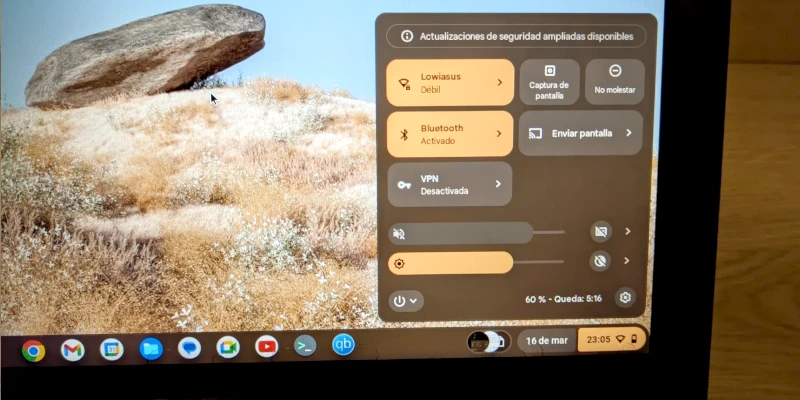
That’s why, if you add it all up (the performance boost, the battery improvement, the lightness and size of an 11-inch device, the fact that it charges with a phone charger or a powerbank), this PC is my new battle machine for events and holidays.
It has replaced my old HP —a 14-inch laptop with an old i5, 8 GB of RAM and Windows 10— which, while more powerful, especially in single-core performance, loses in almost everything else: battery, weight, charger, it isn’t convertible into a tablet, and it also doesn’t natively support the H265 codec, nor does it have external 4K video output…
The operating system makes a huge difference. So, poor thing, my dear HP will soon be listed on Wallapop.
In short, this Chromebook thing, which I bought to tinker and fiddle around a bit and above all to have a small machine on the living-room side table, has surprised me for the better. And it has convinced me that it works well as a secondary PC for me and for many users.
Even as a main machine for some.
In fact, I’m thinking of my father-in-law. Because he has left me his PC full of viruses these days to format, and I’ll probably install this operating system in its Flex version.
His PC is no wonder either, since it has a Celeron with 4 GB of RAM and is already on its last legs, but it still works for going into Gmail and Facebook, which is all he uses it for.
After having tinkered thoroughly with this one, I’m convinced the change will make him as happy as it made me.
Nice, Chromebook, nice.
PS: if you’ve already done all this, the next step is to add a VPN to the machine. I explain how to do it here.
Frequently asked questions
Is it really worth buying a second-hand Chromebook for €25?
Yes, as long as you’re clear about your needs.For office tasks, web browsing, multimedia consumption and learning Linux environments, basic hardware (such as an N3450 processor with 4 GB of RAM) is more than enough if properly optimized.
What are the key steps to speed up an old Chromebook?
The three fundamental pillars are:
- Disable Android app downloads: to avoid background processes and saturating the RAM.
- Suitable browser: use Google Chrome, which is optimized for the operating system.
- Extension cleanup: Remove those that consume resources in the background.
Is 4 GB of RAM enough to work in 2026?
For standard browsing and Google Workspace tools, yes. However, the key is management: avoid having dozens of tabs open at the same time and use “tab suspension” extensions to free memory.
What limitations does a low-end Chromebook have?
Mainly intensive multitasking and heavy graphic design or 4K video editing. These are machines designed for efficiency and mobility, not for high-load computing processes.
Why is it important to enable Linux on ChromeOS?
Enabling the Linux development environment lets you go beyond the browser. It gives you access to desktop applications (such as LibreOffice, GIMP or code editors) that are often better optimized than their cloud or Play Store app counterparts.

Leave a Reply