
I'm not the one saying that video is the type of content that has grown the most in digital businesses in recent years; the market says so:
- The emergence of platforms such as TikTok or Twitch.
- The decline of image posts on Instagram, with video becoming the dominant format.
- YouTube, the second most visited website in the world.
- In fact, on the first one, Google, the top results are often no longer web pages but… videos.
- Even professional websites such as LinkedIn have fallen under the influence of this communication channel…
The thing is, if video is part of your digital strategy, I think it is worth knowing a little about the technology behind it.
Not for any other reason, but because just knowing the basics (what I explain in this article) will save you terabytes of data on your hard drives or, worse still, in the cloud.
And that costs money.
Especially if you regularly create video content—for courses, for example, as I do—and do not only use it for ads or streaming.
This article includes the theoretical introduction needed to understand certain concepts (formats, codecs…) that we will then apply in practice in the next article, where I discuss the tools I use and my two main video use cases.
It may seem a little technical if you are not familiar with the subject, but I want you to know that I will stay at the most superficial level, because that alone will put you in a position to decide how you want to approach your video content, knowing what it involves and what you will need.
If, on the other hand, money is no object and you are happy to buy more hard drives, a larger NAS, or more storage on Google Drive or Vimeo, then you can ignore (almost) everything I am about to tell you.
Formats
To begin with, you need to distinguish between video formats and codecs.
By formats, I do not mean vertical vs horizontal or short-form vs long-form video.
No.
I mean the technical side.
More specifically, the extension the video file will have.
Today, the most common extensions are:
- The Matroska container (.mkv) and .mp4 in general.
- On Apple devices, in addition to .mp4, you will also find .m4v and .mov.
Here I should tell you that, of all the formats, .mp4 is the most compatible. Keep that in mind for your own creations.
On the other hand, if you have been working with video for a while, .avi, .divx, .vp9 and other formats may sound familiar. They had their moment of glory—to a greater or lesser extent—but are now generally obsolete.
But beyond the format, another factor determines whether a video file is compatible with a device: the codec used to encode the file.
Codecs
Codec is short for coder-decoder and refers to the code used to encode a video signal when generating a video file and that also decodes it when we try to play that file.
Using a text document as an analogy, we could say that the format would be .docx (Word) or .txt (Notepad), while the codec is the “language” of that text.
An English speaker, even if they could open the file on their PC, would not be able to read a text in a Slavic language, just as a Spanish speaker would not know what a document written in German says.
It is not exactly like that, but it gives you the idea.
So, let's say that when you work with video, you need to pay attention to both concepts. For example:
- An iPhone cannot natively play a video in .mkv, regardless of the codec underneath. It will have to use third-party apps.
- The 2020 version of Adobe Premiere will not correctly open a file encoded with AV1, regardless of whether the file has the .mkv or .mp4 extension
Keep in mind that you need to look at both aspects: format and codec.
But let's dig a little deeper into the latter.
How a codec works
As I mentioned in the definition, a codec has two parts:
- Encoding: generating the video (encoding, in English).
- Decoding: playing the content (decoding).
For these tasks, the system (mobile device or PC) will use the CPU (the processor) or the GPU (the graphics card).
You should also know that both components can perform the task in two different ways.
By hardware
This is the ideal approach.
In this case, the CPU or GPU has the codec built in natively, so playing the video requires virtually no effort and usage of either component can remain below 15% during playback.
With certain players, especially on Windows PCs, you need to enable this feature manually. In other words, enable “hardware acceleration” or DXVA.
The newer a graphics card or processor is, the more native codecs it includes as standard.
By software
It can happen—and in fact does happen—that neither the CPU nor the GPU includes a particular codec.
This does not mean they cannot play a video that uses that codec, but they will not play it natively.
In these cases, the player will try to play the video by brute force.
And one of three things can happen:
- The system can play the file correctly, with a considerable increase in CPU or GPU usage (possibly even approaching 100%).
- The file may play with occasional stuttering. This happens when the CPU or GPU is at 100% capacity and still cannot play the video in question properly. The stutters may be small and acceptable or may result in outright desynchronisation between the audio and video.
- The file may freeze completely or not play at all.
That is why watching a 4K movie on older processors is genuinely difficult. This is what happens with laptops fitted with the i5-5300U, widely used in the first “ultrabooks”, which could only partially decode the H.265 codec natively. Meanwhile, some much less powerful phones from the same period could play these videos without any problem because their processors included that codec.
Colour depth
To wrap up this point, I want to mention one more aspect, even if only in passing: there is another concept that affects compatibility between files and processors, namely the colour depth of a video.
A file can have a colour depth of 8 bits, 10 bits, or even 12 bits.
What you need to know is that the lower the bit depth, the more likely your system will be able to handle it through hardware.
Main codecs currently in use
Now that you understand how a codec works, I am going to explain which ones are most widely used today and the concepts you should consider when choosing one or another to create or manage your videos.
H.264
Also known as AVC (Advanced Video Coding, from its English initials), this is the codec that became popular through its use in Full HD Blu-ray files (1080px resolution).
The difference from earlier codecs was its relatively small file size at the same quality.
It also began to be used for the increasingly common video calls.
Advantages of the H.264 codec
Today, this codec has two advantages over the other two I am going to explain:
- Extremely broad compatibility: you can use it with virtually any device you have at home (decoding or encoding)
- Very fast encoding with any video editor: rendering and exporting video files will take very little time on any ordinary office-oriented PC.
Disadvantages of the H.264 codec
- Worse compression: although it represented a significant advance in its day, it is now outdated in this respect. At the same quality, an H.264 video is 50% to 80% larger than one encoded in H.265
H.265
Also known as HEVC (High Efficiency Video Coding).
It became popular with the arrival of 4K televisions, as well as Blu-ray discs and streaming service plans (Netflix) offering that resolution.
The reasons will not surprise you.
Advantages of the H.265 codec
- Better compression than H.264: in other words, your video files will be much smaller (up to 50% smaller, as I mentioned above) while maintaining the same quality.
- Broad compatibility: although it does not reach the level of its predecessor, H.265 is fully integrated into our PCs (and their components), phones, browsers, televisions…
- Relatively fast encoding with (almost) any video editor: again, it does not match the rendering speed of H.264, but it is more than acceptable. You will not spend hours waiting for the video to render.
Disadvantages of the H.265 codec
- Hardware encoding is not as widespread: this means that, depending on whether your GPU or CPU has native support, encoding files will take more or less time. Unlike H.264, which could be rendered at an acceptable speed on PCs from 10 or more years ago, H.265 will cause more problems on older systems.
- Likewise, on these older systems, playback can be a problem because of the lack of native support, especially when combined with files with 10-bit colour depth.
AV1
First of all, do not confuse the AV1 codec with the AVI format (Google does if you search for the former). They are two completely different things. And while AVI is generally obsolete, AV1 is supposed to be the codec of the future.
It is becoming popular now, no longer alongside a physical format such as Blu-ray as the previous codecs were, but because it reduces the bandwidth needed to stream 4K content on streaming platforms.
Advantages of the AV1 codec
- It compresses better than H.265: at the same quality, a video file will be 30% smaller.
Disadvantages of the AV1 codec
- Low compatibility: AV1 is a format that is gradually gaining ground, but it is doing so through relatively modern hardware:
- When it comes to CPUs, Intel added native support for this codec in its 10th and 11th generations. Above all, however, it democratised its use by adding it to low-end 12th-generation processors—specifically the excellent N100, which I will discuss later.
- Moving into the world of GPUs, we find that:
- Nvidia added AV1 decoding and (partial) encoding to the RTX 2000 series, and full support to the 3000 and 4000 series (currently the latest generation, although the 5000 series is just around the corner).
- AMD did so with its RX 6000 series, shortly after Nvidia.
- All of this means that, unless you have a gaming or professional PC from 2021 onwards, or an office PC from 2023 or later, you will struggle to play content in this format correctly. Below, I will tell you about my personal experience with it.
- Encoding is considerably slower than with the previous codecs: another critical point. When you generate content, rendering time matters if it has a certain length (more than 15 minutes, for example).
That is because your PC is working at high performance during that time and you cannot—or should not—be doing other things in parallel, otherwise the rendering time multiplies. And of course, with current technology, AV1 is considerably slower to encode than H.264 and H.265.
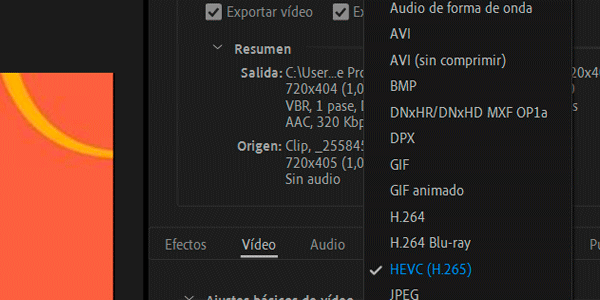
- Finally, given how “new” it is, not all video editors offer this codec: for example, my beloved—and now slightly long-in-the-tooth—Adobe Premiere Pro 2020 does not include it by default:
Software for working with video
Since Premiere—my go-to video editor—has made an appearance, let's move on to the software you can use to work with video.
I plan to cover this topic in depth in a forthcoming article, but until I publish it, I want to mention a couple of points about formats and codecs that affect software.
To begin with, I will tell you that, in general, when you work with video, you will mainly use one type of program: a video editor.
This is the program used to assemble the video:
- Anything you do not want is removed.
- Clips are merged.
- Transitions between them are created.
- The audio is edited or effects are added.
Although you can work on certain parts of a video in another program—especially certain visual effects—you will generally spend 90% or 95% of your time here after recording the material you need.
The other type of software most affected by formats and codecs is, logically, video converters.
These are programs used precisely for that: transforming video files with one codec and format into another, with the same or a different resolution, quality and size.
Video editors
I am going to mention the three most popular ones for PC today and their compatibility with codecs and formats.
Adobe Premiere
As I said earlier, the version I use, the 2020 release, only allows you to export in H.264 and H.265 by default.
I assume that later versions or plugins have added the AV1 option, given how professional the tool is.
CapCut
The complete yet simple editor from TikTok's owners (ByteDance) has two versions:
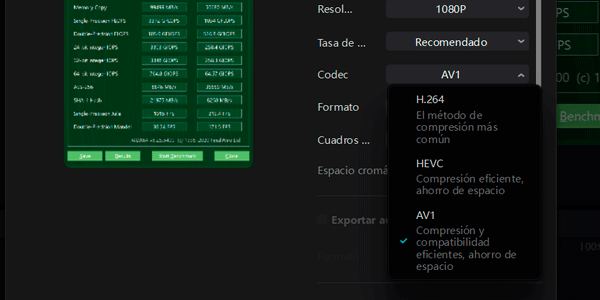
The online version of the editor does not let you choose a codec and exports in H.264:

Meanwhile, the PC version (which is more complete) does allow us to use any of the three:
You can use or download it here: https://www.capcut.com/es-es/
DaVinci Resolve
I am including it here because, although I have not used it, it is one of the most popular tools today. In fact, I believe Netflix edits all its own productions with it, which gives you an idea of its level.
While digging around for this article, I did find out that it can encode with any of the three codecs, in both the free and paid versions.
You can download it here: https://www.blackmagicdesign.com/es/products/davinciresolve
Video converter
Although I have used many over the years, I always use the same one for video today.
HandBrake
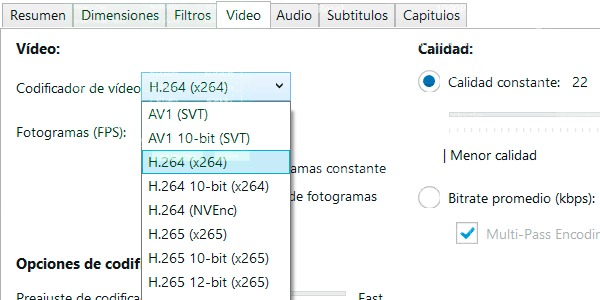
A free converter with everything you need, capable of converting videos to any of the codecs mentioned in the article:
You can download it here: https://handbrake.fr
Main use cases
Well, I ended up analysing all of this while trying to optimise my video use cases as much as possible. These are the two.
My video creation workflow
The first is when creating videos.
Whether they are ads, lessons or anything else, the process is usually this:
- I record the content: a screen recording with or without a webcam.
- I optimise the audio: with Adobe's podcast tool.
- I edit: in Premiere. And I export in .mp4 using the H.264 codec.
- I add subtitles: this is optional. If I do it, I use CapCut. Once they are added, I export in the same format (.mp4 and H.264).
- I compress the final video: in HandBrake. Here I export it in .mp4 and H.265.
- I upload it to the cloud: usually Google Drive or MS OneDrive.
- I publish it: on whichever social network applies (usually YouTube) and/or upload it to Vimeo, depending on the project.
I'm quite comfortable with it, honestly, both with the process itself and the result.
You may wonder why I do not edit directly in CapCut, saving myself one export. The answer is that I only open this editor if I need to add subtitles or something very specific. My edits are usually for training content, so they are very sober, and Premiere is enough; I also work faster in it.
You may also be surprised that I run it through HandBrake instead of exporting directly from Premiere in H.265. The answer here is that the converter lets me compress the final file much more effectively. I do not know why, but at similar quality, an H.265 file compressed with HandBrake is much smaller than one exported directly from Premiere.
They are one or two extra steps I take in pursuit of the best possible final result.
Storing videos: my other main use case
I am a digital hoarder: I keep hundreds of photos, videos, music, football matches, comics… on external hard drives.
As well as the training courses I create, of course.
The thing is, when I sign up for a membership, I save the videos that interest me to watch later (yes, I rewatch the courses I like).
What is the problem with all this?
It is twofold: organisation and space.
The first does not worry me; I have almost everything fairly well organised and it does not take me long to find what I need.
But space is another matter.
Decades of digital content take up space.
And although I do not need to access most of it at any time or from anywhere, I do like to have the training material just a click away.
That is why I use the cloud—or rather, clouds.
And of course, syllogism number one: videos take up a lot of space.
Syllogism number two: cloud storage is not cheap.
Conclusion: if I want to keep as much as possible uploaded and available, I have to save space.
So I compress the files before uploading them.
I use this configuration:
- Format .mp4. For compatibility.
- Codec H.265. Because, today, it offers an unbeatable balance of file size + compatibility + time. Yes, AV1 compresses better and conversion to H.264 is faster. But overall, and with my equipment, HEVC hits the sweet spot.
- Resolution 720p (1280x720px). Enough to read screen-recorded text in this kind of training content.
- Quality 25 in HandBrake. Same reason as the previous point.
With this, I get very, very small videos that upload and download easily wherever I am (even over mobile data), which is my goal.
Video resolution
I did not want to create a separate section on video resolution, but I will use this opportunity to mention the three most common ones and explain that, the higher the resolution, the larger the video file, provided we are using the same codec.
So, the three resolutions you should know are:
- 720p (HD): 1280×720 pixels. This is the entry point to what was called “high definition” on televisions, increasing the 640×480 pixels typical of DVDs. For me, in 2024, it is the minimum resolution any video needs to look decent.
- 1080p (Full HD): 1920×1080 pixels. It was the standard for televisions and PC monitors for more than a decade (roughly 2005–2018). In fact, it remains the most common resolution today for both work (office tasks) and gaming, and for projectors costing less than €2,000. A good balance between quality and file size.
- 4K (Ultra HD): 3840×2160 pixels, although purists will say it is actually 4096×2160. It has been the standard for televisions since around 2018, although it is not as widespread in other devices (laptops, monitors or projectors). Although 8K televisions already exist, their prohibitive price today and the lack of content for them mean that it is effectively the highest current video quality mainstream. It requires relatively modern equipment to play and, above all, to work with. Its file size is considerably larger, as each frame contains four times more information than Full HD.
Video players: the user use case
To finish, I am going to devote a section to video playback. Although it has little to do with digital business, I think it helps round out the usual use cases, now taking on the role of a user playing video content.
Playing H.264 or H.265 content
Beyond Apple's format restrictions, content encoded with H.264 and H.265 can generally be played on almost any device —phone, tablet or PC—you have at home, enabling the player's hardware acceleration where necessary.
On low-spec systems, the program that has worked best for me on Windows is PotPlayer, especially for software playback on systems that do not natively support these codecs.
Using this player can make the difference between being able to watch a 4K movie on an old laptop (connected to the TV, in my case) and not being able to.
Playing AV1 content
This is where things start to get complicated.
To begin with, you can download the free AV1 extension for Windows 10/11:
https://apps.microsoft.com/detail/9mvzqvxjbq9v?hl=es-ES&gl=ES
This extension will allow you to watch AV1 videos with the native Windows player.
But being able to watch videos does not mean watching them well .
No.
This extension will let you play them, but playback speed will depend on your hardware.
For example, in my living room I have a four-year-old PC connected to the TV, fitted with an i5-8500T from Intel's eighth generation and an Nvidia GTX 1660 Super.
This system was fairly good at the time and, even today, still holds up reasonably well for gaming.
The problem is that neither the CPU nor the GPU natively supports AV1, and playback of large files (over 25 GB) with a high bitrate (I have not discussed it, but let's say it is the amount of information per second in the file) is only acceptable in the Windows player, with more than occasional stuttering.
Again, PotPlayer performs much better in these scenarios, without quite giving me excellent playback on my system.
However, I tested the Firebat T8 Pro Plus for two months. A mini PC I bought on sale from AliExpress for under €80, with an N100 low-power (6W) processor from Intel's 12th generation.
In terms of power, this system is light-years behind the previous PC and you can barely play any games on it. But nevertheless, it plays EVERYTHING flawlessly.
No matter which video you throw at it—the format, codec, colour depth, bitrate… It plays every file superbly because these codecs are built in natively.
So, if you are looking for a Windows system to watch all kinds of videos on your living-room TV, nothing offers better value for money.
That said, I was left wanting to test how it performed when encoding—not just playing—the different formats. It only supports AV1 decoding, not encoding, and I know it would have handled that codec poorly, but it would have been interesting to see how it performed with the other two.
In fact, although I no longer have it, I would not rule out getting another one in the future and putting it through its paces.
And the Firebat is one example of the importance of native codecs, but here is another:
My television is a mid-range 75-inch Samsung bought in 2021, which I struggle to call “Smart” when I see how it crawls through the menus and, especially, when opening the HBO Max app.
Well, this television, despite its extremely limited processor, can play AV1 files without breaking a sweat, thanks to having the codec built in.
And it does so much better than my PC: not a single stutter, with audio, video and subtitles perfectly synchronised.
Marvellous.
And it is a shame how long it takes to open any video because the menu is so slow…
It is what it is.
Conclusions
I warned you in the introduction that the article was a little technical.
But I have tried to make it accessible, leaving out everything that was not essential to understanding the technical layer beneath video generation.
The point is that, if you work with video a lot and take care of quality and the rest, you need to have these basics clear.
Otherwise, you will have no choice but to keep expanding the storage on your PC, in your backup systems and in the cloud. Video takes up a considerable amount of space.
Here is a simple example:
The last video I edited was an 11-minute social media ad (yes, you read the duration correctly; there are ads that long).
That video, whose final file is 108MB, takes up 3GB on my PC once you include the original video files, enhanced audio files, Premiere autosaves and project files.
And that is despite the first Premiere export, in H.264, being over 600MB; I deleted it once it had served its purpose in the workflow.
So, extrapolating from that, each 30-minute lesson like mine can approach or exceed 10GB.
Considering that I can easily have 40 or 50 lessons, the disk space used is 4TB, which is quite a lot.
And that is with me optimising everything as much as possible. Imagine if I did not…
That is why, if you are starting to work with video, I recommend that you begin taking all these little things I have explained in the article into account. They really are not that complex once you absorb them.
Because if you do not, you will need absurd amounts of space, with everything that entails in terms of costs (drives, backups, cloud storage) and time (dumping, copying, uploading and downloading).
In the next articles, I will tackle more aspects of video, such as the tools I use (several more that I have not mentioned here) and the different workflows I occasionally use when I need to do something specific, such as timestamping lessons, summarising them or creating subtitles.
And you can receive them by email by subscribing here.

Leave a Reply