
Last week’s trick explained that adding the custom dimension “page_location” is very useful for, among other things, seeing a user’s complete journey.
So I’m going to carry on from there and explain today how to “see the journey”.
Because you can use—or at least know about—the “User explorer” report. But without this trick, I can assure you that you’ll struggle to select the user you want.
Interested?
How to see a user’s complete journey in GA4
One clarification: by complete journey I mean the actions a user takes on your website after arriving, whether in the same session or across several different sessions.
Right, this is quick: in four steps you’ll be looking at the complete behaviour of the user you’re interested in.
But to do that, you need to know the ClientId of the user in question.
Step 1: find out the user’s ClientId
In case you don’t know, the ClientId is a very long number that Google Analytics assigns to each user who visits your website:

It loads on every page and doesn’t change, so GA4 knows which page loads belong to each user.
And if the session ends and the user comes back to your website another day, Analytics identifies them using that same identifier.
If you have a medium-sized or large digital project and take digital analytics seriously, you may be storing these numbers in your log file or database and be able to export them:

When you find the ClientId of the user you’re interested in, copy it and open Analytics.
Step 2. Open the “User explorer” report
This isn’t a default report; it’s in the “Explore” section of the left-hand column:

Open it and you’ll see something like this:

Step 3. Open any user
Here comes the magic.
Because when you click with the right mouse button (important) on any of the users, several options will appear:
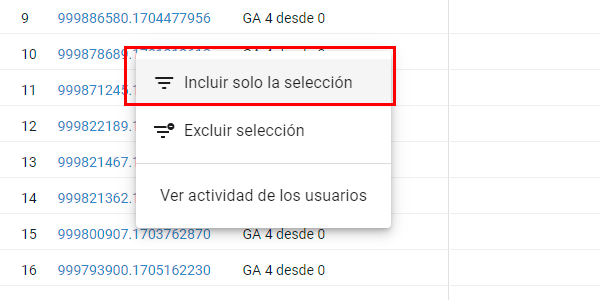
If you choose “include selection only”, a filter will appear.

Can you guess what we’re going to use it for?
Step 4. Enter the user’s ClientId
Click the filter to edit it and paste the ClientId of the user you chose in step 1:

Result
Voilà! Here’s the user’s complete journey:

And, if you followed my advice and included the secondary dimension “page_location”, it will include the URLs on your site that the user visited and where an event was triggered:

Why observing a user’s journey is useful
I’ll be clear: going through every single user’s journey one by one might be entertaining… but it’s a complete waste of time.
You’re not going to get any conclusive information for your project.
So what then?
What is useful is analysing a particular user.
Affiliate commissions
For example, to find out whether they entered through an affiliate link in any session and whether the affiliate is owed a commission.
Yes, it’s easier to do this with audiences, but sometimes they fail. Segments fail, you make a mistake setting them up, or the affiliate gets the tagging wrong—anything can happen.
Analysing the user’s journey lets you see whether they passed through the affiliate at any point.
Errors
Another important case is when a user tells customer support that something failed on the website. If you can locate the user’s ClientId, you can replicate their actions, see whether you get the same error and then fix it.
These are the two most common use cases in which I analyse a customer’s journey.
If I stop and think, I’m sure I could come up with more, but these should already give you a good idea of whether this is genuinely useful for your project or completely useless.
Conclusion
Yet another thing GA4 makes a bit odd: you have to take a detour to do what used to mean typing a number into a filter. Still, at least there’s a solution.
For more tricks like this, you know the drill.

Leave a Reply