
GA4 clearly has its quirks.
Some make sense and others less so. I suppose there is a reason for everything.
For example, Google does not save by default the page where an event occurred so you can use it in your own reports.
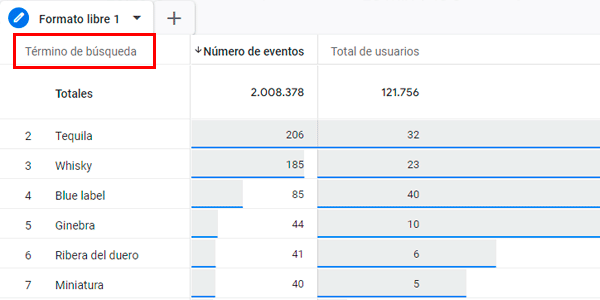
Or the search term a user entered on our website: GA4 recognizes it, but does not save it unless we tell it to.
For these kinds of cases, unlike what happened in Universal, you need to use custom dimensions (also called “custom definitions” or “custom parameters”; it is all the same thing).
In this article, which I’ll keep updating over time, I’ll add the ones I use. Starting with the two I just mentioned.
But first, I’ll explain how to add a custom dimension to your GA4 property.
How to add a custom dimension to GA4
There are three simple steps:
#1. Go to account administration
Click this icon at the bottom left of any GA4 report:

#2. Open Custom definitions
Here’s the link:

#3. Create a new one
Like this:

Where:
- Name: whatever you want, but make it descriptive. This is what reports will display.
- Description: for yourself. So you know what it collects (if you need it).
- Scope: in general, most of the ones we create will be event-scoped.
- Event parameter: select the appropriate one from the dropdown. It is a value GA4 has already recorded but is NOT storing. That’s why it appears here.
Save it and you’re done. Your dimension is now created.
From that moment on, GA4 will start collecting the data for that dimension.
You can see it, for example, by adding a dimension to an existing exploration report. Like this:

One more thing: its effect is not retroactive, so the longer you wait to add each dimension, the more data you’ll be losing.
Page URL
Parameter: page_location.
What it collects: the URL of the page where an event occurred.
Why it matters: so you can analyze which page an event occurred on. For example, in the user explorer report:

You can see the pages the user visited and the events they triggered on each one.
Search term
Parameter: search_term.
What it collects: the words a user entered in your website’s search box.
Why it matters: so you can analyze the most frequently searched terms and do whatever you want with them:
- Check the results they return.
- Edit them.
- Show certain products or articles more prominently.
- Create a category.
- …
Wrapping up
As I said, this post will stay alive as I come across custom dimensions I need in my day-to-day work.
There’s not much more to add.
Just add the ones you need as soon as possible, because they are not retroactive. And, hey, you have a limit of 50 custom dimensions on free GA4 accounts, which I can already tell you is a high limit and one you’ll struggle to reach. So don’t be stingy with them.
I hope you found it useful. And if you need more help with your analytics, let me know.

Leave a Reply