

The time has come.
There’s no putting it off any longer: it’s time to grab the bull by the horns.
The GA4 era begins.
I’m assuming you’re already tracking your website conversions in GA4 —you’re in trouble if you aren’t by now— because that’s the first thing you need to do.
But there’s one pretty important point you may not have dealt with yet:
Make sure you have migrated the Google Ads conversions imported from Universal Analytics to the new GA4 ones.
Whaaaaaaat?
Hold on, let’s take it step by step:
1) Do you have active campaigns in Google Ads?
If the answer is yes, keep reading. If it’s no, you can stop reading (unless curiosity gets the better of you).
2) In your active campaigns, do you use conversions imported from Universal Analytics?
A common example is importing transactions and marking them as a conversion so you can get the revenue amount.
Again, if the answer is yes, please continue. If the answer is no, you know the drill.
3) Have you replaced the Universal transactions with the GA4 ones in the Google Ads Conversions section?
If yes, double-check it. If not, I’ll show you how to do it.
But before we start, take a look at this in case it interests you:
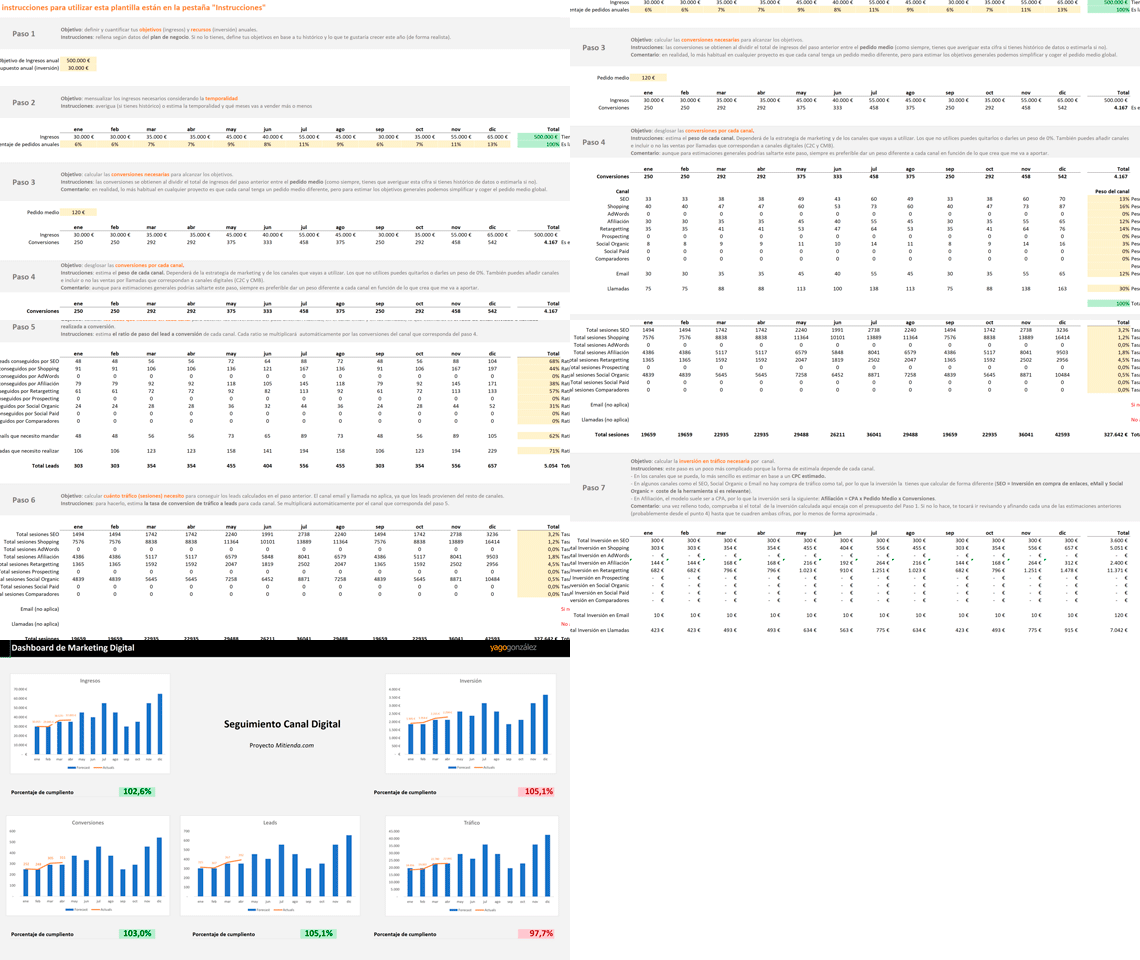
Marketing Investment Calculator
Putting together the annual Marketing plan for an online store is a pain. Whether it’s a new store or one with history.
And if you also have to make the budget fit the required investment, even more so.
That’s why I use this template: I enter a project’s data and it gives me the required investment with the figures already updated. Without having to change formulas and calculations.
It’s not a bad way to get started with your ecommerce analytics.
Plus, besides the calculator, every day you’ll get a tip or piece of advice (a good one) in your inbox to improve your business or digital project.
Now then, let’s get to those conversions…
How to change Google Ads conversions imported from Universal Analytics
Let’s go through it step by step:
#1. Open Google Ads and go to the Conversions section
You access it from the top menu:

#2. Review conversions imported from Analytics
To check whether their source is Universal or GA4:

If the source is Universal and you don’t see the GA4 conversion you need, just click “New conversion action”:

#3. Import conversion
You’ll see several options. Choose this one:

And choose the source, which in this case will be “Google Analytics 4 properties” and most likely “Web”:

Click “Continue”.
Depending on whether you’re importing from that source for the first time, Google Ads will ask you to enter the domain or not.
If it asks for it, add it and you’ll then be able to choose the GA4 conversion event you want.
#4. Primary and secondary conversions
If you had already imported GA4 conversions before, your account may very well show something like this:

Which is NOT what we want.
Because for the campaigns to keep working as they have until now, the conversions need to be set up like this:
- Primary: the ones imported from GA4 (transactions in our case).
- Secondary: they are not mandatory, they appear in reports under “all conversions”, and we can leave the old Universal ones or others there.
In other words, exactly the opposite of what we currently have.
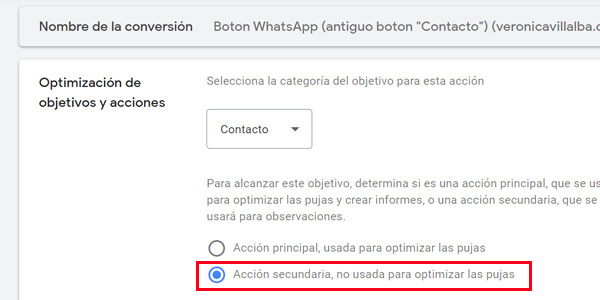
We’ll need to click each conversion to open it:

And edit it, choosing the GA4 ones as primary and the Universal ones as secondary:
Finally, our conversion map looks like this:
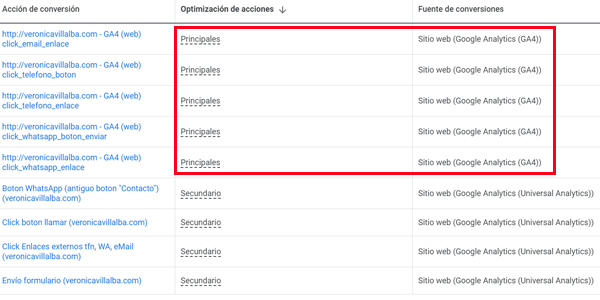
Done.
Once we’ve left it as shown in the image, Google Ads campaigns will start using these conversions for optimization, if our goals are configured to do so.
And now be honest: had you already checked this?

Leave a Reply