
One of the first things I do in any digital project I take on is make sure we know how we are going to measure results.
Even when it is a new website, before launching it I think about how we will know how well it performs.
In many digital projects—in most of them, in fact—adding GA4 and checking that it collects the data correctly is enough to get started.
When I say “the data”, I basically mean conversions / key events.
We will talk later about the other events or revenue. I take it for granted that traffic is being collected properly from minute 1.
But to begin with, I need this: the tool must measure conversions properly.
That is why, in many projects, we do not start running ads until we launch and check that everything works as expected, including GA4.
That is when you can turn on the tap, but not before, so you do not burn money.
Of course, something that seems this logical has a slightly perverse side effect:
And that is that, knowing GA4 works properly, it is very tempting to set up Google Ads conversions by importing them from Analytics.
Because it takes no effort.
You only have to link the GA4 and Google Ads accounts from the Google Analytics administration area:
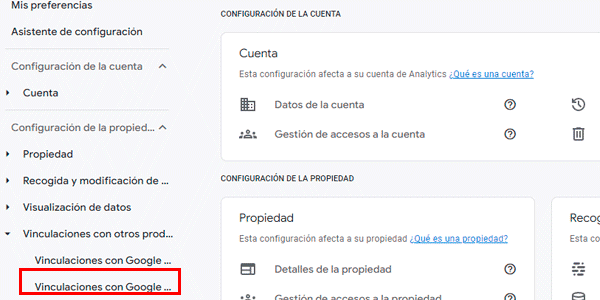
Then you go to Google Ads and import the GA4 conversions you want:
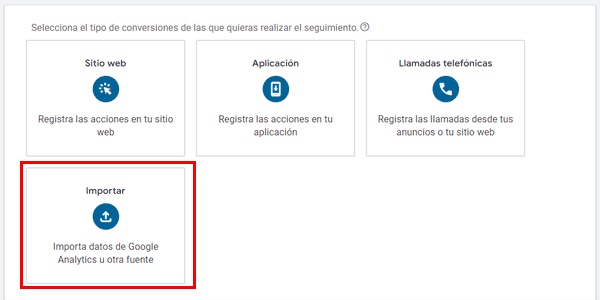
And that is it: your conversions—which you already checked were correct when reviewing the GA4 implementation—are now working in the advertising platform, which will optimise the budget based on them:
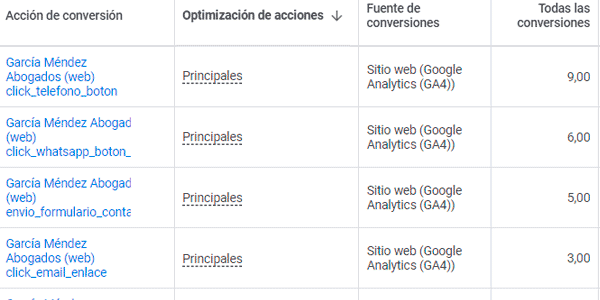
Well, what you see above is not an error per se, but, to paraphrase my dear Avinash Kaushik, doing it this way is suboptimal.
Here is why.
Why you should not record GA4 conversions as primary in Google Ads
The first reason is that it is not the native method.
The native method is to record Google Ads conversions directly with its own code and set them as primary on the platform. It is the most accurate for optimising the bidding strategy.
The second reason is that the conversion is recorded sooner through Google Ads, without having to wait for GA4 key events to be imported, which can easily take between 12 and 24 hours.
This may cause the platform to overbid—or do the opposite—in automated campaigns because it does not have up-to-date data.
Or, if the adjustments are manual, the same applies: you are looking at delayed data, so you may not make the right decisions.
You see why this matters, right?
But wait, there is more:
It is very likely that some conversions will be collected on only one of the platforms, increasing the inaccuracy.
For example, if a user reaches our website by clicking a Google ad and completes two conversions, Google Ads may report only one, while Google Analytics records two.
Now that you know the reasons, I am going to explain how to track Google Ads conversions properly.
It has two parts:
- A mandatory one: create the conversion in Google Ads and send it to the platform.
- An optional one: import GA4 conversions into Google Ads correctly. In other words, make them secondary.
How to create a Google Ads conversion with GTM
Normally, the conversions you have created in GA4 are being recorded with GTM.
So the idea here is to reuse the work already done and use the triggers you created then to fire a new Google Ads conversion tag.
I will explain it with an example process.
#1. Create the Conversion Linker tag in GTM
Open GTM and create a new “Conversion Linker” tag:
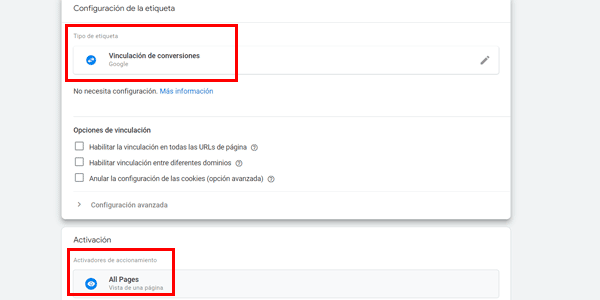
As you can see, it fires on every page.
#2. Create a new conversion in Google Ads
Go to Google Ads, open the Conversions section and click “Create new conversion action”:

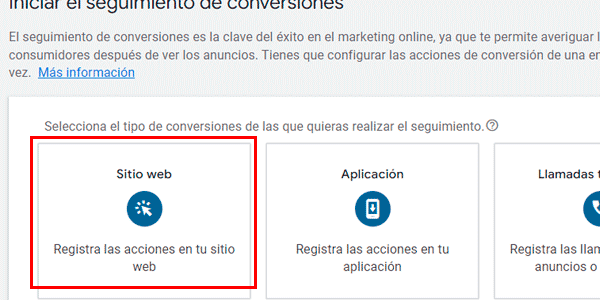
Select “Website”:
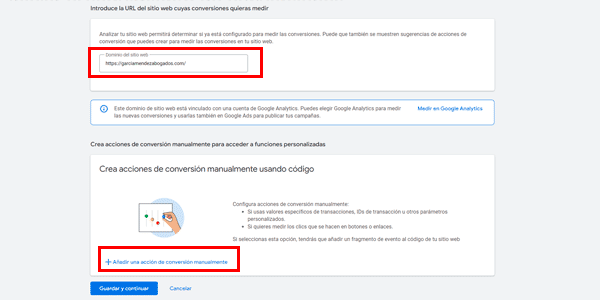
Enter your domain so Google Ads can analyse it and click “Add a conversion action manually”. Do not choose “measure in Google Analytics” or click the blue Continue button yet:
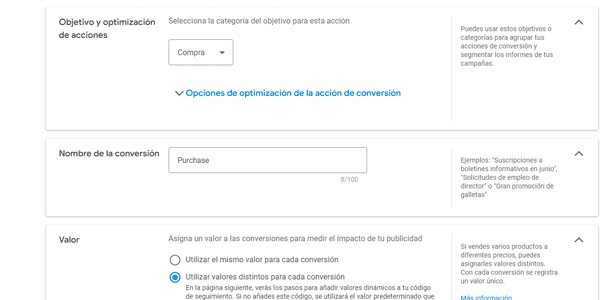
Configure the conversion according to its type (purchase, lead, etc.):
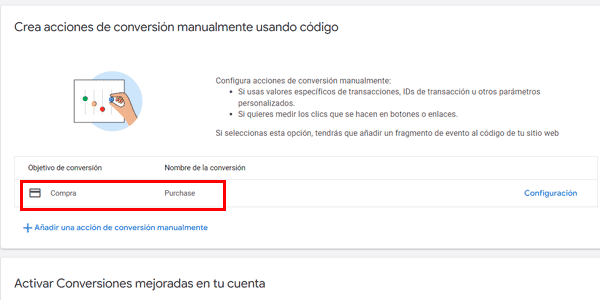
Once it is configured, choose whether to enable enhanced conversions. If you are not sure what they are, simply click “Save and continue” without enabling them:
You can now implement the conversion on your website. There are three methods; we are going to choose GTM.
And note these numbers, because you will need them:
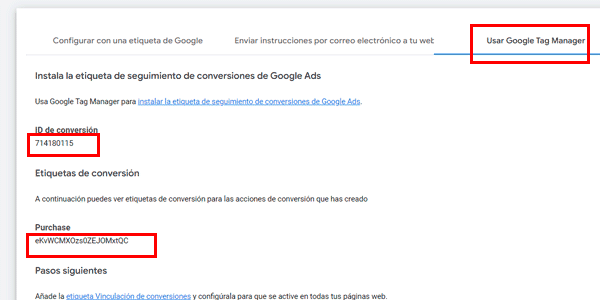
When we have finished everything, you will only need to click the blue “Done” button at the bottom.
#3. Check the trigger for the GA4 conversion you want to record in Google Ads
Now go to GTM, where the same conversion—or, more accurately, “key event”—will already be configured, but to send it to GA4 rather than Google Ads.
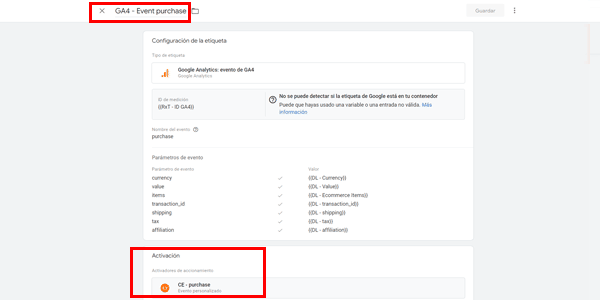
The important thing in this image is the trigger used by the conversion tag, because that is what we are going to reuse.
#4. Create a Google Ads conversion tag in GTM, reusing the previous trigger
Now create a new Google Ads conversion tag and enter the conversion ID and label provided by Google Ads:
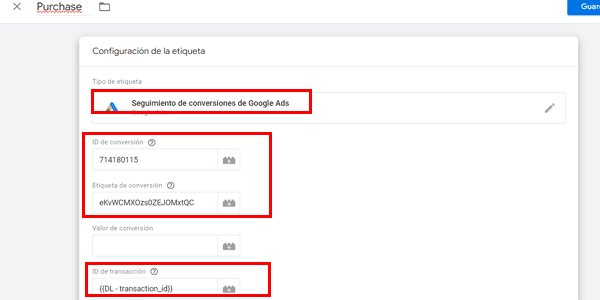
You can also reuse a variable from the GA4 event tag, as I have done above with the Transaction ID.
And fire it with the trigger from the GA4 tag you had already created:
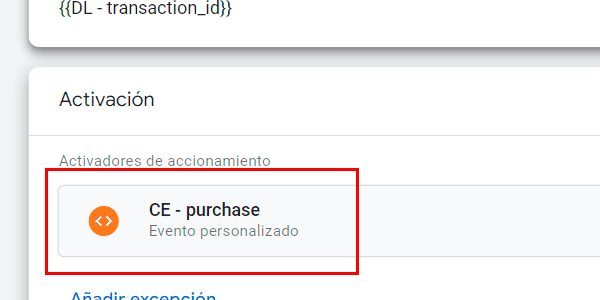
You are done.
With this configuration, when the trigger event occurs, GTM will continue sending the conversion to GA4 with its values and will now also send it to Google Ads with its own values.
What you need to do next is repeat the process for every conversion you want to record in Google Ads.
When you have finished them all, we move on to the second step, which is optional but recommended: sending GA4 conversions to Google Ads.
How to import GA4 conversions into Google Ads properly
As I said, the idea is not to replace GA4 conversions with Google Ads conversions, but to keep both properly implemented and use whichever suits each case:
- Google Ads conversions for bid optimisation.
- And GA4 conversions mainly for reporting.
Let us go through the process.
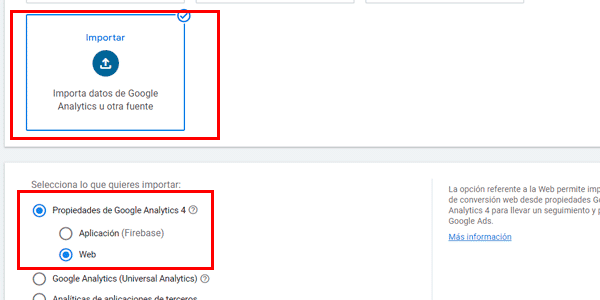
#1. Create a new “Import” conversion in Google Ads
Just as before, except that you choose the “Import” option and these settings:
Next, you will see all the GA4 events that you have not yet imported into Google Ads:
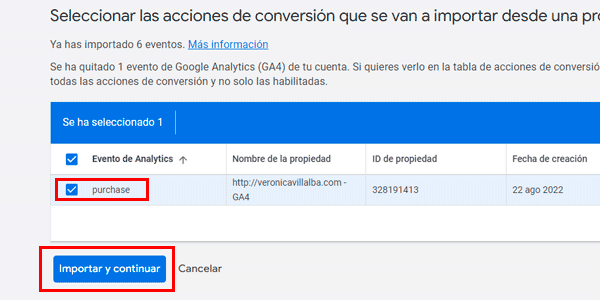
Choose the relevant one.
#2. Mark the GA4 conversion as secondary
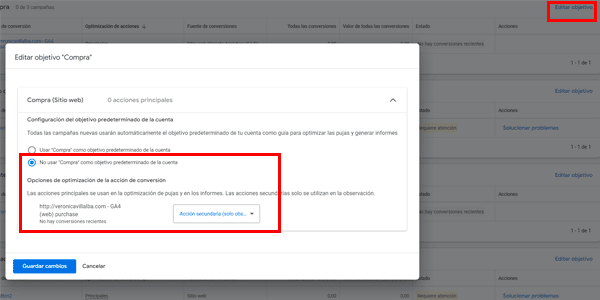
Once it has been imported, the key point is to mark the conversion as secondary.
To do this, click “Edit goal” and, in the pop-up that opens, choose to use the conversion as secondary:
That is enough.
Easier than before, right?
Result
Once you have created the direct Google Ads conversions and imported the GA4 ones, you should have a table similar to this:
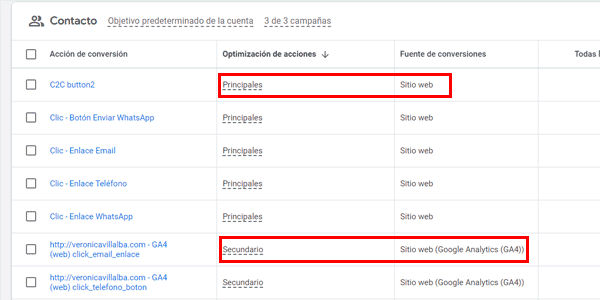
You can see that the “website” conversions sent by GTM to Google Ads are marked as primary.
The “imported from GA4” conversions are marked as secondary.
This way, you can view whatever you need in reports, but use the direct Google Ads conversions to optimise bidding because, as I explained earlier, they are the best option.
Yes, it is a little more work.
That is why, in the rush to launch campaigns and start selling, it is not always done this way from the beginning.
I know because it has happened to me. I have started by importing GA4 conversions as primary and just got on with it.
But before long, I have always ended up changing the system.
Because it is better. And it is how it should be done.
That is all for today. I do not know whether you already knew all this well, but in any case, I hope the article was useful.
If so, here are several more articles about Analytics and GA4.
And here is also the sign-up form for my newsletter, in case you want to receive an article like this in your inbox every Thursday.

Leave a Reply