
Email marketing is one of the channels used by almost everyone who runs a digital business.
One way to get more subscribers is to give users some kind of lead magnet in exchange for their email address.
Well, although there are different ways to measure downloads of these Lead Magnets, I like to have them in my analytics tool.
That is, in Google Analytics.
And although the Universal version is already being phased out in favour of GA4, the new version, I am still interested in collecting events on both platforms.
Especially because, once the initial setup is done, the extra effort is minimal.
In this article I explain how to do it because, while it is not very complex, it does have a trick to it.
Also, here you will see the example of a lead magnet download, but the system is analogous for measuring any type of event.
That said, you should know that if it were a new website and I only wanted to measure the event in GA4, it would be much, much easier.
I explain that at the end.
But first, let us go through the most complete and complex system and its 7 steps.
#1 Create the lead magnet
Obviously, this is the first step. If there is no lead magnet, there is no system, so this is the first thing I set up.
This Advanced SEO Guide for CMS is one of the lead magnets you can find on my website:

Interested in the guide? Keep reading…
#2 Create the WordPress pages
They can be one or two, depending on where the user signs up to get the lead magnet:
- You may want to create a new landing page that includes the signup form for the download. Like this one, where you can download the guide above.
- Or you may give the lead magnet to users who sign up from the form on your website home page or from an existing page. In that case you would not need to create this landing page.

What you will definitely need to create in either case is the download page, which is the one that will include the link we are going to measure:

You could choose to skip this second page and send the file download link directly by email, but then I would not have the download data in GA4, which is what I want.
If you want to see this page, all you have to do is sign up on the landing page above.
An important detail: this download page I do NOT index it. Since I send it by email to new subscribers, I do not want anyone who is not a subscriber to access it.
#3 Have Universal and GA4 implemented on the site
Again, an obvious step, but if I do not have Universal and GA4 implemented on the site -including the download page, of course- I will not be able to record the download data.
The idea here is to have a general Universal event tag:

And another very similar one for GA4:

As you can see, I add the classic Universal parameters to both tags:
- Category
- Action
- Label
- Value
And I collect the values of each of these parameters in these four Data Layer variables I created:
- {{GA – eventCategory}}
- {{GA – eventAction}}
- {{GA – eventLabel}}
- {{GA – eventValue}}
Here is an example of how one of them is created:

#5 Create the event trigger in GTM
In addition, I will fire both tags with the same trigger:

One that I create like this:

With this, what we are doing is telling GTM to fire the event to Universal and GA4 when it receives this trigger
#6 Tag the download link
And we will insert that trigger using an HTML block in the download link on the WordPress page, together with the value that the four Data Layer variables should take:
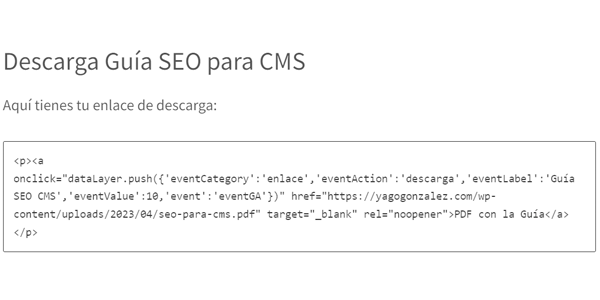
This would be the code, with the link tagging in red and bold:
<p><a onclick="dataLayer.push({'eventCategory':'enlace','eventAction':'descarga','eventLabel':'Guía SEO CMS','eventValue':10,'event':'eventGA'})" href="https://yagogonzalez.com/wp-content/uploads/2023/04/seo-para-cms.pdf" target="_blank" rel="noopener">PDF with the Guide</a></p>
Here I can choose whatever values I want for the Category, Action, Label and Value parameters.
Trick:
If I did not want to group all these events under the same name "Custom event" in GA4, I could create a Data Layer variable called "eventName" and add it to that code together with the value I wanted to assign to it.
This way GA4 would collect each event with the name I specified.
#7 Check that everything works
To check before publishing the changes to the GTM container, we can use preview mode in GTM.
If we have already published, we could use debug mode in GA4 or Universal real-time reports.
We go to the page and click the download link.
We check that the “Custom event” -which is what I call all the events I was already collecting in Universal- and its four parameters (category, action, label and value) are indeed collected correctly.
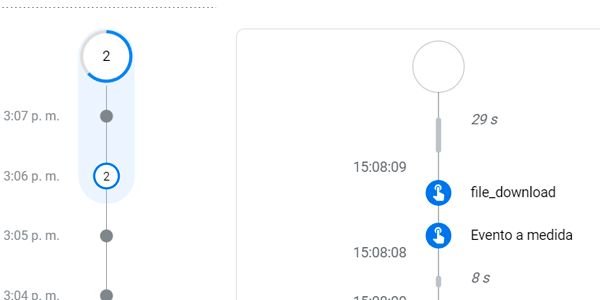
By the way, if I want to see these parameters in GA4 reports I need to have created these same four custom dimensions beforehand.

Things about the new tool.
And that is it: this way I would be collecting the download event in both Universal and GA4
#Extra: measure it only for GA4
It is a muuuuch simpler option.
Much simpler.
So much so that it is automatic.
And that is because, if you have enabled file downloads in GA4 “enhanced measurement”, the system collects the download without you having to do absolutely anything.

Look at the image above (the check): there is a “file download” event that we did not fire ourselves.
It is the one GA4 itself collects with enhanced measurement.
So we could have saved ourselves all this hassle if you did not want to send the same event to Universal at the same time.
Interesting, huh?

Leave a Reply