
It’s clear that analysing how landing pages are performing is essential if you want a digital business that works.
It always is, but it matters even more when you’re paying for ads, because if something isn’t working as it should, you’re throwing money away.
There are several tools for carrying out the analysis, but perhaps the two most widely used lately –and the ones I recommend– are MS Clarity and Google Analytics.
If you use the latter and, on top of that, you’re investing in ads on channels that aren’t Google, Meta for example, you’re going to have a bit of a problem.
The problem
Here it is:
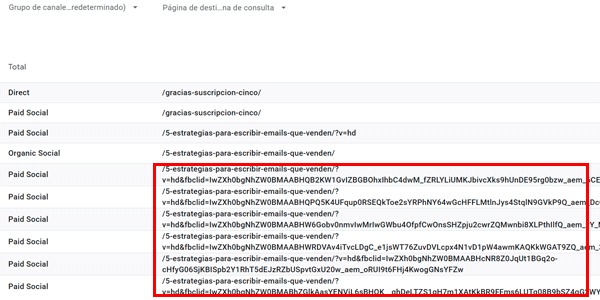
As you can see, in the usual channel + landing page traffic acquisition report, an fbclid parameter appears.
This is a tracking parameter that Meta automatically adds to every click on ads on its platform, and the result in GA4 is that the same URL is broken down for each value of this parameter.
This makes analysis harder, especially if you’re sending traffic from different sources to the same URL, because it will be difficult to compare the combined Meta ad data with the other traffic sources.
The solutions
Fortunately, there are several solutions. In this article, I’ll explain three:
- The easiest: hiding the parameters you want from the GA4 admin.
- Another easy one: using a custom report in GA4.
- A more complex one: creating a custom dimension and populating it with clean URLs sent from GTM.
All three solve the problem; it’s up to you to decide which route suits you best.
#1. Hiding parameters from GA4 Admin
First, I’ll show you in a video:
And here it is in text, in case you prefer:
If you choose this solution, open the GA4 Admin and go to:
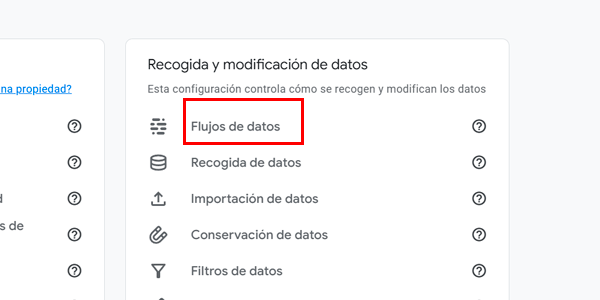
Data streams:
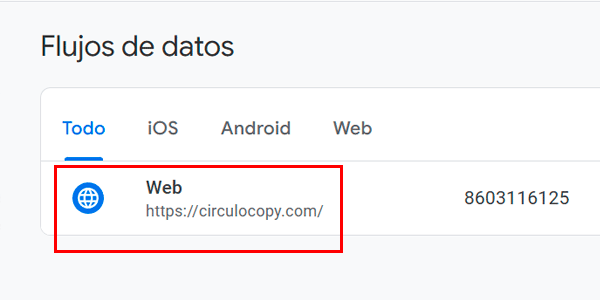
Select your stream:
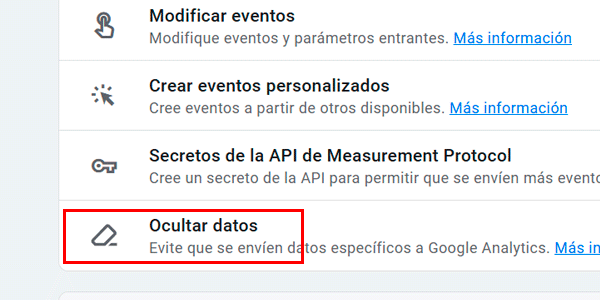
Redact data:
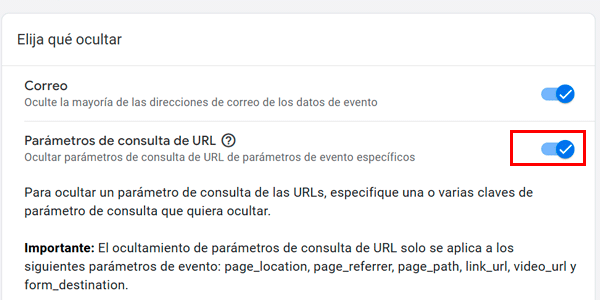
Enable the URL query parameters option:
Enter the parameters you don’t want to appear in your reports; in this case, the parameter fbclid that we saw in the image of the GA4 report at the beginning:
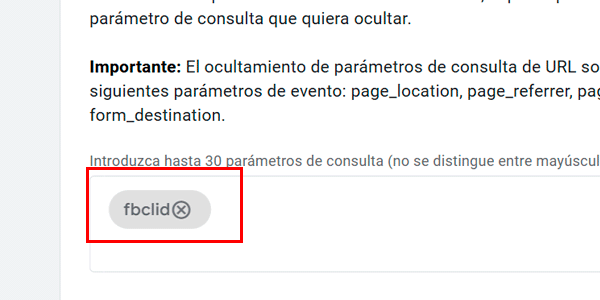
And that’s it. It will have taken you between 30 seconds and a minute.
From this point on, you’ll see all URLs with this parameter in your reports like this:
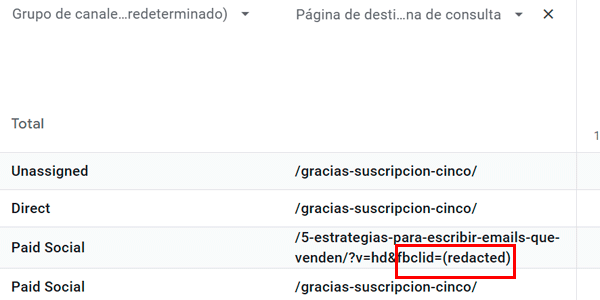
In other words, it will group into a single value all URLs for the same landing page that come from Meta ads.
What’s more, it’s the only way to remove parameters retroactively, once their values have already been collected.
#2. With a custom report
This method isn’t difficult either. Roll the video:
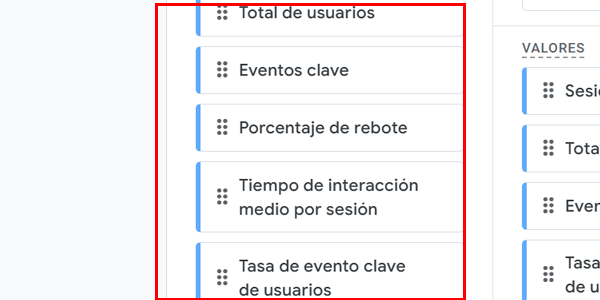
As you can see, you only need to create a custom exploration with these dimensions:
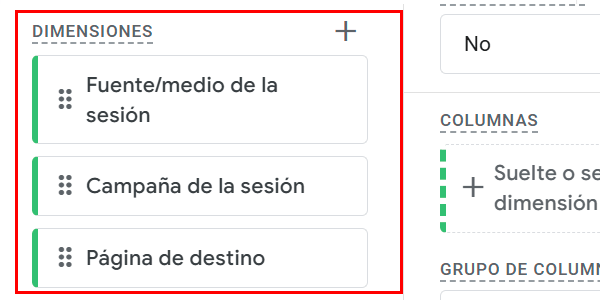
And whichever metrics you want, for example these:
Result:
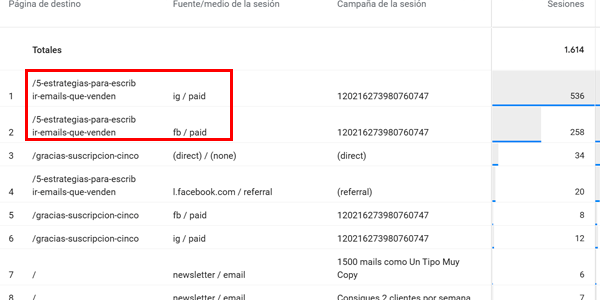
Almost the same as before, though not identical (the parameter with the hidden value doesn’t appear).
#3. Saving clean URLs with GTM
The most complex method involves Tag Manager.
In this case, I’ll explain the method in text because, if you’re going to follow it, I assume you’re an advanced user and the explanation of the method and steps is more than enough for you.
Create a variable in GTM
First, create a variable of the “Custom JavaScript” type in GTM (not to be confused with the “JavaScript Variable” type). Add this code:
function() {
return window.location.protocol + "//" + window.location.hostname + window.location.pathname;
}
Configure the GA4 tag in GTM
Next, add a parameter to the GA4 tag in GTM under “Shared event settings”.
You can call the parameter whatever you like, for example “clean_url”.
The value this parameter will take is the variable from the previous step.
Publish the GTM container
To start sending the data to GA4.
Create the custom dimension in GA4
From the Admin, create a custom dimension with the same name as the GTM parameter, in my case “clean_url”.
Use the custom dimension in reports
As traffic reaches your website, the custom dimension will collect data. Once you have it, you can start using the dimension in your GA4 reports.
And that’s it.
Why might we want to do it this way? For two reasons:
- To use the variable in standard reports.
- To preserve the parameters stored in GA4 for whatever reason while also being able to analyse the grouped URLs.
Personally, I’ve never used this solution on any project, because I prefer either of the previous options (I see no point in storing custom parameter values, since they add to GA4 problems such as cardinality), but if you’re a fan of keeping data as raw as possible, this is how you can do it.
Conclusion
We’ve seen three ways to prevent the problem of advertising platforms adding parameters to our URLs that make analysis harder.
These are useful tricks to know, especially for projects that invest in ads.
Was it useful? You can find more articles about analytics and GA4 here:
And get one every Thursday in two ways:
- By subscribing to my newsletter.
- By subscribing to my YouTube channel.
See you here. Or over there.

Leave a Reply