
Playing retro games is great. Especially if you grew up with Mega Drive, Super Nintendo and Capcom and Neo Geo arcades.
Until not so long ago, the normal thing was to install an emulator on your PC, console or phone and start playing. It was not difficult, but it did usually involve several steps:
- Download the emulator.
- Download the ROMs.
- Download the BIOS for some systems (such as PSX).
- Configure the emulator and the controller.
Anyone with a PC and a little interest could have had it running in fifteen minutes, but we humans are creatures of comfort.
And that is why another route is now becoming popular:
Playing emulators in the browser.
Here you do not install anything, you just:
- Go to a website like https://gam.onl/ with Chrome, Brave or Firefox.
- Choose the game.
- And play directly, without installing anything.
The problem appears when you use old or special controllers, like my beloved Mad Catz FightPad Street Fighter IV special edition for Xbox, which Windows does detect but the browser does not.
And yes, I could use my Xbox controller, which works without complications, but for retro 2D games, I want to play with the best possible D-pad, which is the one on that controller.
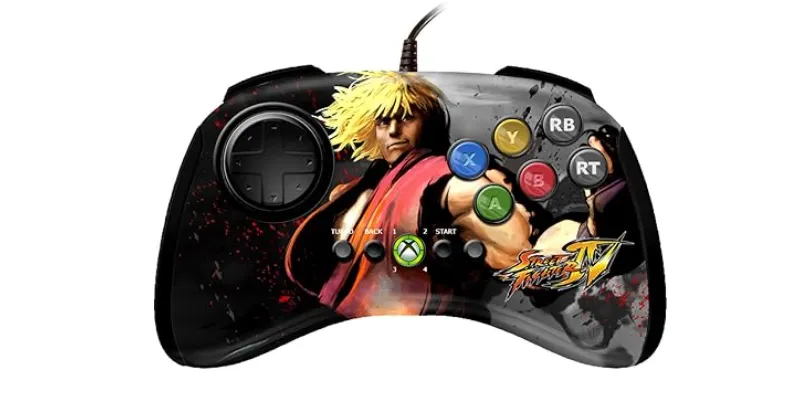
The solution was not to change controllers. Not even to use a USB adapter to use Xbox controllers on PS3 that I already have at home.
No.
Better to make the browser, in my case Chrome, detect the controller correctly.
And for that, what I did was make Windows show the Mad Catz as if it were an Xbox 360/XInput controller.
I will explain how.
The problem: Windows detects the controller, but the browser does not
The first step was to check whether Windows could see the controller. To do that, you need to open the classic game controller tool:
- Press Win + R
- Type joy.cpl
There the controller appeared as “Arcade Pad (Mad Catz FightPad)”.
And when entering its properties, the buttons lit up when pressed.
That confirmed one important thing: the controller works and Windows receives its button inputs, which I already knew, since I play the glorious KOF 2002 UM on Steam from time to time.
The problem came afterwards. When opening a website like https://hardwaretester.com/gamepad, the controller was not detected.:
In other words: Windows did see the Mad Catz, but Chrome did not. And if Chrome does not see it, a web emulator will not see it either.
Why this happens (for geeks)
Many browser emulators use the Gamepad API of the browser. That API usually works very well with modern controllers, especially those that behave like an Xbox controller.
The problem is that some old Mad Catz FightPads enter Windows as DirectInput/HID devices, not as XInput.
- In practice, that means:
- Windows: it does detect the controller
- joy.cpl: it does register buttons
- Chrome/Edge: they do not detect it
- EmulatorJS (the technology used to play video games in the browser): it does not detect it
That is why it is pointless to waste time remapping inside the web emulator. The controller is not even reaching the browser.
The solution: x360ce v4
The solution was to use x360ce v4, a tool that can convert a DirectInput controller into a virtual Xbox 360 controller.
The process is this:
Mad Catz FightPad > x360ce v4 > virtual Xbox 360 controller > Chrome > EmulatorJS
The important thing is to use x360ce v4, not the old version that was copied into each game folder. For a browser, we need system-level conversion, not a patch for a specific executable.
Now let us go step by step.
Step 1: check that x360ce sees the Mad Catz
When opening x360ce as administrator, at first you may see something like:
- 0 Mapped Devices
- Direct Input – Offline
That means x360ce is open, but it still has no real controller assigned.
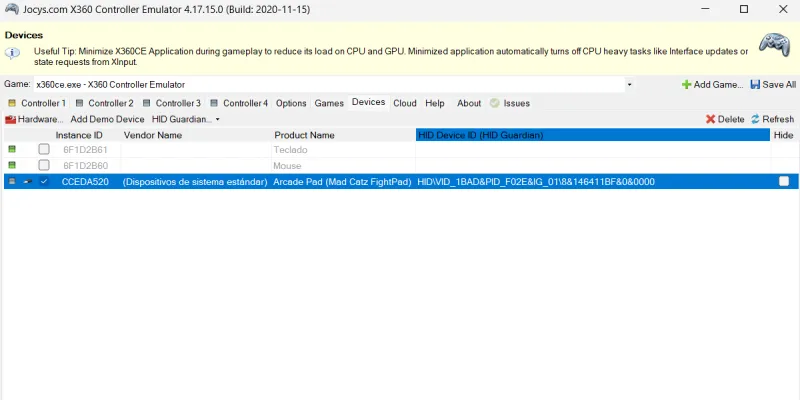
You need to go to the tab Devices.
There you should see something similar to Arcade Pad (Mad Catz FightPad).
In my case it appeared alongside keyboard and mouse.
The controller had an identifier similar to HIDVID_1BAD&PID_F02E.
That detail confirms that x360ce was indeed seeing the physical device.
Step 2: assign the Mad Catz to Controller 1
Then you need to return to the tab Controller 1 and click Add to add our Arcade Pad (Mad Catz FightPad).
When it is added correctly, the top area should change from 0 Mapped Devices to 1 Mapped Device.
Then you need to tick Enable 1 Mapped Device.
That step is important. If it is not enabled, x360ce may see the controller but do nothing useful with it.
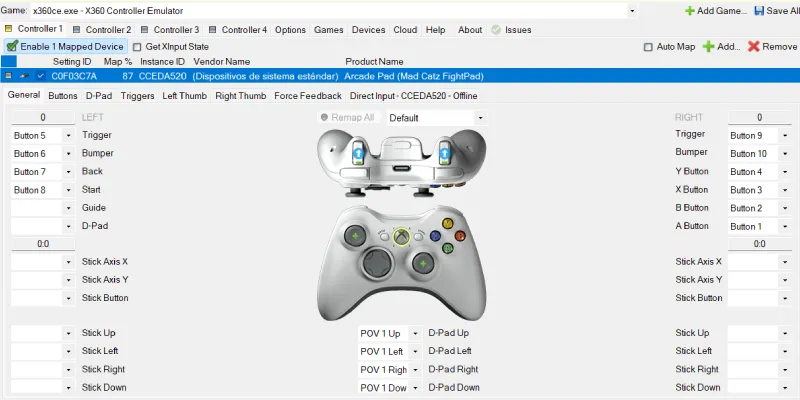
At first, even though the controller appeared in x360ce, the buttons did not light up on the main screen. That can be confusing, because it looks as if it still is not working.
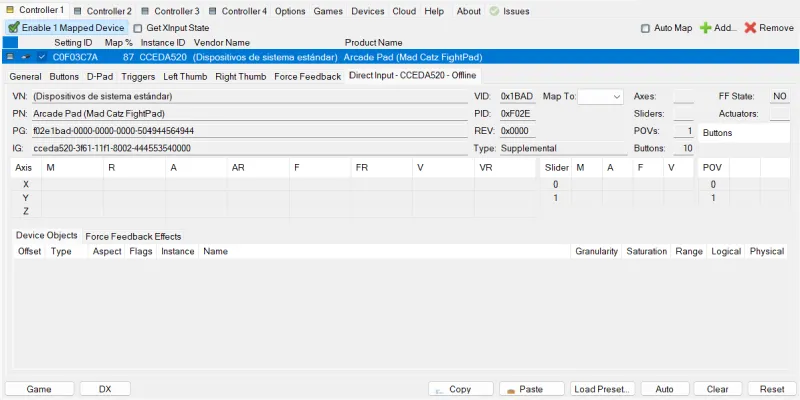
The key was to enter the specific device tab: Direct Input – CCEDA520.
There you can check whether x360ce is really receiving the Mad Catz button inputs.
Once you have confirmed that pressing buttons makes the app read values, you can map the controller using the button Remap All or, better for this controller with no analog sticks, by manually assigning the buttons in the dropdown menus.
Step 4: map the FightPad
It is a bit fiddly because you have to select with the mouse the button you want to map, leave it blank and press the corresponding button on the controller. Basically, a matter of a couple of attempts.
The Mad Catz FightPad makes sense mainly for fighting games and 2D emulation, so the recommended layout is to keep the six front buttons as if it were an arcade/fightpad.
| Mad Catz FightPad | Virtual Xbox |
| D-pad | D-Pad |
| Upper left button | X |
| Upper middle button | Y |
| Upper right button | RB |
| Lower left button | A |
| Lower middle button | B |
| Lower right button | RT |
| Select / Back | Start |
| Start | Back |
Visually, for fighting games it would look like this:
- Top row: X Y RB (or LB, depending on preference)
- Bottom row: A B RT (or RB, depending on preference)
In x360ce the D-Pad appeared to me as:
- POV 1 Up
- POV 1 Left
- POV 1 Right
- POV 1 Down
That is normal. On this controller the D-pad is detected as POV.
Right, so when you finish, if the mapping is correct, x360ce may show something like Map %: 93.
It is not 100% because there are no analog sticks, vibration or buttons that the FightPad does not have. For 2D emulation and fighting games, the important thing is that D-pad, main buttons, Start and Back are assigned correctly.
Step 5: save the configuration
When the mapping is already correct, you need to press Save All.
But there is an important detail: at the top, the selected game may appear as x360ce.exe – X360 Controller Emulator.
That means the configuration is linked to x360ce itself.
It may work in the browser, but in case it does not, it is worth adding Chrome as a “game”.
To do that, you need to press Add Game…
And add Chrome from its path. Open this directory: C:Program FilesGoogleChromeApplication and select chrome.exe.
Then select the browser in the “Game” dropdown and press Save All.
Step 6: leave x360ce open
This point is easy to forget. To play, x360ce must remain open or minimized. Do not close it.
The recommended order for everything to work when you want to play with this pad or a similar one in the browser is:
- Connect the Mad Catz FightPad.
- Open x360ce.
- Check that it appears as 1 Mapped Device.
- Check that the mapping is still loaded.
- Press Save All if anything has changed.
- Minimize x360ce.
- Open Chrome or Edge.
- Enter the web emulator.
If everything is fine, when you go back to https://hardwaretester.com/gamepad and press any button on the controller, the browser should no longer show “None detected” but instead a controller like Xbox 360 or XInput should appear.
Step 7 (optional, but possible): when to use HidHide
In this process, it is not advisable to enable “Hide” from the beginning.
HidHide only makes sense if the system ends up showing two controllers:
- Arcade Pad (Mad Catz FightPad)
- Xbox 360 Controller virtual
In that case, some emulators might pick the wrong controller.
The solution would be to hide the real Mad Catz and leave only the virtual Xbox controller visible.
But if the browser does not directly detect the Mad Catz, as happened to me, there is no need to touch HidHide at first, because first you need to get x360ce to convert the controller correctly.
Diagnosis summary
Here is a summary table with possible states:
| Test | Result | What it means |
| joy.cpl | The controller appears | Windows detects it |
| joy.cpl properties | The buttons light up | The controller works |
| Hardwaretester | None detected | Chrome does not see it |
| x360ce > Devices | The Mad Catz appears | x360ce can locate it |
| x360ce > Controller 1 | 1 Mapped Device | The controller is assigned |
| x360ce > Map % | 93% | The mapping is almost complete |
| Hardwaretester after x360ce | It should appear as Xbox | Final goal |
Conclusion
Old controllers like this Mad Catz FightPad do not have to be replaced or retired. Especially since, today, there are no “normal” controllers with a better D-pad.
The problem with these pads is that many browsers do not get along with certain old DirectInput/HID controllers.
The solution is to make Windows show it as a virtual Xbox 360 controller using x360ce v4.
If Windows detects the buttons in joy.cpl, there are a good chance you can get it working. The key point in all this is that the browser must see the converted controller as XInput, not as “Arcade Pad”, and that is what we have done step by step in the article.
Right, now you know how to start throwing hadoukens in Chrome without doing three jumps on every attempt.
Frequently asked questions
Why does Windows detect my controller but Chrome does not?
Because one thing is for Windows to recognize the controller, and another for the browser to be able to use it correctly. Many old controllers work as DirectInput or HID, while Chrome usually gets along much better with XInput controllers, such as Xbox controllers.
How can I check whether Windows detects the controller?
PressWin + R, typejoy.cpland enter the classic game controller tool. If the controller appears there and the buttons light up when pressed, Windows is detecting it correctly.
Why does my controller not appear in a web emulator?
If the browser does not detect the controller, the web emulator will not be able to use it either. In that case, remapping buttons inside the emulator is not much use, because the controller is not even reaching the browser.
What does x360ce v4 do?
x360ce v4 converts an old DirectInput or HID controller into a virtual Xbox 360 controller. That way the browser stops seeing a strange or directly invisible controller and starts detecting an XInput-compatible controller.
Do I have to use x360ce v4, or is an old version enough?
For this case, it is better to use x360ce v4. Older versions were designed to copy files into each game folder, but here you need the conversion to work at system level so Chrome or Edge can detect the controller.
Why does x360ce not show my controller as active?
x360ce may see the device, but you may not have assigned it to Controller 1. You need to add the controller from the corresponding tab, check that it appears as 1 Mapped Device and enable Enable 1 Mapped Device.
Is it normal for the mapping not to reach 100%?
Yes. On a controller like the Mad Catz FightPad, which has no analog sticks or all the buttons of a modern controller, it is normal for x360ce not to show 100%. The important thing is that the D-pad, main buttons, Start and Back work.
Do I have to leave x360ce open to play?
Yes. For the browser to detect the converted controller as Xbox 360 or XInput, x360ce must remain open or minimized. If you close it, Chrome or Edge will probably stop detecting the controller correctly again.
When should I use HidHide?
It only makes sense to use HidHide if the system shows two controllers: the real controller and the virtual Xbox 360 controller. In that case, some emulators might choose the wrong controller. If the browser does not detect the old controller directly, there is no need to touch HidHide at first.
How do I know if everything worked?
Go to a test website such as Hardware Tester Gamepad and press a button on the controller. If everything is fine, the browser should stop showing “None detected” and show an Xbox 360 or XInput-type controller.

Leave a Reply