
GA4 is a great option for large projects.
However, for medium or small projects it has a number of drawbacks, and we'll see whether they ever get fixed.
One of them is that its interface (its reports) doesn't show you all the information the tool collects.
Surprised?
You shouldn't be. This isn't new in version 4. It already happened in Universal, just on a much smaller scale, so it went far more unnoticed.
The fact is that not seeing all the data translates into:
- Frustration.
- Lack of information.
- Failure to make decisions (or decisions based on partial data, which is worse).
Fortunately, we have a couple of ways to tackle this.
Options
Basically, you have two:
- The good but complicated one.
- The not-so-good one, but infinitely simpler.
I'll explain each one below so you know which to choose (although I bet I know which one you'll go for).
Option 1: export the data to BigQuery
Quite a trick, huh?
If we connect our GA4 to BigQuery, we'll send the raw data, allowing us to extract all of it to build our reports.
Sound good?
It's the right approach for big projects, but it requires significant development work, so it only pays off for fairly large projects. Or very large ones.
That said, no matter how much has been written about it, don't focus on the cost of using BigQuery –it does have one- because for Google Analytics it's tiny and should NOT be a reason not to use it.
This is the best but complicated option, so for 90% of people -and I'm being generous-, it's better to look at the next one.
Option 2: tweak a few configuration settings
This is the easy.
Because with just a few small adjustments you'll see significant changes.
I'll also tell you about a few others worth considering, but those are optional.
Changes to GA4 configuration
These are settings I suggest tweaking so you can get more data in your reports.
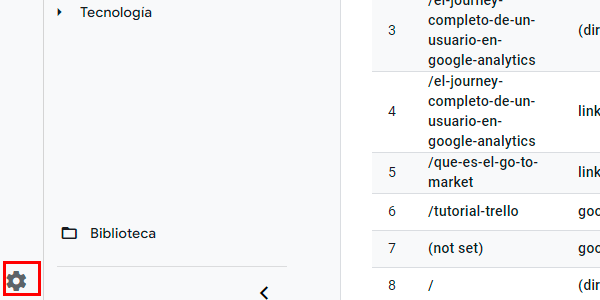
To do that, first go to your GA4 account administration from the corresponding link:
Reporting identity
Open the Data display tab and go to Reporting identity.
There, choose the “Device-based” option if you have another one selected:

Important: if this is your first time in this section and you don't see this option, click the link on the right to show all:

Although the other two sound better, the result on smaller sites is usually worse, because “cardinality” will be applied in reports, reducing the data you see.
Try it without fear, because you can switch between all the options and the results are retroactive.
Collect 14 months of data
At the very least, you should be able to compare a user's data over a year.
To do that, just go to Data collection and modification > Data retention and change it:

I also recommend leaving the switch below enabled, so the data retention period resets with every user interaction on the website.
Optional settings
Besides the two settings I just mentioned, here are some other recommendations worth considering, although implementation is up to you.
Let's say these settings don't add more data to GA4 reports, but they do change the values.
Change the conversion window
The conversion window is how far back in time the data will be considered for a conversion.
In other words, if I choose a 30-day window, the channels credited with part of that conversion will be those the user accessed through during the 30 days before the conversion.
If the user first found us 40 days ago through an organic search, since our window is 30, that channel will NOT be considered.
To change it, go to Data display > Attribution settings and my recommendation, unless you know your user's journey is very long, is to use these values:

Bear in mind that this change is not retroactive and cannot be undone. Even so, I recommend it.
Change the attribution model.
Very sadly, GA4 has removed several interesting attribution models, such as “Time decay”. Instead, it gives us its “Data-driven” model by default, a black box whose algorithm you simply have to trust.
Another option is to leave “Last click”, which is closer to what we had in most Universal reports.
It's changed in the same place as the conversion window, Data display > Attribution settings:

Depending on the project and the marketing setup, I choose one or the other:
- If I pay affiliate commissions on a last-click basis, I choose “Last click”.
- Otherwise, I leave “Data-driven”.
Extend the session
The last optional setting I suggest considering is changing the user's session duration.
The default 30 minutes made perfect sense when browsers didn't support multiple tabs, so basically, when we left a website, we didn't come back until some later point.
Nowadays, with multiple tabs and the variety of browsers people use, I think it's better to set it to 7:55, which is roughly a working day.
To change it, we have to make a few clicks:
Go to Data collection and modification > Data streams and click the stream you want to modify:

Scroll down to Configure tag settings and open it:

Now go to Adjust session timeout:

And enter the values here:

Changed.
Final conclusions
With these small adjustments, which take about 2 minutes in total, the quality of the data and, above all, the amount shown in GA4 reports increases considerably, to a greater or lesser extent depending on the project.
There are a few more optional settings, but for small or medium-sized projects, this is more than enough.
If you want to learn a few more things about Google's little toy, I have a summary page packed with GA4 tips for you.
And if, after reading them, you think you need help, just talk to me and we'll assess your project.

Leave a Reply