
In Universal Analytics we had alerts.
Inside Custom Reports, right at the top level, there was a link to access them.
In GA4 they've renamed them with a much more fashion “custom insights” label and hidden them away a bit.
As if they didn't want this fairly useful tool to get used too much.
And that's despite it being more powerful than the old one…
Anyway, Google being Google.
Let's get to the point: I'll explain what this is, what it can do for you, and how to start getting some value from it.
What Custom Insights are
These “custom insights” —as the tool translates them— are simply alerts that Google Analytics will show or send us when it detects an anomaly in our data.
An anomaly is simply a deviation from the expected pattern, beyond a certain statistical margin threshold.
And it can detect these kinds of anomalies automatically all by itself, or we can add our own.
To do that, the first thing is knowing where they are inside the tool.
Accessing Custom Insights
Open Analytics and go to the home page.
Once you’re there, click the “View all insights” link:

Inside you'll find both your alerts and the insights the tool can detect on its own.
How to create a custom alert or Custom Insight in GA4
Inside this section, click "Create":

Here you specify your alert parameters, including what it will measure and when it will trigger.
For example, let's start with a basic one:
Have it warn us if one day's traffic grows by more than 30% compared with the previous day.
It would be set up like this:
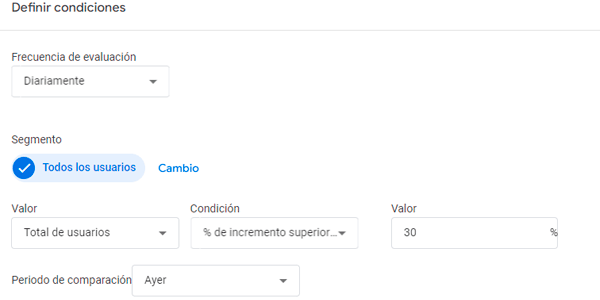
Where:
- Evaluation frequency: Daily. Because I want the analysis to run every day.
- Value: Total users. Because there is no total sessions metric —which is what I'd actually prefer— but this comes close.
- Condition: % increase greater than. Exactly that: it has to exceed the percentage I define.
- Value: 30. Because I consider that figure a meaningful variation worth being notified about. In your case, 20 or 50 may make more sense depending on how much your project's traffic fluctuates.
- Comparison period: Yesterday. It means something has happened to make traffic jump suddenly rather than increase gradually.
Next, I give it a descriptive name. For example:

DoD stands for Day over Day. A throwback to having worked at a multinational ;P
As you can see, I also specify the email address (you can add several) where I want the alert to arrive.
All that's left is clicking the blue “Create” button and it will be saved.
Here's another useful alert example for this project:

If you run an online store, you'll see changes in the number of transactions every day. But a 50% change is rare, very rare. It only happens on special occasions, like Black Friday.
If that's not the case, take a look at what might be happening, because perhaps:
- The website is down.
- The checkout is broken.
- The pixel you added to the thankyou page has completely wrecked your Analytics tracking.
By the way, if you don't want to mess around entering percentages or values, you can select the “Has anomaly” condition and let the tool decide when there is a statistically significant anomaly worth notifying you about:

A couple more notes:
Choosing the Evaluation frequency:
This determines how often you want Google Analytics to evaluate the data.
Options include hourly, daily, weekly, or monthly intervals, so you can adjust the frequency to your specific needs. For daily tasks, I recommend setting the evaluation to daily.
Defining the User segment:
I've shown general examples here using all users, but if you need to, customize the user segment you want to analyze by adjusting the data dimensions.
For example, you can focus on a specific paid media channel or on the country of origin if you sell in several countries.
Choosing the Metric to monitor:
Although traffic and conversions are useful in every project, each one will have other relevant metrics worth monitoring too, such as ad revenue or the number of page views.
Managing custom alerts
Once you've created your custom insights (the Spanish name still makes me laugh), you can manage them by clicking here:

Once inside, you can choose which alerts you want to receive by email:

You can also edit each alert's values or delete them from here:

Conclusion
Custom Insights are interesting tools and, above all, useful ones.
If chosen well, they can save us a lot of work in our daily reporting.
That said, I recommend not going crazy with them: start with the critical ones (conversions, revenue), then add more progressively. And never completely give up some level of manual oversight, because it always gives us more control over the data.
I hope you implement them soon and find them useful. If you want more tips afterwards, here are a few GA4 tricks.
By the way, would you like to receive a new trick like these in your inbox every week? All you have to do is subscribe here. Of course it's free, and while you're at it you can grab whichever little gift you prefer.
To finish —and I really am wrapping up now— if what you actually need is a review of your analytics or your digital business itself, we can talk. You can contact me through this form.
Have a great day.
Frequently asked questions
What are Custom Insights in GA4?
They are automatic or custom alerts that warn you when an anomaly occurs in your data (traffic, conversions, revenue, etc.). They detect deviations from expected behavior.
How are they different from Universal Analytics alerts?
In Google Analytics 4 they are more powerful, but less visible. They used to be easier to access; now they are “hidden” under the name Custom Insights.
Where can I find Custom Insights in GA4?
On the Analytics home page. Click “View all insights”. There you'll see both automatic insights and the alerts you've created.
What kinds of anomalies does GA4 detect?
Two types: automatic ones, which the tool detects by itself, and custom ones, which you define with rules such as increases or decreases in metrics.
How do I create a custom alert?
Inside Custom Insights, click “Create”. Define the metric, condition, frequency, and comparison period. For example: alert me if users rise by more than 30% versus the previous day.
What evaluation frequency should I use?
Daily in most cases. Hourly if you have a lot of volume. Weekly if your business is more stable.
Which metrics are worth monitoring?
Start with the critical ones: conversions, revenue, and traffic. Then add channels, countries, or key events depending on your business.
Can I segment the alerts?
Yes. You can apply segments by channel, country, device, or any relevant dimension. This is where you really start getting value.
What happens if I detect an anomaly?
Check it quickly. The usual suspects are: the website is down, tracking is broken, the checkout has an error, or a campaign has suddenly taken off.
Can I let GA4 detect anomalies without configuring anything?
Yes, by using the “Has anomaly” condition. But don't rely on this alone. Custom rules are usually more useful.
How do I manage the alerts?
From the Custom Insights panel you can enable or disable emails, edit conditions, or delete alerts.
How many alerts should I have?
Few, and well thought out. Start with 3–5 critical ones and add more progressively. If you go overboard, you'll end up ignoring them.
Is it really worth using Custom Insights?
Yes, if you use them well. They save time, detect problems earlier, and improve your ability to react. But they don't replace manual analysis.

Leave a Reply