

Consent Mode v2
October 2024 update:
Real client experiment: effect of Consent Mode on Google Analytics.
April 2024 update:
If your website and traffic are from Spain and you don't use Google Ads, you can legally install GA4 without a cookie banner.
February 2024 update:
The first part of the article is an update with a general overview and the new features in version 2 of Google's Consent Mode. If you know nothing about the system or want to go into it in more depth, below you'll find the original article where I explain the basics of Consent Mode.
It seems that now, at the end of January 2024, everyone is talking about Consent Mode everywhere.
That it's essential to know about it and use it on every web project, because otherwise the world will end in March 2024.
And yes, it's important, but not for everyone. Nor does your online business necessarily have to end if you don't use it after that date.
That's why I want to update my original article on the subject, with version 2 of the protocol and the changes coming over the next few months, so you know whether you need to worry (or prepare) about it. And how much it affects you.
That said, before we start, a warning:
- If you don't use display and remarketing campaigns in Google Ads.
- You don't care about your Google Analytics figures or your website gets little traffic.
Consent Mode (version 1 or 2) will matter little to you, if at all.
Overview of Consent Mode and version 2
All you need to know is that it is a Google protocol that acts as a bridge between the tags and pixels you implement on your website, usually via Tag Manager, and CDPs (Consent Data Platforms), the systems that record the cookies users have accepted.
In other words, Consent Mode is a protocol placed between both systems, defining and changing their behaviour.
Basically, what Consent Mode does is tell GTM which cookies a user has accepted or rejected, so tags act accordingly, adding cookies or not.
If you want more detail, I explain it in greater depth in the original article. If you already know it, let's talk a little about cookies…
Let's start by clarifying an important point: a cookie is not the same as information.
A cookie is a little file stored in your browser that contains information, which may or may not be about the user visiting a website.
When a user rejects cookies, what they're doing is preventing your website and the tags you've implemented (GA4, Facebook, Google Ads) from storing those cookies in that user's browser.
But these tools can still collect information about the user, just not in the form of a cookie. And they store it in their systems.
And they do. Of course they do. They keep collecting information in other ways that, as of today, are legal.
This information —again, as of today— is not as complete as what is collected through cookies. But I have little doubt that, sooner or later, it will reach the same level.
Well then, besides how they work, you need to know that cookies mainly fall into two types:
- First-party: these are generated by the domain itself for various purposes, including analytics and advertising. GA4 and Google Ads cookies fall into this group.
- Third-party: the famous "third-party cookies". Basically, they track users as they browse different sites, enabling personalised advertising and remarketing. Have you visited AliExpress and then seen products you looked at advertised on Marca? That's thanks to third-party cookies.
Because of the abuse of these third-party cookies, Europe regulated their use and forced us to add those lovely banners. And forced media outlets to charge people who don't want to accept them.
Right, so we now have the two parts involved in the change:
- Consent Mode tells GTM tags whether they can set cookies or not.
- Third-party cookies enable personalised advertising and remarketing.
So Google connected the two and said that from March 2024, if you don't have Consent Mode enabled on your website, you won't be able to use Google Ads display and remarketing campaigns.
This is the key to all the fuss around Consent Mode. Google will disable these campaigns if you don't comply.
And how relevant is this to you?
To find out, let's break down each part of that sentence:
- March 2024: that's the deadline you have to implement Consent Mode on your website if you don't want to be affected.
- Consent Mode enabled: this means changes to your GTM and CDP. Depending on how your CDP is implemented, updating the plugin version may be enough, as the developer may already have handled everything else. With GTM, you'll have to change things yourself, although it may be as simple as updating the CDP tag.
- Display and remarketing campaigns: only these. In other words, the rest of your campaigns (search, shopping, Pmax) are NOT affected. If you don't run Display or remarketing campaigns, this does NOT affect you.
- In Google Ads: another important point. It only affects Google Ads. If you're running remarketing campaigns with Criteo —to name one— you won't be affected (at least for now). We'll see whether the other display networks follow suit.
Clear, right?
With these four points you'll know whether your project will be affected or not.
One more thing: here I'm talking about the reason behind the current fuss around version 2, namely the pausing of certain types of Google Ads campaigns.
However, Consent Mode (v1 and v2) has implications for Google Analytics measurement, as I explain, again, in the original article.
So, if you haven't implemented it because you don't run display and remarketing campaigns, knowing how it affects GA4 may change your mind. That said, you'll need a good volume of traffic to get anything out of it…
Consent Mode v2: changes compared with version 1
I said at the start that, since Consent Mode v1 appeared, Google has tried to collect user information even when the user has rejected cookies.
It does this through what it called " pings ", basically sending anonymous information to Google's servers about what the user did on the website.
Because no cookies are included, the part that identifies the user is removed and their data is used to " model ". In other words, to fill in the data from users who accepted cookies, so that our data is less partial and closer to reality.
GSC: the version 1 parameter
To determine what information could be sent and how, in v1 of Consent Mode Google added a parameter to the tracking of its pixels, the GSC ( Google Consent Status).
So this parameter could have 4 different values:
- G100: the Google tag (such as GA4) loads but without cookie permissions. This is what Google now calls "Advanced" mode in v2. I'll explain it in more detail in a moment.
- G110: the user has accepted advertising cookies but not analytics cookies.
- G101: the user accepts analytics cookies, but not advertising cookies.
- G111: the user has granted consent for both.
If technical analytics is your thing, you can see this parameter in the Network tab of Chrome's element inspector, filtering by "collect":
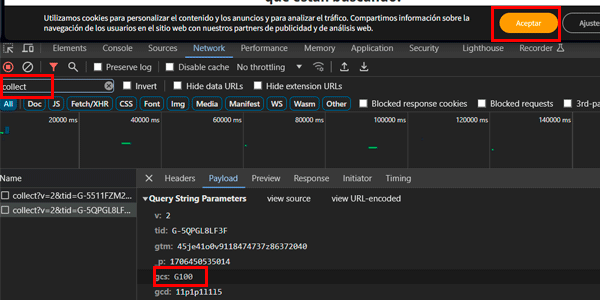
In the image above you can see that:
- Cookies have not been accepted on the website.
- Google Analytics is loading (but without cookies).
- The GSC parameter value is G100, meaning "no cookie consent", as expected.
Right, so this comes from version 1 and remains in version 2. It hasn't changed.
What has happened is that Google has added a new parameter.
GCD: the version 2 parameter
Now, in addition to GSC, Google tags have a new parameter, the GCD, which, as you can see, is a longer string than the previous one:
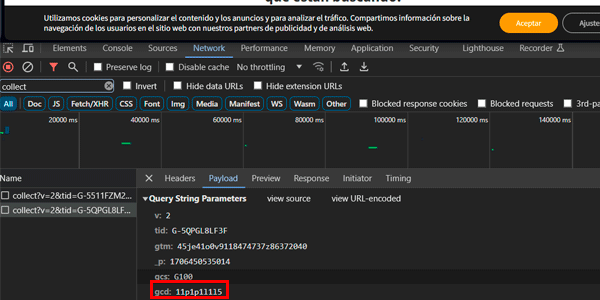
It still hasn't been fully deciphered what each number and letter means, but its structure has. It is this:
11<ad_storage>1<analytics_storage>1<ad_user_data>1<ad_personalization>5
Where:
- The "11" marks the start of the parameter.
- The "1" values are separators between values.
- The letters are the values for each of those consent states. And they form a matrix with two coordinates: one determines whether consent is granted or not, and the other determines whether consent is the default (almost never) or comes from an update (because the user accepted or rejected it).
- Ad_storage and analytics_storage already existed before (it's the same information as in the GSC parameter).
- Ad_user_data and ad_personalization are the new part, and they're important. The first is advertising consent and the second is remarketing consent. Well, these two values do NOT affect GTM tags and are supposedly for Google's internal information. My view is that they are anticipating the point when legislation targets not cookies, but the use of user information for these purposes. As I said above, information doesn't always travel inside a cookie.
Terminology: towards standardisation
Besides these technical changes, Google has tried to "normalise" the situation and clarify the terminology, so we're all clear about the terms being used.
This applies mainly to the two ways of implementing consent correctly: basic and advanced.
Basic mode
The easiest to comply with, but the worse option.
It consists of not firing any tag or pixel until the user accepts the cookie banner.
It was very easy to implement: just tie the loading of the GTM container to the moment the user accepts cookies.
But of course, doing it this way meant losing quite a lot of data, such as the session source and medium or the landing page, if the user accepted cookies on a page other than the landing page.
Advanced mode
The good one.
You need to enable Consent Mode in your GTM container and use compatible tags, which include —among others— all Google's tags.
In other words, if you want to implement GA4 through Consent Mode, the normal approach is to do it via GTM rather than putting it directly in your website code.
When we do it through GTM, we fire the Analytics tag whenever GTM fires (normally when the page loads), but it does NOT set cookies until the user accepts the banner. In the meantime, it sends information "pings" to its servers.
Once the user accepts the banner, it will then set the Analytics cookie and collect the maximum amount of information.
Consent Mode implementation types
With all this, we ultimately have three approaches to choose from on our website when it comes to consent mode:
- Without Consent Mode.
- With Basic Consent Mode.
- With Advanced Consent Mode.
#1. Without Consent Mode
We ignore what Google tells us.
Advantages:
We don't have to do anything other than make sure we comply with the GDPR.
We can use GA4 without a cookie banner under certain circumstances.
Disadvantages:
We won't be able to run remarketing and display campaigns in Google Ads.
Our GA4 data will most likely be lower quality, depending on the implementation.
Suitable for websites:
Small sites that use Analytics in a basic way and don't advertise. Generally, without a monetisation goal.
And probably without GTM either.
#2. With Basic Consent Mode
We apply consent in an easy way while complying with the GDPR.
Advantages:
Exactly that: easy to implement. Even self-managed.
Disadvantages:
The data quality won't be the best.
Suitable for websites:
Small or medium-sized sites that do little or no advertising, but do want to collect and analyse certain data. And use GTM and GA4 for it.
They don't really need a CDP to comply with the GDPR, or a very basic one will be enough.
Think, for example, of non-transactional corporate websites.
#3. With Advanced Consent Mode
We get serious because we want the benefits or because we need them. And we implement the full system.
Advantages:
The ability to use all types of Google Ads campaigns.
On large sites, data quality —while complying with the GDPR— will improve.
Disadvantages:
It has some complexity if you want to do it yourself and don't want to pay for a CDP.
You need to be comfortable with GTM and, sometimes, have a technical profile or someone who can help you with it.
Suitable for websites:
Medium or large sites that invest in advertising or use Google Analytics in an advanced way.
Projects that monetise.
Conclusions
In short, what Google has done with version 2 of Consent Mode is expand the information the system uses and make it more granular that the system uses. In other words, it doesn't invalidate what came before (version 1), but expands it.
It also keeps standardising the system, giving names to the different types of consent.
It's another step in the increasing technical complexity of digital analytics and marketing. The sector seems to be maturing more and more, and it will require greater investment in resources if you want to reach levels that only a few months / years ago were easier to achieve.
As for how it affects you, that depends on how much you use Google's platforms: if your use is limited it will barely affect you, while if your dependence is high, you'll have work to do.
What you'll have to do in this case is, at minimum, update your CDP tag in GTM, if you use one at all, which you may not.
I may expand this article soon or create a new one covering Consent Mode v2 configuration in some of the most common CDPs.
For now, if you're interested in the subject and want more information, keep reading just below, because you also have a medium-complexity but free implementation of version 1 of Consent Mode. I assume v2 won't differ too much.
I'll let you know when I get to it.

Before you continue, I think this will interest you
Sign up and get my 66-page guide to the Best Free Digital Tools for:
- Marketing
- Analytics
- UX
- Project management…
Plus, every day you'll get a useful trick or tip in your inbox to improve your business or digital project.
Consent Mode v1: original article
Since it first appeared, quite a lot has been said about it, although, to my surprise, less than it perhaps deserves because, while it isn't a paradigm shift, it does affect two fundamental areas of analytics:
- Implementation (making it more complex).
- Reporting (supposedly improving data quality).
That's why I want to tell you about this system and how it can benefit us in exchange for increasing the technical development required to get it up and running.
Is it worth it?
I'll leave that for you to decide after reading the article.
What Consent Mode is
Consent Mode is Google's response to the GDPR: a system that uses GTM and makes it possible to comply with privacy law while still allowing certain tags —such as Google Analytics and Google Ads— to collect some data from users browsing our websites.
Essentially, it's a measurement system that is cookieless, which, while not as accurate as always inserting the Google Analytics snippet as soon as the page loads (what we did before the GDPR), is still a step forward compared with loading the tag only after the user accepts cookies.
To make it clearer, depending on the data collected, we have three options for implementing Google Analytics:
- Load the tag only when the user accepts cookies: we lose a lot of data, especially if the user doesn't accept cookies on the landing page but several pages later. It complies 100% with the GDPR.
- Always load the tag without cookies through Consent Mode: we lose data, but less than before (we'll get to that now). The moment the user accepts, we load the normal tag with its cookies. This also complies 100% with the GDPR.
- Load the normal tag without waiting for the user to accept cookies: we collect the maximum amount of data. Shame it's illegal because it doesn't comply with the GDPR.
Right, with the three possible scenarios clear, in this article I'm going to focus on the second one, which will be —if it isn't already— the implementation standard in analytics projects for businesses.
Before getting into the data itself, I'll tell you that Consent Mode also aims to make it easier to fire other tags or pixels (Facebook, affiliate) depending on the permissions the user grants us.
We'll leave that for later because, as I said, in this article I'm going to focus on the measurement advantage with Google Analytics, and there's plenty to unpack.
Advantages of Consent Mode in GA4
The main advantage of using this system to implement GA4 is that, with this extra data we're collecting, Google Analytics will be able to infer some of the data that wasn't collected, modelling the information it does have using its own algorithms.
This way, metrics such as the number of daily users and their characteristics (country, campaign) will be much closer to reality. Derived metrics such as conversion rate will also be affected.
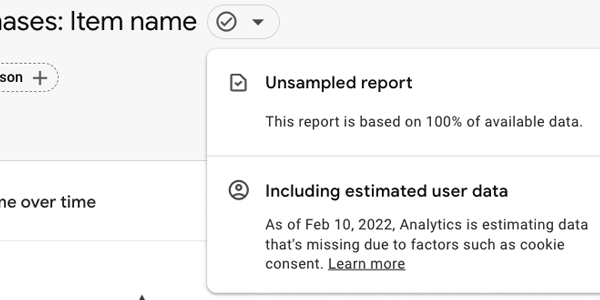
Google calls these data "modelled", as opposed to data collected normally (the "observed" data).
And, if we meet the requirements we'll see now, we can choose in GA4 Admin whether to use both types of data (Google calls it "blended") or only observed data (what we'd been seeing until now):
Prerequisites
Looking at the requirements themselves, we'll have two types: the technical -related to implementing the system- and the volume -related to the amount of data required for GA4 to estimate correctly and for the system to be robust-.
Let's start with the latter.
Required volumes
If we go to the Analytics documentation, we read that:
“The property collects at least 1000 events per day with analytics_storage='denied' for at least 7 days.
The property has at least 1000 daily users who send events with analytics_storage='granted' for a minimum of 7 of the last 28 days.
The model may take more than 7 days to reach the data threshold within that 28-day period. However, even the additional data may not be enough for Analytics to train the model.
Behavioural models begin working from the date a given property meets the requirements.
In the rare event that a property that previously met the requirements stops meeting them, estimated data will no longer be available. If the property meets the requirements again, estimated data will become available again. Estimated data will only be available from the date on which the property once again met the requirements.”
Right, if you're wondering what analytics_storage means, it's the user's acceptance of analytics cookies. “denied” means they have NOT accepted them yet.
In addition, to get the full functionality (especially linked to enabling Signals), GA4 will also require acceptance of advertising cookies, the ad_storage.
Technical requirements
Besides these data volumes, a number of things need to be in place before we start:
- We need to have GTM implemented on the site in any of the possible ways:
- Inserted in the code.
- Via a plugin (that's how I have it).
- Through theme options.
- A web stream for GA4 implemented through GTM.
- A cookie banner that lets users accept or reject analytics and advertising cookies (at least). It can be implemented:
- With custom code.
- Plugin from the CMS (that's how I have it).
Once we have all this implemented, we can start configuring the full system.
The process
But before configuring anything, the first thing we need to do is understand how the system will work, because the order of the elements matters.
So, when a new user enters the website, the following should happen:
- The initial Consent Mode status tag from GTM loads. At this point, the analytics_storage and ad_storage values are "denied" because the user hasn't accepted anything.
- GTM loads the GA4 tag without cookies, because Consent Mode is active.
- Then comes the cookie banner. Here the user has three options:
- If they don't accept cookies: the cookieless GA4 tag will keep loading on every page, with partial information that GA4 will model.
- Si acepta solo algunas cookies: en este caso, GA4 recogerá los datos correspondientes a analytics_storage (los principales) o a ad_storage (secundarios) en función de lo que haya aceptado el usuario.
- Si acepta todas las cookies: se mandará la aceptación a GA4 y se empezará a recoger la información completa.
Important: whatever option the user chooses, on every page GTM must first load and send GA4 the analytics_storage and ad_storage values. This is the most complex / technical part of the implementation.
How to configure Consent Mode in WordPress
Right, once we understand how everything needs to work, we can get started.
One clarification: depending on your website, you may want to use one system or another. That's why I'm leaving you a couple of tutorials here that explain the full process using WordPress plugins:
- With Cookiebot: perhaps the easiest option, as it has a dedicated template in GTM. The problem is that the free version of this CMP only allows up to 50 URLs on the website, which will be too few for most sites. If your project has fewer than 50, start here (method 3).
- GDPR Cookie Compliance: this is how I have it implemented, because I have more than 50 URLs on my website. That said, I've made a few changes when enabling the GA4 tag, and this is the setup I'll use to explain the process step by step, with a few extra comments.
Right, now let's go step by step.
#1. Install the plugin
Install this plugin on our WordPress site:
https://es.wordpress.org/plugins/gdpr-cookie-compliance/
If we're using a different cookie plugin, we'll disable it once the new system is working.
You can configure the text and buttons however you like, but we'll configure the "Third-party cookies" section like this:

And the "Additional cookies" section like this:

Save everything.
If you remember, I said that on every page we need to send GA4 the user's consent status, so it knows what data to store and how (analytics_storage and ad_storage, remember).
What we're going to do here is add code to WordPress so it reads the plugin's consent status on every page load and sends two variables with the corresponding values to the DataLayer:
- By default, the initial consent state must be "denied" for both.
- The moment the user accepts any type of cookie, the plugin will record the change and on the next page load we'll pick up the new value with this code (on the page where they accept, we'll already have sent the change to GTM).
We need to add this to the functions.php file in our child theme:
/*Función GDPR*/
if (!is_admin()){
if ( function_exists( 'gdpr_cookie_is_accepted' ) ) {
/* supported types: 'strict', 'thirdparty', 'advanced' */

/*Analítica*/
if ( gdpr_cookie_is_accepted( 'thirdparty' ) ) {
?>
<script>
dataLayer = [{
'cookies_analitica': 'granted'
}];
</script>
<?php
} else {
?>
<script>
dataLayer = [{
'cookies_analitica': 'denied'
}];
</script>
<?php
}

/*Marketing*/
if ( gdpr_cookie_is_accepted( 'advanced' ) ) {
?>
<script>
dataLayer.push({
'cookies_marketing': 'granted'
});
</script>
<?php
} else {
?>
<script>
dataLayer.push({
'cookies_marketing': 'denied'
});
</script>
<?php
}
}
}
As a reminder, I got the code from here.
We can add it via FTP or from the WordPress admin area, although be careful what you touch here if you're not used to it:

This way, we'll capture the correct value on every page load through GTM Data Layer variables and pass it to GA4.
#3. Pass the correct consent values to the DataLayer
To pass the analytics_storage and ad_storage values to GA4, we'll use two DataLayer variables: one with the user's consent status for analytics cookies and another for advertising cookies.
We need to create both as shown.
Analytics cookies

The most important thing is the variable name: cookies_analitica.
Advertising cookies

Again, the important thing is the variable name: cookies_marketing.
#4. Enable Consent Mode
This is easy. You do it from the container settings:

#5. Import Simo Ahava's template
If you've read any of my other GTM articles, it would be unusual if I hadn't mentioned the world's biggest expert on GTM implementations: Simo Ahava.
Good old Simo provides us with a template that will make life much easier when configuring how the permissions granted by the user for cookies should behave.
To import it, in the section called Templates, search for “consent” and click the one I've marked:

Once we've imported the template, we'll create the two consent tags we need: the initial one, which will load on every page before the rest of the tags, and the update tag, which will fire when the user changes their consent for any type of cookie.
The initial tag
After importing Simo's template, we'll have a new Consent Mode tag type:

Let's create a new one of this type with this configuration:

A few things to comment on here:
The first thing is to understand what this tag is for.
This tag tells the other tags that use Consent Mode (such as GA4) which cookies the user has accepted.
That's why this tag will load in GTM before any other tag and its command is Default.
Just below, we can see that the tag considers 5 types of cookies:
- Analytics: these refer to analytics_storage.
- Advertising: these refer to ad_storage.
- Personalisation.
- Functionality.
- Security.
The GDPR allows the last two to be set for the user by default.
Personalisation cookies are used to recommend videos on YouTube, songs on Spotify or products on Amazon. They aren't relevant to GA4.
We've already explained what the other two, which are the important ones here, are for.
With that clarification, you'll understand why we leave security and functionality as “granted” (meaning the user gives us permission to install them).
We'll load the analytics and advertising values based on what the user did previously (whether they accepted them or not).
We get that value from the code added to the functions.php file, and it will be stored in the two DataLayer variables we created earlier. That's why we use these variables as the default consent state.
Remember that when a user enters our website, on the first page load they'll be “denied”, but on subsequent pages the value may have changed if the user accepted any type of cookie.
As I said, all of this is covered by the code in functions.php, so if it seems complex and you just want it to work, copy it and configure it exactly as shown.
Finally, we can set personalisation cookies to “denied” for GA4, although if you collect consent for this type of cookie on your site because you use them, you can use a Data Layer variable just like with the previous two (you'll need to modify the code in functions.php, of course).
As for the Other Settings options I've checked, they help us capture the campaign more accurately in exchange for adding parameters to URLs. My recommendation is to leave them enabled.
Finally, the trigger. There are some new features here.
If you look closely, you'll see that it is Consent Initialization – All Pages.
This trigger is included by default in GTM and is one of the new ones Google added to the tool alongside Consent Mode.
This is the trigger that makes this tag load before any other tag in GTM, so the other tags can read its values and act accordingly.
For reference, if Consent Mode is enabled, GA4 will collect the value of a new parameter (“gcs”) in its requests. This parameter can have four values:
- G100: initial state, analytics and advertising cookies not accepted.
- G101: analytics cookies accepted.
- G110: advertising cookies accepted.
- G111: both types of cookies accepted.
It's the value of this parameter that makes GA4 collect one set of user data or another and determines how it will process that data afterwards.
When the user accepts any
Right, let's move on to the second Consent Mode tag, which updates the user's consent states (and changes the GCS parameter value along the way).
This step is a bit more involved because, besides the Consent Mode tag itself, we'll need to create some preliminary ones that update the values of the DataLayer variables we created earlier.
Tags that send consent updates to the DataLayer
Depending on whether the user accepts all cookies or only some of them, the data sent to the DataLayer will be different.
Let's start with the most common case.
The user accepts all cookies
On the website, the plugin will have added this button:

Which makes the user accept all cookies.
When they do, we'll send a Custom HTML tag to GTM with this code:
<script>
dataLayer.push({
  'event': 'guardar_cookies',
  'cookies_analitica': 'granted',
  'cookies_marketing': 'granted'
})
</script>
What this will do is change the value of our DataLayer variables cookies_analitica and cookies_marketing.
The configuration of the tag will be this:

Here we can see the code above and a click trigger on the button mentioned, with this configuration:

The button class matches the regular expression: (moove-gdpr-infobar-allow-all)|(moove-gdpr-modal-allow-all).
That's all there is to it.
The user updates some cookies
Now let's look at the case where the user doesn't accept all of them, only some.
This is when they open the banner settings and save from here:

The code would be this:
<script>
var check_marketing = document.querySelector('#advanced-cookies .cookie-switch input').checked;
if(check_marketing){
  var cookies_marketing = 'granted';
} else{
  var cookies_marketing = 'denied';
}
var check_analitica = document.querySelector('#third_party_cookies .cookie-switch input').checked;
if(check_analitica){
  var cookies_analitica = 'granted';
} else{
  var cookies_analitica = 'denied';
}
dataLayer.push({
  'event': 'guardar_cookies',
  'cookies_analitica': cookies_analitica,
  'cookies_marketing': cookies_marketing
})
</script>
We do the same thing: create a Custom HTML tag with this configuration:

Where the new trigger needs to look like this:

Where the click class will be: moove-gdpr-modal-save-settings.
Custom event for saving cookies
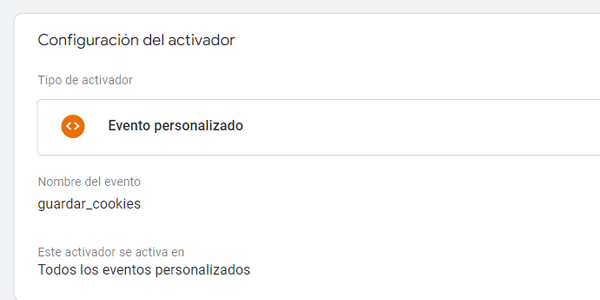
If you look closely, you'll see that in both previous code snippets we send a custom event to the DataLayer: guardar_cookies.
I'll explain why in a moment, but first let's create a trigger with this event:
The Consent Mode update tag
Right, once we have all this created, let's move on to the second Consent Mode tag, the one that updates the user's consent states.
The configuration is this:

Where:
- The command will be Update, since this is the one that updates values.
- The value of the DataLayer variables will have been updated, so the new value is captured here.
- The trigger will be the one we just created, which fires the tag as soon as the user's consent states are updated.
That completes the configuration. As you can see, we haven't touched the GA4 configuration at all, whose trigger will remain All pages:

Testing
Time to test it.
The first thing we're going to do is install this extension if we don't already have it, so we can delete cookies.
Second, we install this other one to see Google tags.
Then we'll do the following:
To emulate the behaviour of a new user, delete them by clicking the extension and the bin icon:

#2. Reload the page
This lets us check that there really are no Analytics cookies left after deleting them:

#3. Open preview mode in GTM
The page will reload and we'll check that:
- GTM and the GA4 tag load (the several ones I have installed):

- No Analytics cookies are loaded:

This means GA4 receives the data without cookies. We're on the right track.
Click the button to accept all cookies or only some of them.
Check that GA4 cookies have been added:

As an extra curiosity, from the console we can see that the GCS parameter value has changed:

This will mean that everything has worked as it should and from now on, once we meet the volume requirements explained earlier, we'll be able to benefit from GA4 data modelling.
Questions
The main question that may come to mind is what happens if a user accepts cookies on a page other than the landing page.
In the tests I've run, I haven't been able to see how GA4 processes this change. However, in BigQuery it causes the requests from the user's session with the gcs=G100 parameter before cookie acceptance to change to requests with gcs=G111, allowing the data to be processed completely (important for having accurate source or landing page data).
For this reason, I'm inclined to think GA4 handles it in a similar way, although, as I said, I haven't been able to verify it.
The second most common question is how much accuracy we'll gain.
And I don't have an answer to that either, because to check it we'd have to compare one GA4 implementation with another that always loads directly on the website (without GTM), as we used to do.
And that goes against the GDPR.
Besides, I'm not at all sure that having Consent Mode enabled in the GTM container, with its initial tag loading before the rest, won't affect the GA4 tag loaded outside the container. It shouldn't, but the tests I've done haven't made that completely clear.
Conclusions
I hope I've clarified a little what all this Consent Mode business is, how it can benefit you and how you can implement it on a WordPress website.
That said, after spending a good while on the subject, I draw several conclusions by way of summary:
The first is that Consent Mode is here to stay, because anything that collects data that helps optimise campaigns is welcome.
The second is that its implementation isn't entirely straightforward. If you're a developer you'll have everything configured in no time, but if you're not, managing the consent value at all times isn't immediate.
This further reinforces the technicalisation of digital analytics, along with the fact that it looks very likely to be more useful in integrations with BigQuery.
That said, right now, with the mass rollout of GA4, this may be a good time to tackle the issue instead of putting it off forever.
There are still questions about the black box of Google's data modelling , with Google acting as both judge and interested party (will it favour its own traffic?), although in this case I'd rather trust it.
Ultimately, it's a new way of understanding analytics, after the first "anything goes" era and the later "almost nothing goes" era of the GDPR. We'll need more time and more data to see whether it's worthwhile for simple implementations.

Leave a Reply