
It is much more common than you might imagine for a user to access your website from an app on their phone.
And it is also much more common than you think for that traffic to be reported as direct in Google Analytics.
In other words, it gets added to that black box that is direct traffic.
Depending on the project, it can be a considerable volume, since we are talking about apps as massive as:
- Gmail.
- Android's navigation bar (watch this one, because it is often overlooked).
- Social networks.
- Telegram and WhatsApp.
- Slack and similar apps.
If you have a significant audience coming from any of these channels, what I am about to tell you will interest you.
Why this happens
The reason these cases are assigned as direct traffic is that they are sessions that do not have an HTTP referrer.
Basically, setting the technicalities aside, it is because these are users who do not come from another web page, but from an app.
In other words, they clicked a link inside an app on their phone that took them to your website.
Also, they will most commonly view your website inside the built-in browser included in almost all these apps, not in the phone's own browser (Chrome, Safari, etc.).
As I say, this behavior is more common than we think, especially if we have a good audience in any of these channels (email, Telegram, Instagram…).
So it is useful to see this traffic and be able to analyze it.
How to see web traffic from apps in GA4
Easier than you think. It is only three steps:
Step 1: create a blank exploration report
To do this, go to the “Explore” link in the left column and select “Blank report”:

Step 2: add metrics and dimensions
We start by importing these dimensions:
- Page referrer.
- Session source/medium.
- Landing page.
Next, we import the following metrics:
- Sessions.
- Total users.
- Active users (optional).
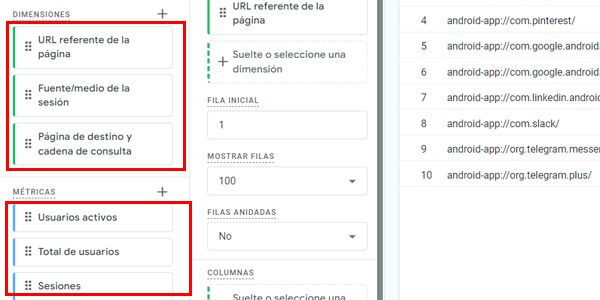
In the “Rows” field, we add the dimension Page referrer.
In the “Values” field, we add sessions, , total users, or active users, depending on what we want to analyze.
Step 3: filter the traffic we are interested in
And here comes the magic of the trick.
What we will do is filter traffic whose referrer URL contains “-app:” like this:

Result
Here it is:
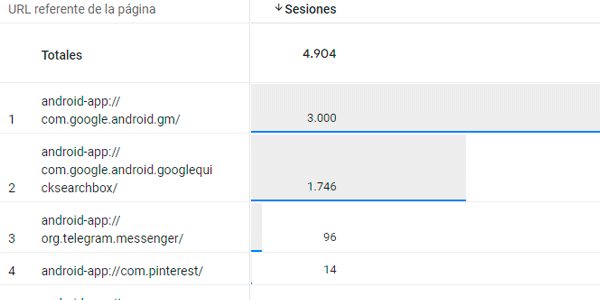
Important: to make it clear, in case I have not done so before, this traffic is NOT from your app, but from your website, coming from links placed in other apps, OK?
Next steps
Right, now that we have identified all the traffic apps bring us, we can dig a little deeper, which is the whole point.
Now that you know how to filter it, adjust the report to what you actually need. I suggest a couple of extensions.
Add session source and medium
The first thing you can do is add the dimension to the report: Session source and medium:

This way you will see that some app traffic is not direct.
Why is that?
Because we have solved it: we tagged the links and added the corresponding UTM parameters. I will come back to this below.
Add the landing page
Another dimension I recommend adding to the report is Landing page. This will tell you a few more things and give you more context.
For example, let's look at this:

Here, the “gm” at the end of the referrer URL tells me the app is Gmail.
And the landing page is my website's login page.
With this information, the first thing I thought was that the link was not tagged —which, as I said above, is how to prevent this—, but that is not the case. The link in the email IS tagged.
So why does GA4 classify it as direct traffic?
Because of a common problem: what is happening is that the URL on my website that I put in the link (properly tagged) actually has a redirect when the user accesses it.
A redirect that causes the UTM parameters to be lost and, therefore, GA4 is unable to assign the source, medium and campaign correctly.
It is my mistake, not GA4's. And to fix it I can follow one of these two routes:
- Change the link in the email to the final URL the user reaches (after the redirect) and tag that URL. The easiest option, although it is not always possible.
- Make the redirect preserve the UTM parameters and apply them on the final page. A little more technically complex, but it always works.
Be aware that redirects cause this frequently. And it affects both analytics and paid campaigns, for example, with the GCLID parameter.
Exception
If you look at the images, you may have noticed one thing: all the apps are from Android.

I do not really understand why —I assume it is some feature of Safari in-app that blocks Analytics — but the fact is that, using this method, you will only be able to see traffic from Google's mobile OS.
Fortunately, it is overwhelmingly dominant in Spain, so you have far more data than you are missing.
Solution for direct app traffic: how to avoid it
As I have mentioned a couple of times, the way to avoid it is to use UTM parameters. To do that, all you have to do is open the Google URL Builder and add the correct parameters.
And that's it? If I always do it, will I stop getting direct traffic to the website from apps?
I'm afraid not.
The reason is that you control the links you publish yourself, but not those that other people share. And the more people share your website the better, but since these people do not go into the Google URL Builder to tag them, you will ALWAYS have direct traffic from apps.
That is why it is important to know how to view it inside the tool.
Closing
This is a not-so-well-known trick that lets you dig deep into one segment of your traffic and, especially for certain projects, can be very relevant.
Now you will be able to explain some traffic spikes you did not understand. And you will also be able to fix a few more things, such as redirects.
All very simply, like most of the GA4 tricks I have published to date.
If you like analytics and Google Analytics, I think they are worth a look.
And if you have problems with your project's analytics and think you need help, let's talk.

Leave a Reply