
In the two previous articles in this series, we first looked at why collecting customer feedback is worth it and then how to create a useful feedback form to understand what happens on a website or app right after a conversion.
In this third article we go one level deeper. We are no longer talking only about collecting responses, but about processing them.
Because analysing the responses to open fields in any form takes time if it is not automated. Especially if they come in several languages.
The complete series on how to collect and use customer feedback has four parts:
- Why collecting customer feedback is essential.
- How to create a useful feedback form.
- How to use AI to translate and classify open-ended responses.
- How to turn that feedback into dashboards and a monthly follow-up routine.
Here we are going to focus on the third point: setting up a workflow with n8n, Google Sheets and Gemini to translate, classify and enrich open-ended form responses.
What problem do we solve with this workflow?
Closed-ended form questions are easy to analyse.
If you ask someone to rate the ease of the process from one to ten (or anything else), the main decision driver, age, country or whether the user had any issues, each response is classified with a value within a limited set of values.
The problem appears with open-ended responses.
That is where the user explains in their own words what happened: that they could not find some information, that the payment created doubts, that they compared it with another platform where it was cheaper, that they had a problem with a coupon at checkout, that they wanted to speak to a person or that the process was clear and fast.
This type of comment is very valuable, but it has three difficulties:
- You have to read it.
- You have to understand and interpret the context.
- And, if there are several languages, you have to translate it or normalise it before comparing it.
If you have only a few responses, you can do it by hand. If you start getting volume, different markets or comments in five languages, it stops being feasible.
In the case we use as an example, the form was set up in Spanish, Dutch, French, English and German. That is why it made sense to add an AI layer.
The idea is not for AI to decide for the business, but to prepare the data:
- Translate comments.
- Classify incidents.
- Detect mentions of competitors.
- Leave a Google Sheets document ready for analysis in the next step.
What are we going to build?
We are going to build an n8n workflow that does the following:
- Reads a Google Sheets spreadsheet with form responses.
- Detects which responses are new so duplicates are not processed.
- Adds category context so the AI classifies consistently.
- Sends the open fields to an LLM (Gemini, in our case).
- Receives a response in JSON.
- Converts that JSON into columns with the right format.
- Writes the final result into another Google Sheets spreadsheet with the AI results.
It is not a universal recipe that you can copy without touching anything.
It is adapted to a specific customer feedback form on a booking website, but the logic can be transferred to an e-commerce site, a course, a services website or any feedback form about a digital asset where you want to classify open-ended responses.
Tools we are going to use
For this flow we use several specific tools:
- n8n, as the automation tool.
- Google Sheets, as the input and output sheet.
- Gemini, as the AI model to translate and classify.
- Data Studio, which will be the natural destination for visualising the data in the next article.
In this case we use Gemini Flash Lite because the task is relatively light: analysing short comments, choosing a category, detecting whether a competitor appears and returning a JSON. We do not need the most powerful model for that, but a fast, cheap and stable one.
In our case the expected cost was just a few cents a day. We also chose the latest version of Flash Lite because, when fixing previous versions such as 2.0 or 2.5, availability problems appeared.
And in an automated flow, stability matters as much as, or more than, quality.
The model temperature is set to 0.1.
This is intentional too: here we are not looking for creativity, but consistency.
We want similar responses to be classified in a similar way and the model to respect the JSON format we ask for.
Before you start: how the responses sheet should be prepared
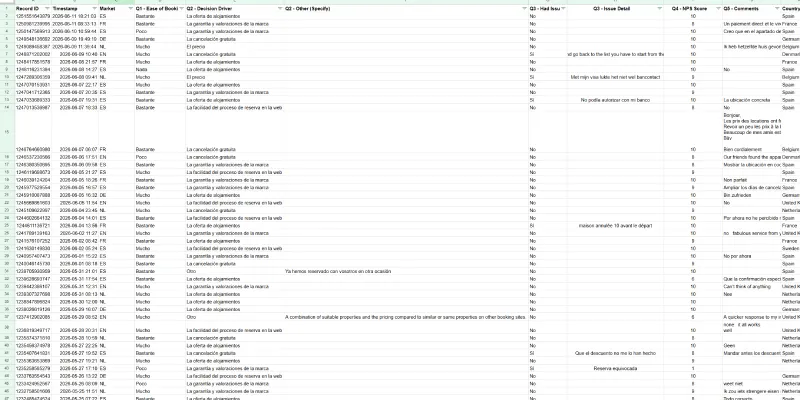
As I explained in the previous post, before setting up the workflow, we need a Google Sheets spreadsheet with the original form responses.
It may come directly from Google Forms or it may be a sheet where we have unified responses that arrive from another system, such as a CRM or several forms in different languages.
The important thing is for the sheet to have a stable structure: one row per response and one column per question.
In this example we work with fields associated with the responses:
- Record ID (which we use to avoid duplicates).
- Date.
- Market (there are five different domains).
And the response fields themselves:
- Ease of booking (1-10 scale).
- Decision driver (5 possibilities).
- Whether there were incidents and incident details.
- Website rating.
- Free comment.
- Country (not the same as market, since a Finn can book on the English website).
- Gender.
- Age.
- And whether the user expects a reply.
Your sheet does not need to have exactly the same columns. The important thing is that there is a unique identifier per response. In this workflow we use Record ID to know which rows have already been processed and which are new.
If you work in several languages, it is advisable to keep the same question and answer structure across all of them, changing only the translation.
This lets you analyse aggregated data while also segmenting by language, country or market. We covered all this in the previous post on how to create the form.
n8n workflow step by step
The full workflow is organised into nine main nodes:
Every hour:
→ Read source Sheets.
→ Package source.
→ Filter new IDs.
→ Build category context.
→ Classify with Gemini Flash.
→ Parse AI response.
→ Prepare results for the new Google Sheet.
→ Write to the new Google Sheet.
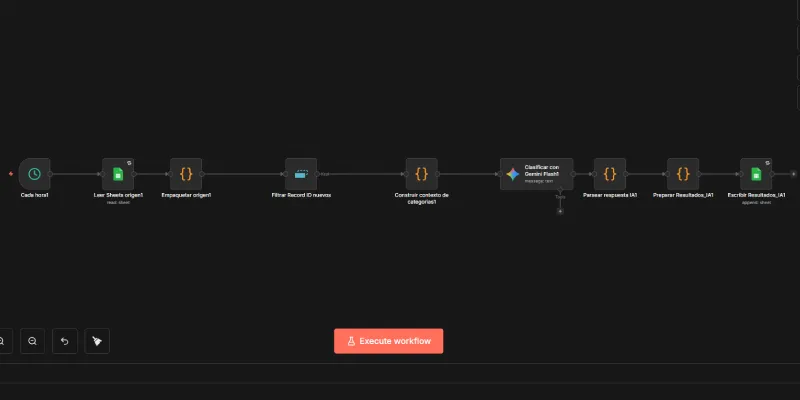
First I will give you an overview of how the flow works, and then we will explain each one in detail.
In this flow, n8n runs at a defined frequency, reads the responses sheet, normalises the data, discards records that have already been processed, adds the categories the AI must use, sends the open fields to Gemini, interprets the response and writes an enriched row in the final sheet.
Now let's go node by node.
Step 1: Every hour
This node is the trigger for the workflow.
In the example it is configured to run every hour, but the frequency can be adapted to the volume of responses.
If you receive many responses, it may make sense to run it every hour. If you receive few, once a day may be enough.
You will also have to launch it manually during a testing phase.
Basic configuration:
Node type: Schedule Trigger
Rule: every hour
The key is to adjust the frequency. For form feedback, you usually do not need to process every minute.
Step 2: Read the source Google Sheet
This node reads the Google Sheets spreadsheet where the original form responses are stored.
In this case we use the source tab as read-only.
Important: we do not mark rows, write statuses or use this sheet as an operational database.
We could do that, but since this sheet was created by the client, it is better not to touch it. If it is for your own business, it probably makes sense to add a second sheet to it, instead of creating another Google Sheet as we do here.
Basic configuration:
Node type: Google Sheets
Operation: Read
Document ID: [ID_DEL_SPREADSHEET_ORIGEN]
Sheet name: [NOMBRE_HOJA_ORIGEN]
Credential: [CREDENCIAL_GOOGLE_SHEETS]
The source sheet should be as clean as possible.
If it comes from Google Forms, you will already have a fairly comfortable structure. If it comes from a CRM or several forms, it is worth unifying the responses beforehand in a sheet with consistent columns.
Step 3: Package source
This code node (JS) normalises the rows that come from the source sheet and leaves them ready for the rest of the workflow.
In practice, it copies each item as is.
Node code:
// Normaliza las filas del Sheets origen para usarlas despues desde otros nodos.
// El origen es solo lectura, asi que no marcamos nada aqui.

return $input.all().map(item => ({
  json: { ...item.json }
}));
Step 4: Filter new Record IDs
This node prevents duplicates.
It is one of the most important points in the workflow. If every time the flow ran we sent all the responses to Gemini, we would process the same comments over and over again, spend more tokens and fill the final sheet with duplicates.
To avoid this we use the n8n node Remove Duplicates with the Remove Items Processed in Previous Executions operation. The configuration is based on the Record ID field, which must be unique for each response.
Basic configuration:
Node type: Remove Duplicates
Operation: Remove Items Processed in Previous Executions
Value to Dedupe On: {{ $json["Record ID"] }}
This is important:
If the workflow is set up before there are responses, you do not need to initialise anything. The first response that arrives will be new and will be processed.
If the sheet already has old responses when you activate the workflow (the usual case), it is worth running the full flow up to this node (included) before connecting it to the rest of the flow.
That way n8n learns those Record IDs as already seen and does not send the entire history to the AI on the first run.
It is also worth testing the flow without publishing it yet: run it once, check which records pass, run it again and verify that they are not duplicated.
Do not click Clear Deduplication Historyunless you want to process everything again.
Step 5: Build category context
Here we define the categories that the AI can use to classify the responses.
This point is key because we do not want Gemini to invent a different category for every comment. We want it to classify within a closed framework.
In this example we have two category groups: one for booking process incidents and another for open comments.
Categories for Q3, process incidents:
- Payment / gateway.
- Discount code.
- Navigation / UX.
- Incorrect availability.
- Booking problems.
- Other.
Categories for Q5, open comments:
- Satisfaction / praise.
- Promotions / discounts.
- Human service / support.
- Payment method / bank transfer.
- Price.
- Comparison with competitors.
- Listing information.
- Cancellation policy.
- Response time.
- No relevant comment.
- Other.
In this case we decided to hardcode the categories inside the code node itself to avoid an additional read from Google Sheets.
This is not just a technical preference: it helps reduce calls to the Google Sheets API.
It may seem convenient to use Google Sheets as a small database: one sheet for responses, another for categories, another to review processed records, another to write results.
But if the flow grows, you may run into quota limits, as happened to us here.
That is why in this case we use Google Sheets as input and output, not as the system's general database (which will use the one in your n8n installation, SQLite by default).
Node code:
// Categorías hardcodeadas para eliminar una lectura adicional a Google Sheets.
// Si cambias Categorias_Config, actualiza estas listas aquí.

const categoriasQ3 = [
  [
'Pago / pasarela',
'Tarjeta rechazada, fallo con Bancontact, Paypal u otro metodo de pago'
  ],
  [
'Codigo descuento',
'Cupon o codigo de descuento invalido que bloquea o impide completar el pago'
  ],
  [
'Navegacion / UX',
'Problemas de usabilidad en la web, ej. volver al listado, botones confusos'
  ],
  [
'Disponibilidad incorrecta',
'Fechas que desaparecen, alojamiento mostrado como disponible pero no lo esta'
  ],
  [
'Problemas con la reserva',
'Reserva equivocada, duplicada o cancelada por error del sistema, demora o ausencia de confirmacion de reserva, email de confirmacion o validacion del propietario'
  ],
  [
'Otro',
'Incidencia que no encaja en ninguna categoria anterior'
  ],
];

const categoriasQ5 = [
  [
'Satisfaccion / elogio',
'Comentarios positivos, felicitaciones, recomendacion del servicio o buena experiencia'
  ],
  [
'Promociones / descuentos',
'Peticiones de codigos promocionales, descuentos para clientes habituales o promociones'
  ],
  [
'Atencion / soporte humano',
'Peticiones de hablar con una persona, chat humano, soporte no automatizado o ayuda comercial'
  ],
  [
'Forma de pago / transferencia',
'Comentarios sobre transferencia, tarjeta, medios de pago disponibles o preferencia de pago'
  ],
  [
'Precio',
'Comentarios sobre subida de precios, coste percibido como alto o comparacion de precio'
  ],
  [
'Comparacion con competencia',
'Menciona explicitamente otra plataforma como Booking.com, Airbnb, Vrbo, etc.'
  ],
  [
'Informacion del listing',
'Falta de fotos, ubicacion/coordenadas poco claras, info de mascotas, descripcion del alojamiento'
  ],
  [
'Politica de cancelacion',
'Plazo de cancelacion gratuita considerado corto o poco flexible'
  ],
  [
'Tiempo de respuesta',
'Quejas sobre lentitud en la respuesta a consultas o soporte'
  ],
  [
'Sin comentario relevante',
"Respuestas vacias de contenido: 'No', 'nada que destacar', 'all good', etc."
  ],
  [
'Otro',
'Comentario con contenido pero que no encaja en ninguna categoria anterior'
  ],
];

const catsQ3 = categoriasQ3
  .map(([cat, desc]) => `- ${cat}: ${desc}`)
  .join('
');

const catsQ5 = categoriasQ5
  .map(([cat, desc]) => `- ${cat}: ${desc}`)
  .join('
');

return $input.all().map(item => ({
  json: {
...item.json,
    categorias_q3_texto: catsQ3,
categorias_q5_texto: catsQ5,
  }
}));
Obviously these categories are not universal. For other digital businesses, they would need to be adapted.
Step 6: Classify with Gemini Flash
This is the node that sends the open fields to Gemini. Specifically, we analyse two fields: the incident detail during booking and the final free comment.
The model must return only valid JSON, with no explanations, no markdown and no additional text. This is essential because the next node expects to parse that response and turn it into columns.
Basic configuration:
Node type: Google Gemini
Model: models/gemini-flash-lite-latest
Temperature: 0.1
Credential: [CREDENCIAL_GEMINI]
Prompt used:
You are a user feedback classifier for a rural accommodation booking website. You must analyse two text fields and return ONLY valid JSON, with no additional text, no markdown, no backticks.

Field Q3 - Issue Detail (incident during booking): "{{ $json['Q3 - Issue Detail'] }}"

Allowed categories for Q3 (choose one, or use exactly the text "Sin incidencia" if the field is empty):
{{ $json.categorias_q3_texto }}

Field Q5 - Comments (free comment): "{{ $json['Q5 - Comments'] }}"

Allowed categories for Q5 (choose one, or use exactly the text "Sin comentario relevante" if it is empty or adds no content such as 'No', 'nada', 'all good'):
{{ $json.categorias_q5_texto }}

Additionally:
- If Q5 explicitly mentions a competing platform (Booking.com, Airbnb, Vrbo, Expedia, HomeAway or another), set menciona_competidor to true and the detected name. If not, false and an empty string.
- Translate the content of Q5 into Spanish faithfully and naturally in comentario_traducido_es. If it is empty, return an empty string.
- For Q3, in addition to the category, indicate in causa_raiz_resumen a short phrase (maximum 8 words) in Spanish that summarises the technical root cause, useful for grouping similar incidents even if they are worded differently. If there is no incident, empty string.

Return exactly this JSON format:
{
  "q3_categoria": "",
  "q3_causa_raiz_resumen": "",
  "q5_categoria": "",
  "q5_menciona_competidor": false,
  "q5_competidor_detectado": "",
  "q5_comentario_traducido_es": ""
}
The prompt does several things at once:
- Classifies and translates Q3.
- Summarises a short root cause for incidents.
- Classifies and translates Q5.
- Detects whether a competitor is mentioned and translates the free comment into Spanish.
All that comes back in a JSON with fixed fields.
The important part is that the model does not freely decide what to do. We give it allowed categories, the exact output format and ask it not to add text outside the JSON.
Step 7: Parse AI response
This node turns the Gemini response into useful columns.
First it extracts the text returned by the model, cleans possible backticks or markdown blocks and then tries to convert it into JSON.
It also includes a safety layer: if the AI returns something that cannot be parsed, it marks the row as Classification error. That way the flow does not break because of a one-off malformed response.
In addition, it enforces an important rule for our example case: if Q3 has no detail or the user indicated they had no problems, the Q3 category is left as Sin incidencia.
This prevents the AI from interpreting a Q5 comment as if it were an incident in the process.
Node code:
function extractModelText(json) {
  // Caso Gemini n8n actual:
  // item.json.content.parts[0].text
  if (json?.content?.parts?.[0]?.text) {
return json.content.parts[0].text;
  }

  // Otros formatos posibles según nodo/modelo
  if (typeof json?.text === 'string') return json.text;
  if (typeof json?.message === 'string') return json.message;
  if (typeof json?.output === 'string') return json.output;
  if (typeof json?.content === 'string') return json.content;

  // OpenAI/LangChain style fallback
  if (json?.message?.content) return json.message.content;
  if (json?.choices?.[0]?.message?.content) return json.choices[0].message.content;

  return '';
}

function cleanJsonText(raw) {
  return String(raw || '')
.replace(/```json/gi, '')
.replace(/```/g, '')
.trim();
}

const items = $input.all();
const originales = $('Construir contexto de categorias').all();

return items.map((item, index) => {
  const raw = cleanJsonText(extractModelText(item.json));

  let parsed;

  try {
parsed = JSON.parse(raw);
  } catch (e) {
parsed = {
  q3_categoria: 'Error de clasificacion',
  q3_causa_raiz_resumen: '',
  q5_categoria: 'Error de clasificacion',
  q5_menciona_competidor: false,
  q5_competidor_detectado: '',
  q5_comentario_traducido_es: ''
};
  }

  const original = originales[index] ? originales[index].json : {};

  const q3HadIssues = String(original['Q3 - Had Issues'] || '').trim().toLowerCase();
  const q3Detail = String(original['Q3 - Issue Detail'] || '').trim();

  if (!q3Detail || q3HadIssues === 'no') {
parsed.q3_categoria = 'Sin incidencia';
parsed.q3_causa_raiz_resumen = '';
  }

  return {
json: {
  'Record ID': original['Record ID'],
  'Timestamp': original['Timestamp'],
  'Market': original['Market'],
  'Q1 - Ease of Booking': original['Q1 - Ease of Booking'],
  'Q2 - Decision Driver': original['Q2 - Decision Driver'],
  'Q2 - Other (Specify)': original['Q2 - Other (Specify)'],
  'Q3 - Had Issues': original['Q3 - Had Issues'],
  'Q3 - Issue Detail': original['Q3 - Issue Detail'],

  'Q3 - Cluster Causa Raiz': parsed.q3_categoria || '',
  'Q3 - Causa Raiz Resumen': parsed.q3_causa_raiz_resumen || '',

  'Q4 - NPS Score': original['Q4 - NPS Score'],
  'Q5 - Comments': original['Q5 - Comments'],

  'Q5 - Cluster Tema': parsed.q5_categoria || '',
  'Q5 - Menciona Competidor': parsed.q5_menciona_competidor ? 'Si' : 'No',
  'Q5 - Competidor Detectado': parsed.q5_competidor_detectado || '',
  'Q5 - Comentario Traducido ES': parsed.q5_comentario_traducido_es || '',

  'Country': original['Country'],
  'Gender': original['Gender'],
  'Age': original['Age'],
  'Reply Requested': original['Reply Requested'],
  'Fecha Procesado IA': new Date().toISOString()
}
  };
});
If you change the name of the previous node, you will have to adjust this line:
const originales = $('Construir contexto de categorias').all();
In n8n, references by node name must match exactly. That is why it is best to use clear names and not change them later without reviewing the code.
Step 8: Prepare Resultados_IA
This node performs a final cleanup before writing the data to the results sheet. It removes internal fields that are only used during the process, such as the text categories we added for the prompt.
Node code:
// Limpia campos internos antes de escribir en Resultados_IA.

return $input.all().map(item => {
  const row = { ...item.json };
  delete row['_timestamp_unix'];
  delete row['_clasificacion_error'];
  delete row['_error_message'];
  delete row['categorias_q3_texto'];
  delete row['categorias_q5_texto'];

  return { json: row };
});
This step does not transform the analysis, but it leaves the output cleaner.
The final sheet does not need to store everything that was used internally to classify, only the data that we will later analyse.
Step 9: Write Resultados_IA
The last node writes the enriched row into a new Google Sheets spreadsheet.
In this case we use a sheet called Resultados_IA and the operation append, to add a new row for each processed response.
Basic configuration:
Node type: Google Sheets
Authentication: Service Account
Operation: Append
Document ID: [ID_DEL_SPREADSHEET_RESULTADOS]
Sheet name: [NOMBRE_HOJA_RESULTADOS]
Mapping mode: Auto-map input data
Credential: [CREDENCIAL_GOOGLE_SHEETS]
The final sheet contains both original data and AI-generated fields. For example:
- Record ID
- Timestamp
- Market
- Q1 – Ease of Booking
- Q2 – Decision Driver
- Q3 – Had Issues
- Q3 – Issue Detail
- Q3 – Cluster Causa Raiz
- Q3 – Causa Raiz Resumen
- Q4 – NPS Score
- Q5 – Comments
- Q5 – Cluster Tema
- Q5 – Menciona Competidor
- Q5 – Competidor Detectado
- Q5 – Comentario Traducido ES
- Country
- Gender
- Age
- Reply Requested
- Fecha Procesado IA
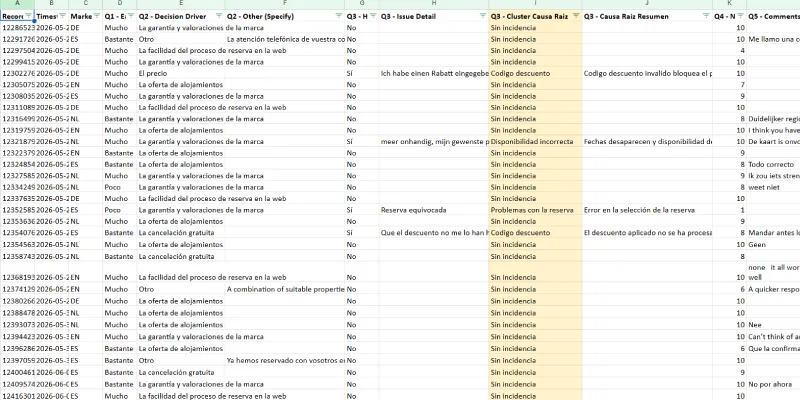
From this point on, we no longer have only loose responses. We have an enriched table, with translated comments, grouped incidents, classified topics and fields ready to use in charts.
What do we achieve at the end of the process?
When the workflow finishes, each new response is turned into a more useful row for analysis.
We still keep the original data, but we add layers that previously required manual review.
In practice, we get:
- Open comments translated into Spanish.
- Incidents classified by root cause.
- Comments grouped by topic.
- Detection of competitor mentions.
- An AI processing date.
- A table ready to connect to Looker Studio.
This does not replace human review. What it does is remove mechanical work.
Instead of starting by reading a hundred comments in five languages, you start by seeing topics, categories, frequencies and translated comments. Then you can review samples and decide which actions make sense, as we will see in the next and final post in the series.
Common mistakes when automating feedback with AI
Let's go through the most common ones.
Letting AI invent categories
If each run creates new tags, you will not be able to compare anything afterwards.
For the system to work, the AI must classify within a closed list or, at least, a very controlled one.
Not validating the JSON returned by the model
Even if you ask it for a specific format, it can sometimes respond badly. That is why the parsing node must clean, try to convert to JSON and handle errors without breaking the entire flow.
Not checking duplicates
Before publishing the workflow, it is worth running it in tests and verifying that the same response does not end up several times in the second sheet.
The new Record ID node is what prevents you from paying twice for the same classification and dirtying the final sheet.
Using Google Sheets as an operational database
Google Sheets works very well as input and output, but it is not advisable to make constant reads for everything: categories, statuses, checks, results and processed-record control.
If you overuse it, you may run into quota problems or a flow that is more fragile than necessary.
Publishing the flow without testing it
First you have to run it manually, review what data goes in, what data comes out, whether the JSON parses properly, whether there are no duplicates and whether the categories are the ones you want.
Believing that AI will do all the work
AI classifies and translates, but the business still has to interpret.
A frequent category does not always imply immediate action. You have to assess volume, impact, ease of implementation and context.
Next step: turn this data into a dashboard
After this workflow we already have a results sheet that complements the original form sheet.
We not only know what each user has answered, but we also have fields prepared for analysis: categories, translations, competitors, incidents and processing date.
The next and final step is:
Take that data to a dashboard and create the follow-up governance.
In the next article we will see how to connect Google Sheets with Data Studio, which metrics make sense to show and how to turn feedback into a monthly follow-up routine.
Because automating the analysis is useless if nobody looks at the data afterwards, which is what usually happens.

Leave a Reply