
Dall-E, Stable Diffusion, MidJourney, Adobe Firefly , Ideogram… The list of image-generating AIs that have appeared over the years has been huge—I have mentioned them as I personally discovered them.
Now there is a new arrival, Flux, which raises the bar even further in the debate over which one is best.
In this article I will explain how to use it immediately and for free, as well as how to get more out of it.
Flux versions
Before we begin, let me tell you that Black Forest Lab (a European lab, as a side note) created this AI and has released three models:
- PRO: Flux’s most powerful version. It is the model Freepik uses by default in its AI image-generation tools. I explain how below.
- DEV: less powerful than the previous one—but still capable of producing more than decent results—released for non-commercial use. I explain how to use it on Hugging Face.
- Schnell: a model under the Apache licence that we can download and run locally. It is supposed to be the fastest of the three. Ideal if you have a powerful PC and want to generate endless images.
In this tutorial I will leave aside the Schnell version and its local implementation so we can focus on the convenience offered by the other two models.
The easiest and most direct way to use Flux to create images
If you simply want to try the tool and be impressed by the results, the easiest approach takes three steps.
- Go to the Black Forest Labs URL on Hugging Face: https://huggingface.co/black-forest-labs/FLUX.1-dev
- Create an account with an email address or log in to the platform.
- Enter the prompt here and click the button:
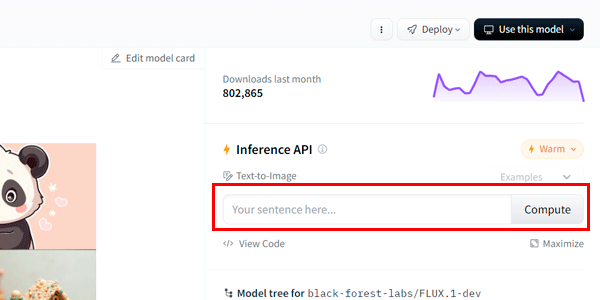
Optionally, although it works well when you enter the prompt in Spanish, it is better to follow the process I always recommend in these cases: go to ChatGPT and ask it for a prompt to create the image you have in mind:
As a prompt expert, I need you to write one for generating an image with the Flux AI. The image will show the façade of a bar in Spain and will have a photorealistic styleResulting prompt:
"Create a photorealistic image of the exterior of a traditional bar in Spain. The façade should feature rustic stone or brick walls, large wooden doors, and wrought iron details. A sign above the entrance displays the name of the bar in elegant, old-style Spanish typography. The atmosphere is lively with a few people outside enjoying drinks at tables on a small terraza. Surround the bar with narrow cobblestone streets, potted plants, and classic Mediterranean architecture in the background. The lighting is natural, during late afternoon, giving the scene a warm and inviting glow."
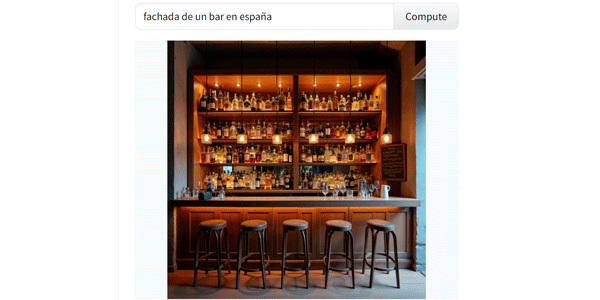
Result with a prompt in Spanish:
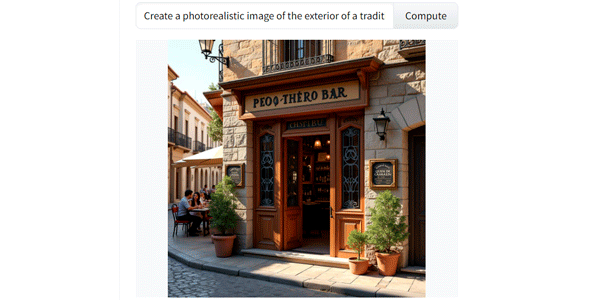
Result with a prompt generated by ChatGPT
My conclusion:
The image quality is very high in both cases, but the result from the prompt generated by ChatGPT matches what we asked for much more closely—a façade, not a bar counter.
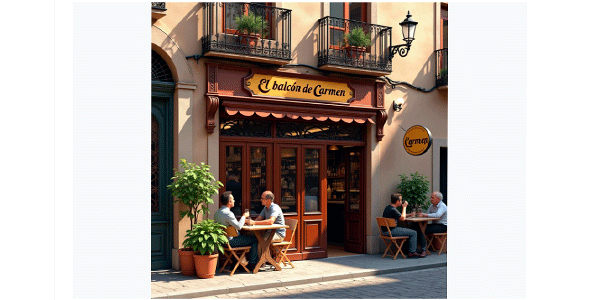
That said, the sign is not exactly very Spanish. Buuut, as Sergio Argilés (a subscriber to my newsletter) rightly pointed out, we can fix it by stating in the prompt what it should say.
And the result is excellent:
One more thing, and this time it is negative: sometimes the server fails and does not create the image, so you will have to try again. Do not worry if that happens.
Expanding the generator’s possibilities
The main problem with choosing this option—for my particular use—is that the images are square. Even if you ask for it, it will not generate a panoramic image.
To solve that, my preferred option is to use Pikaso, Freepik’s “background expander”, to expand the image, as I explain in the linked article.
Result:
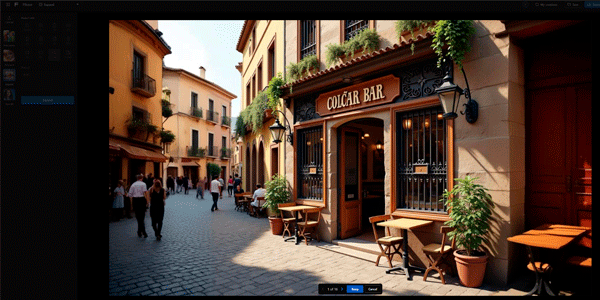
Do not be surprised to see a different façade. Pikaso did not change the original image; I generated another one with the same prompt on Hugging Face and then expanded it with Freepik’s tool.
Using Flux through Freepik
And since we are talking about Freepik, I mentioned in the introduction that it replaced its previous image-generation model with Flux, which has become its default model.
To use it, you have to do the same as with Hugging Face:
- Go to this link: https://www.freepik.com/pikaso/ai-image-generator.
- Create an account or log in.
- Enter the prompt and make sure the Flux model is selected:
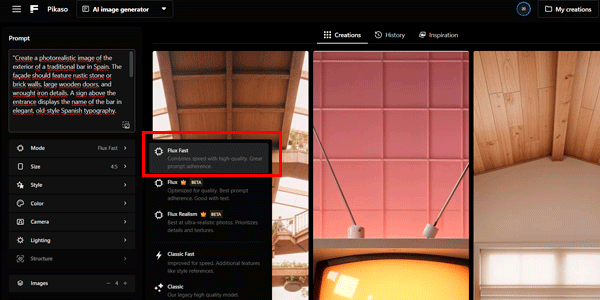
Result:
I do not know what you think, but to me it honestly looks excellent, apart from the bar’s name, which once again you will have to specify so that it looks somewhat “Spanish”:
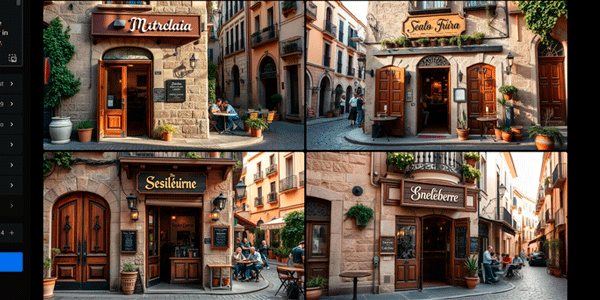
For now, you will not be able to change the sign with the blue “replace object” button, because Pikaso still struggles with text and, as I said, you will have to include it in the original prompt.
Shakker, another advanced way to use Flux
If you run out of credits on Freepik or want to try something else, you can use it on Shakker.
In this case, the process has four steps:
- Go to https://www.shakker.ai/modelinfo/78c20902aea8460da70ff4a89186000c.
- Log in; you can use your Google or Discord account.
- Click the Run model button:
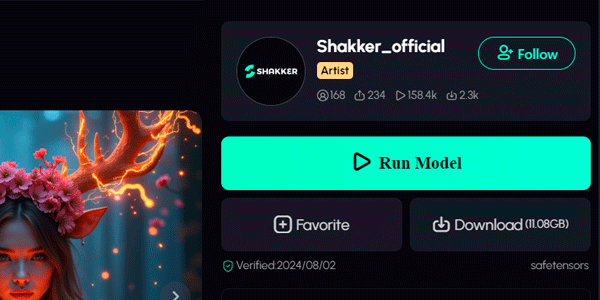
The interface will open so you can complete the fourth step: enter the prompt and select the values you want:
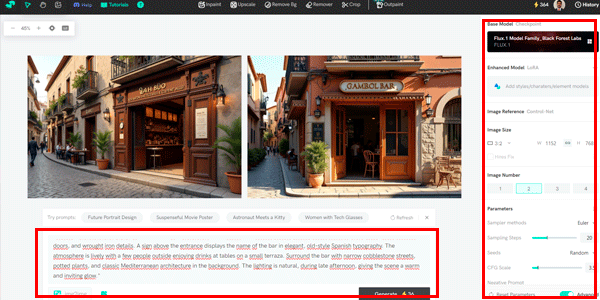
Result:
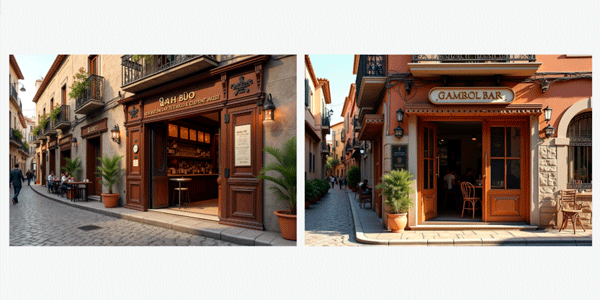
And once again, the generated images are very high quality. Except for the sign’s name: since I did not specify it, Flux does its own thing with names.
Conclusion
Flux is on the same level as the best image-generation tools. Without a doubt.
This article gives you several ways to use the model. In summary:
- For something quick, use Hugging Face.
- For something more elaborate, use Freepik or Shakker. Choosing one or the other comes down to taste—and credits—because the results are equally good.
And you should know that the people at Black Forest Lab are preparing their video model. I do not even want to imagine what audiovisual creation could become if they achieve quality similar to this.
Are you interested in AI?
Here is a link to several more articles about AI.
And if you are passionate about it, you may want to subscribe to my newsletter, where I talk about digital business and send an article like this every Thursday. Sign up here and you will also get a little gift.

Leave a Reply