
Today’s little trick is very simple.
So simple, in fact, that it could be fixed with a CSS rule in GA4’s code.
Why hasn’t Google fixed it if it’s so simple?
Your guess is as good as mine.
Besides, if you wrestle with GA4 every day, you’ve probably already discovered it yourself, but I’ll tell you anyway in case the tool is new to you.
Because it’ll be useful to know when you need to find out which specific transactions Google Analytics is recording, for example, to compare them with those in your CMS.
In this case, these are the steps to follow:
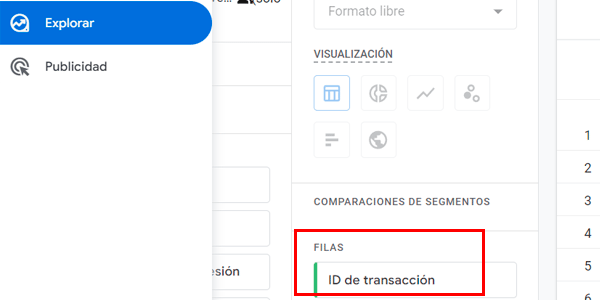
#1. Create an exploration report in which you include the dimension Transaction ID and the metrics you need (for example, Transactions and Revenue)):
#2. Sort by Transaction ID by clicking the header as usual:
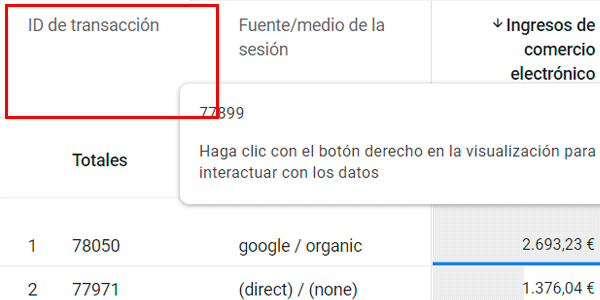
Ah, fuck!
How do I sort the transactions from last to first? I’m trying, but I can’t!
I can sort by revenue:
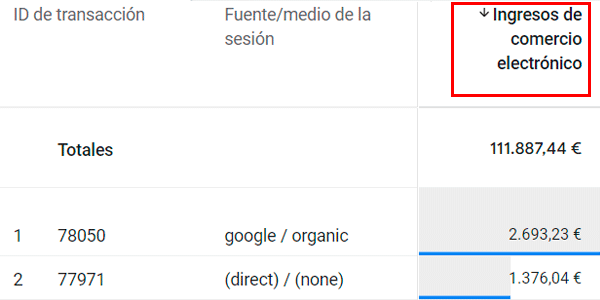
But not by Transaction ID. In fact, not by that dimension or any other one
How can that be?
WTF!
That’s usually our reaction the first time it happens to us.
So you start adding date dimensions. And, oh, surprise: that doesn’t work either.
You go around in circles a few more times until you discover the solution. Either because you read it here or by stumbling on it while testing, as I did.
The thing is, if you click ROUGHLY in this area (note that it may change):
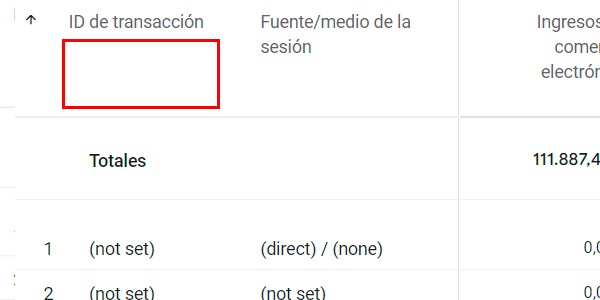
The table will be reordered however you want: alphabetically from start to finish or the other way around.
Look at the little arrow:
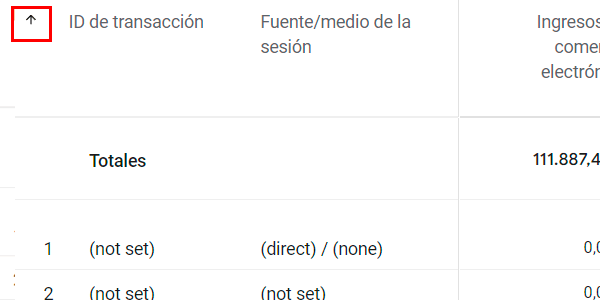
Important: the indicated area may change depending on the height of the cell.
In fact, if the height is minimal, you may even have to click on the header text. What you must never click is the arrow.
And there’s no way to know you’re in the right area except by trying and waiting a few seconds until you see the table reload.
Yes, trial and error, like Pavlov’s dogs.
Why doesn’t the cursor change when you hover over that area, or the background turn grey as it does with metrics? It’s just a simple :hover…
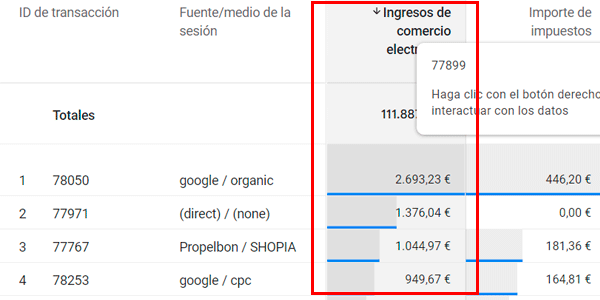
Well, ask Mr Pichai that the next time you see him.
And if you want more GA4 tricks that are much better than this one —let’s be fair— you’ll find them on this page.

Leave a Reply