
Gemini Omni Flash is the new Google video model, presented at I/O 2026. It replaces Veo (its previous model) in its consumer products and represents an important shift in approach: it is no longer just text-to-video generation, but multimodal conversational editing.
In practice, that means you can combine text, images, audio and existing video in the same prompt, and refine the result over several turns without losing scene coherence.
The model remembers what you asked for before, keeps character consistency and respects the physics of the environment. Each instruction builds on the previous one, like a conversation.
It matters because it closes the gap AI video generators have had until now: the lack of precise control without having to start from scratch on every iteration. If it works outside the demos as promised, it changes the workflow quite a bit for anyone producing video content.
It is available in Spain from this week through three routes:
- Gemini web and app.
- Google Flow.
- YouTube Shorts.
Each one has its own conditions and ways of using it. I’ll explain them, but first a warning:
Access to the tool is still rolling out. That means what works today may change in days, so, although I’ll try to keep this article updated, there may be changes compared with what I have published.That said, here is the real situation as of today and how to use it through each available route.
Option 1: Gemini web. The most immediate option
It is probably the easiest way to use the tool right now, especially because of the requirements.
Requirements
- Confirmed: subscription to Google AI Plus (€7.99/month), Pro (€21.99/month) or Ultra (€99.99/month).
- Possible, for now: paid Workspace account but without Google AI.
- Not possible (for now): with a free Google account.
How to use Gemini Omni from Gemini web, step by step
#1. Go to Gemini web
Open https://gemini.google.com with your Google account that has an active paid plan (I repeat, AI Plus or Workspace).
It is possible that, as happened to me, this pop-up appears:
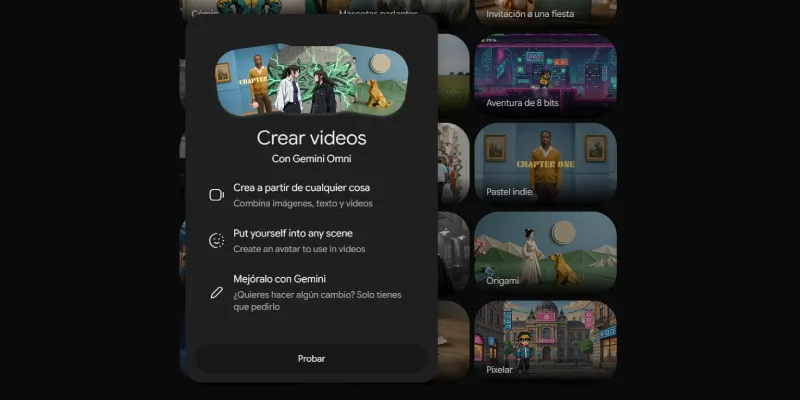
If not, you will directly see the Omni video creation screen, with example templates and the text box at the bottom.
#2. Describe your video
The usual thing: in the lower box that says "Describe your video" write what you want to create.
You can start from scratch with text, or upload an image, a video or an audio file as a reference using the button “+” on the left.
#3. Adjust the options if you need to
On the right of the box you can choose the output format (horizontal 16:9 by default). If you do not know where to start, you can also use one of the templates on the main screen. That is what I have done here:
#4. Generate and refine
Press the arrow to generate. When you have the result, continue the conversation to adjust it: change the lighting, the style, add an element. The model remembers the context of what you asked before.
With the Workspace plan it allowed me three iterations, the same as Veo allowed me before.
Option 2: Google Flow. Only with an AI account (for now)
Flow is the full creative environment. It makes more sense than Gemini if you are going to generate videos frequently or need to organize projects with several assets and scenes.
The problem is that right now Omni Flash is blocked in Flow for the accounts I have been able to test. With a free account the button says "Learn more" and with paid Workspace it says "Upgrade".
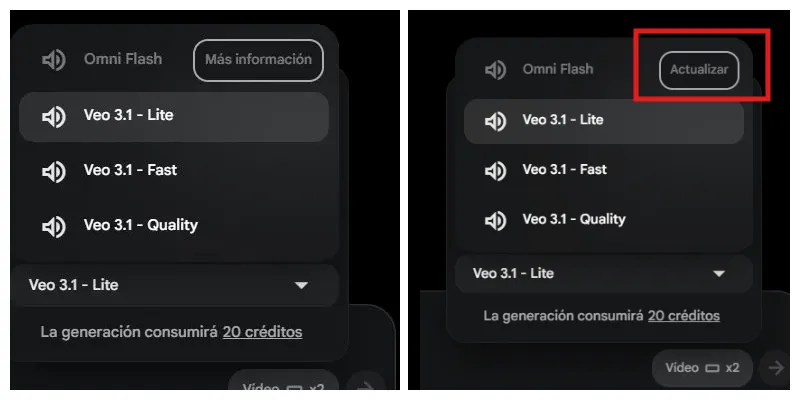
The fact that Google already distinguishes between profiles in the selector suggests to me that the rollout is underway, but there is no confirmed date.
When it is available, we will see whether the predictable requirement is the same as in Gemini (Google AI Plus, Pro or Ultra) with a personal account or whether a paid Google Workspace account is enough.
How to use Gemini Omni from Google Flow, step by step
#1. Go to Flow
Open https://flow.google.com with your Google account with an active Google AI subscription.
#2. Create a new project
Click the button “+” to create a new project or open an existing one.
#3. Select Omni Flash as the model
In the lower-right area you will see the model selector, which by default will show Veo 3.1 – Lite. Click it and choose Omni Flash from the dropdown.
#4. Write your prompt
In the box "What do you want to create?" describe the scene or drag media into the central area. You can combine text, images, video or audio in the same prompt.
#5. Generate and keep editing
Press the arrow to generate. From here you can keep refining in the same session or use Flow’s creative agent to adjust scenes and propose variations.
Option 3: YouTube Shorts. “Free”, with important limitations
The free option exists, but it works differently from the previous ones.
It is not free video generation from scratch. It is remixing existing Shorts: you choose another creator’s video that has remix enabled, add a prompt or reference image and Omni transforms that video while keeping the original context.
For following trends within YouTube and ephemeral content creation on the platform, it makes sense. For creating more serious original content from scratch, it is not the tool.
How to use Gemini Omni from YouTube Shorts, step by step
Important: as I said before, the tool is rolling out this week and I do not have it active yet, so I am basing this step-by-step on Google’s documentation.
#1. Open YouTube on mobile
The feature is in the YouTube app for iOS and Android, and also in YouTube Create. Sign in with your Google account.
#2. Find a Short with Remix enabled
Not all Shorts can be remixed. When a creator has it enabled, you will see the button "Remix" under the video. Tap it.
#3. Choose the Omni option
Inside the remix flow, the option to use Omni Flash will appear. Select it.
#4. Add your prompt or reference image
Describe how you want to transform the video or upload an image as a reference. You can change the environment, the visual style, the characters or the action.
#5. Generate and publish
Omni processes the transformation and you can publish the result directly as your own Short.
So, which route should you choose?
Well, it depends on your goal and how willing you are to pay:
- Free: YouTube Shorts, knowing that it is remixing other people’s videos, not your own generation.
- Generating your own videos: Gemini web with Google Workspace (at least for now) or Google AI Plus or higher. It is the only route I have been able to confirm in Spain right now. Google Workspace is also more widespread than Google AI.
- More elaborate projects: Google Flow. If you have a Google AI Plus account, use it; otherwise, wait until Omni Flash is available for paid Workspace accounts.
Honestly, this Omni looks very promising. And, depending on what access looks like—free (I don’t think so at first), with Workspace accounts or only through Google AI—its adoption could be as massive, or even more massive, than Sora’s before OpenAI clipped its wings.
For now, I’m going to mess around with the tool for a while, because it is pretty fun.
Frequently asked questions
What is Gemini Omni Flash?
Gemini Omni Flash is Google’s new video model. The important difference is that it is not only for generating video from text, but also for conversational editing using text, images, audio or video as a reference.
Can Gemini Omni Flash be used for free?
Yes, but with caveats. The free route is YouTube Shorts, although it does not work as free video generation from scratch, but as a remix of existing Shorts that have that option enabled.
What is the easiest way to use Gemini Omni Flash?
Right now, the most direct route seems to be Gemini web or the Gemini app, provided you use a compatible account with paid access, such as Google AI Plus, Pro, Ultra or, depending on the case, Workspace.
Can I use Gemini Omni Flash with a free Google account?
For now, it does not seem possible to use it from Gemini web with a free Google account. Access is rolling out, so this may change.
What is Google Flow for with Gemini Omni Flash?
Google Flow makes more sense if you are going to create videos frequently or work with more elaborate projects, several scenes and different media elements. It is less immediate than Gemini web, but more production-oriented.
What is the difference between using Gemini Omni Flash in Gemini and in YouTube Shorts?
In Gemini you can create or edit your own videos with prompts and multimedia references. In YouTube Shorts, on the other hand, the feature is designed to transform existing videos through remix, so it is more useful for quick content and trends.
Does Gemini Omni Flash keep coherence between changes?
That is precisely one of its big promises: being able to refine a video over several turns without starting from scratch, better maintaining the scene, the characters and the context of what you had already asked for.
What can I upload as a reference to create a video?
You can use text as a starting point, but also images, video or audio as a reference. The point is to combine several elements within the same prompt to control the result better.
Which option should I choose to start?
If you want to try without paying, YouTube Shorts is the simplest entry point, although limited. If you want to create your own videos, Gemini web is the most immediate option. If you are looking for something more serious or recurring, Google Flow should be the natural route once you have access.
Is Gemini Omni Flash worth trying?
Yes, especially if you are interested in AI video creation and want something more controllable than classic generators. The key will be seeing whether, outside the demos, it maintains that promised coherence and whether Google does not limit access too much.

Leave a Reply