
An essential step in the SEO work for any website is analyzing the sitemap.
Checking whether it has one, what it includes, whether it can be improved…
It matters on small websites, but on large ones, such as multi-brand ecommerce sites, it is absolutely crucial because, in these projects, optimizing the crawl budget –the time Google’s bot is allocated to crawl our website– is a must if we want to rank well for competitive terms.
And one way to do that is by managing the sitemap properly.
In this article I want to explain how to analyze it. But first, in case you are just getting started with SEO, let’s begin with the basics…
What Is a Sitemap?
A Sitemap, or Sitemap.xml, is simply a file or set of files in .xml that tell bots which URLs make up our website.
In case you do not know, an .xml file contains several records, each with different values for certain characteristics:
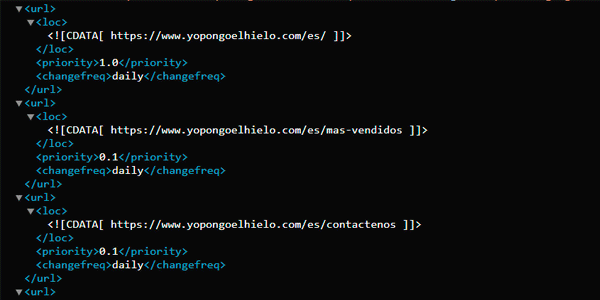
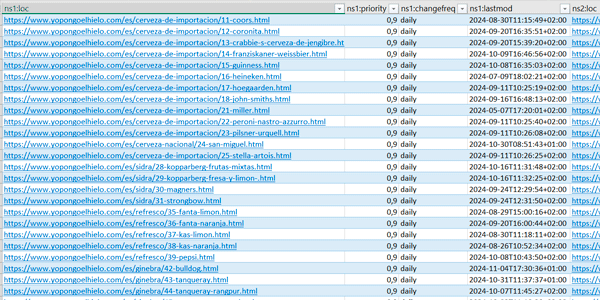
Even if it looks like this, think of it as an Excel file where each row shows a record and each column shows that record’s value for a given characteristic.
In fact, you can open it with Excel:
Well, as I was saying, that file should contain all the URLs on our website that we want Google to crawl.
That distinction matters, because there may be URLs we do not want indexed for whatever reason (legal notices, the user’s customer area) and they should not appear in the sitemap.
This file has to be uploaded to our server. Once it is there (all CMSs have ways to generate it), we will submit its URL to Google Search Console so Google’s crawler can start crawling it.
Now that you know what it is, I will explain how to analyze it.
Process for Analyzing a Sitemap
I am going to use Screaming Frog, probably the most powerful tool available for on-page SEO work.
So, first of all, install it on your computer.
Once you have it, I will explain how to carry out the three necessary steps.
#1. Find the Sitemap URL
To analyze a sitemap, the first thing is to get hold of it.
And if it is our website or a project we manage, we can always go to GSC.
But if we want to analyze a competitor’s sitemap (yes, you can do that too), we have to find it.
To do this, we open its robots.txt.
That file is located at the root of the domain. Example:
https://www.yopongoelhielo.com/robots.txt
When we access it, we will see something like this:
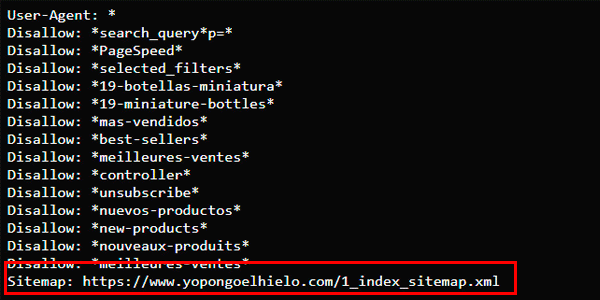
That is where the URL we need will be.
We copy it and open Screaming Frog.
#2. Screaming Frog Configuration
Here we are going to change two things.
The first is optional and I have not actually seen it change the results, but I do it out of habit.
I mean opening the configuration and, in the “User-Agent” section, we select Googlebot (Smartphone), to emulate Google’s crawler:
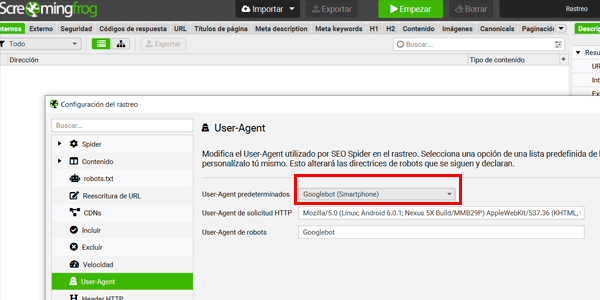
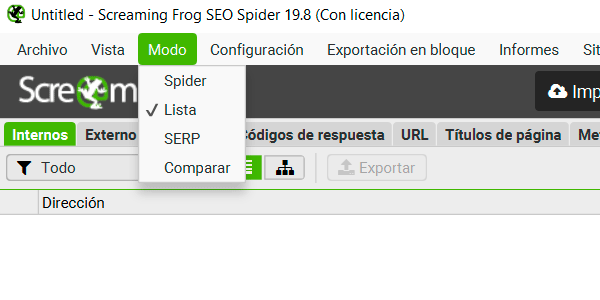
The second is mandatory and consists of setting Screaming Frog to list mode, so it only crawls the sitemap URLs and no others:
#3. Import the Sitemap
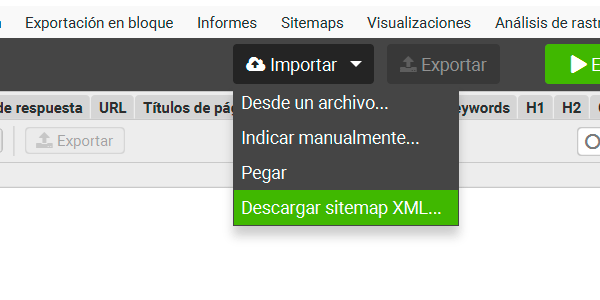
Now click Import and then “Download XML Sitemap”:
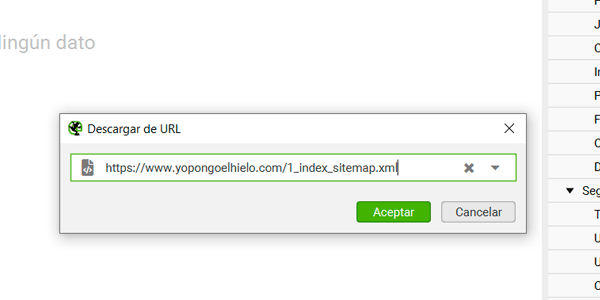
Paste the sitemap URL we copied from robots.txt into the program:
Once we confirm, the program will start crawling the sitemap URLs:
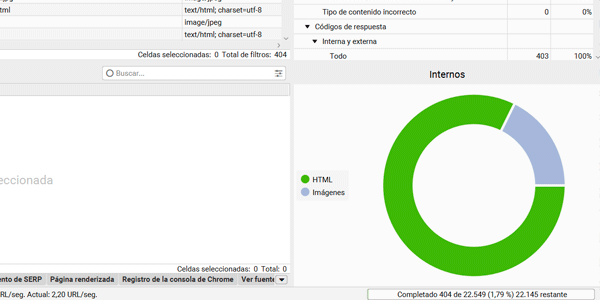
One thing: if the URL we have provided is a “sitemap of sitemaps”, in other words, an “index” sitemap containing other sitemaps (very common if you use the Yoast SEO plugin in WordPress to generate it), the program may ask whether we want to process all the URLs, to which we will answer yes.
The preparations are now complete.
Once Screaming Frog has finished processing the entire sitemap, the real analysis begins.
Insights and Points to Analyze
Once the tool has collected the information, we will be able to answer certain SEO-relevant questions.
How Many URLs Are in the Sitemap?
Screaming Frog tells you:
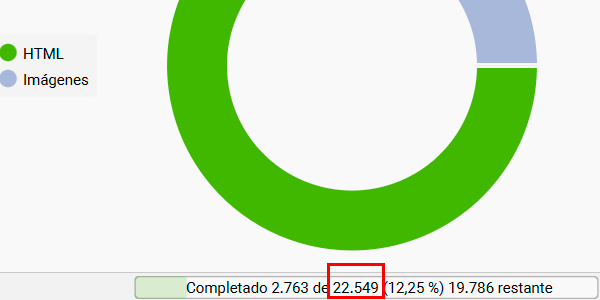
It is useful to compare this figure, for example, with the number of URLs indexed in Google, which we obtain from Google Search Console:
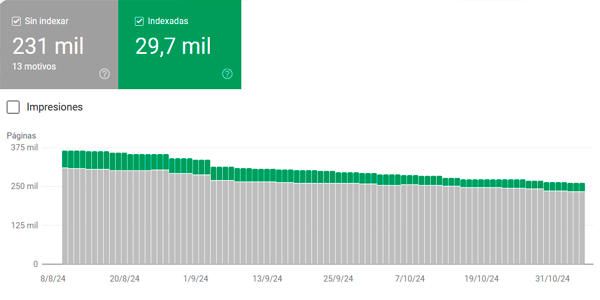
If there are differences –and there usually are– we will have to find the reason. And determine whether those differences are correct or not.
By the way, the recommendation is for each sitemap to contain up to 1,000 URLs. If your website has more, the ideal solution is to create several sitemaps, accessed from the main one.
Although, to be honest, unless I see indexing problems in GSC, I do not do it.
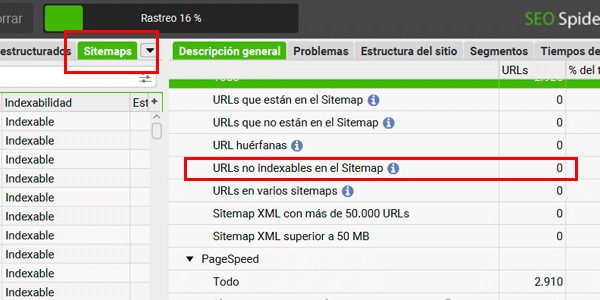
Are There Non-Indexable URLs in the Sitemap?
All URLs in the sitemap should be indexable. In fact, getting URLs indexed is the basic purpose of sitemaps, so we should not include any “non-indexable” ones.
Screaming Frog will flag any that exist:
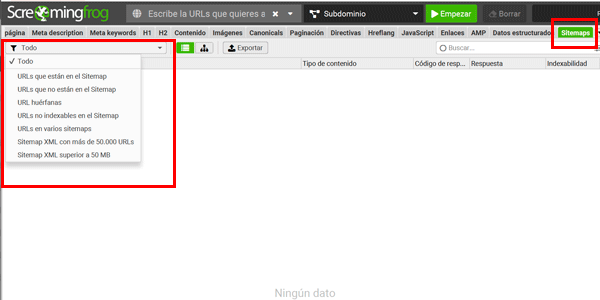
Another way to view this data, and some of the data we will examine, is through the sitemap-specific menu:
Does It Contain URLs Blocked in robots.txt or Canonicalized URLs?
This column will show whether either of these cases occurs, which it should not.
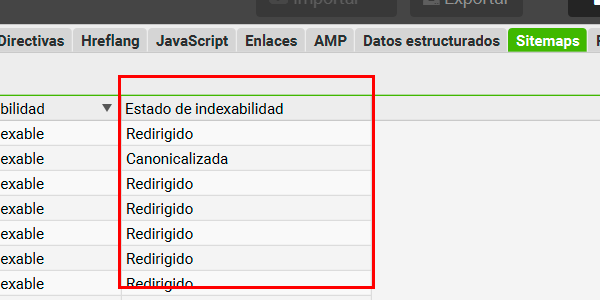
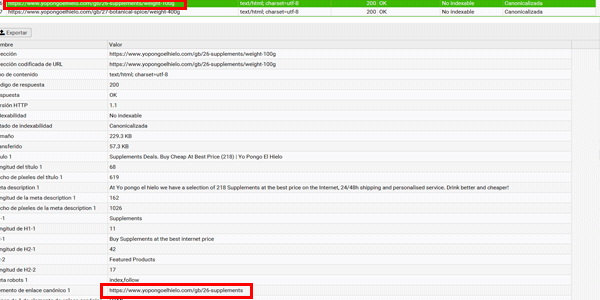
By the way, when we talk about “canonicalized” URLs, we mean sitemap URLs whose “canonical” meta tag points to a different URL. Only the latter should appear in the sitemap.
If we see a URL of this type, we only have to click it for the tool to show us the canonical URL (the one that should appear in the sitemap):
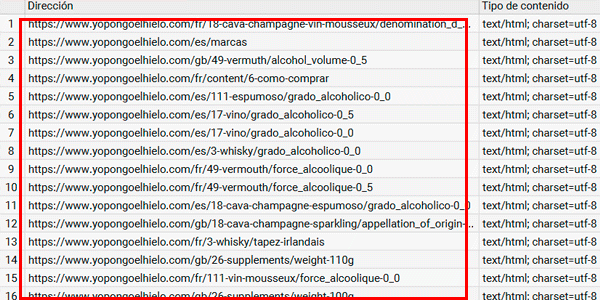
Are There Paginated Pages?
By paginated pages I mean page 2 and subsequent pages that appear in product listings on an ecommerce site or in article listings on any blog.
None of them should be in the sitemap.
To check this, we look at this column and visually check that none exist:
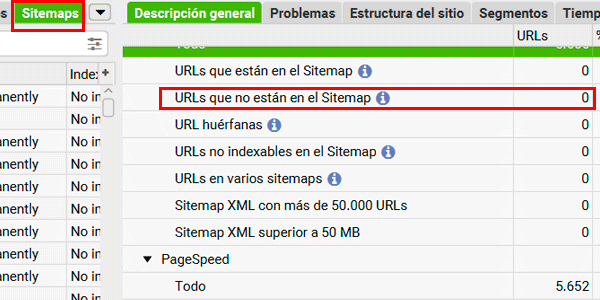
Are There Orphan Pages?
An orphan page is one that has no links pointing to it from other pages on the website.
In other words, it can only be accessed if you know the URL, so these are not relevant pages for your website.
A page that appears in the Sitemap is supposed to be important, so we should not add any orphan pages here.
We can check that there are none here:
Are There Any 301s or 404s?
These are two response codes returned by the server when a resource, such as a web page, is requested.
We can see the code values for each sitemap URL here:
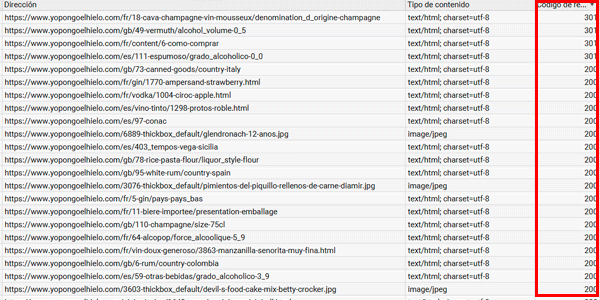
Codes 301 are redirects.
The sitemap should contain only the final URLs, because redirects waste extremely valuable time for Google’s bot.
Codes 404 are error codes caused by URLs that do not exist. Obviously, there should be none in our sitemap.
Page Relevance
So far, we have looked at errors.
What remains to be analyzed on large websites is whether all the pages included are relevant, or whether it would be worth “pruning” our sitemap a little so Google’s crawler does not “go off on a tangent” (pun very much intended).
At this point, it is up to you (or your SEO specialist) to decide whether to exclude URLs.
As you can see above, the Yo pongo el hielo sitemap has 22k URLs, while Google has indexed 30k and crawled but not indexed 230k, which is 11 times more:
All those URLs are secondary for us and we do not want them appearing in Google’s SERPs at the expense of worsening the rankings of others that absolutely should appear.
So, among other things, we leave them out of the sitemap.
With this example, I hope it is clear how to fine-tune your sitemap.
And with that, we have covered the analysis points you should check in your website’s sitemap to keep it in shape.
It was not such a big deal, was it?
Conclusions
Throughout the article, you have seen how to analyze your website’s sitemap and the aspects you need to review.
I hope you take away the idea that analyzing a website’s sitemap is not complicated at all (fixing it is another matter, of course).
The process involves just three steps and the tool takes care of everything. Nor are there too many points to analyze…
If only every aspect of managing a website were this simple…
In any case, every week I publish an article about digital business topics, some easier and some harder, as you would expect.
You can receive a new one by email every Thursday by subscribing here.

Leave a Reply